









How to use TeamsMaestro meeting notes in Copilot and Claude
TeamsMaestro meeting notes are now available inside Copilot and Claude, so you can ask questions and get grounded drafts without leaving your AI assistant.
TeamsMaestro MCP lets you use your meeting notes inside the AI assistants where you already work. Connect your TeamsMaestro history to Copilot or Claude, then ask questions, find relevant calls, and turn meeting context into useful drafts without moving notes between tools.
Your meeting context should travel with you
Meetings hold the decisions, commitments, and customer context that shape your work. But when it is time to prepare an update or write an email, that information is often trapped across notes and summaries.
TeamsMaestro MCP closes that gap. It gives supported AI assistants access to your TeamsMaestro meeting records, so they can search for the right conversations and use the available notes to help with the task at hand.
That means you can start with a practical request such as summarizing last month’s sales calls for your manager. The assistant can find relevant meetings, review the available context, and draft the update in the same conversation.
Add TeamsMaestro to Copilot
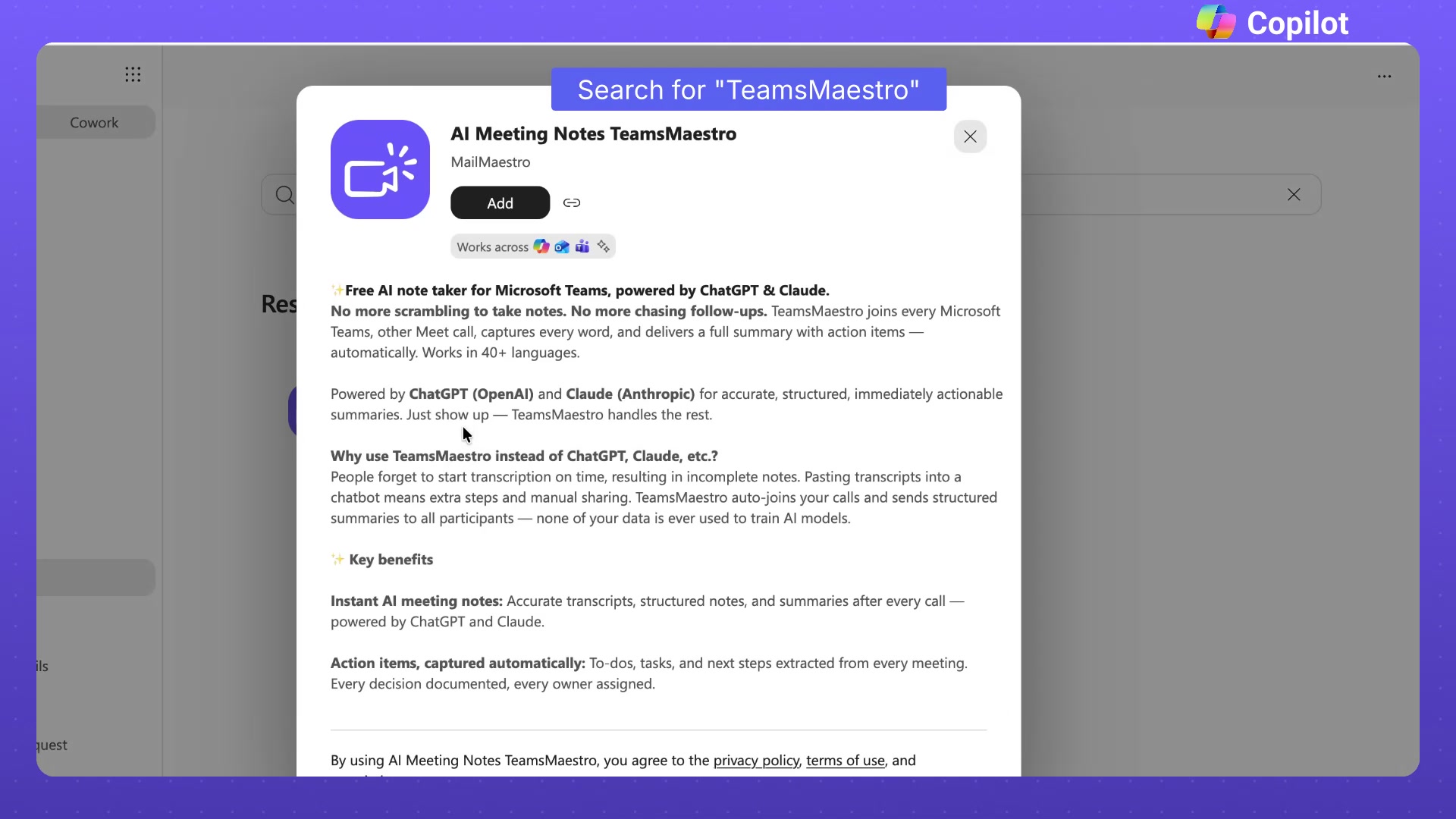
TeamsMaestro is available in Copilot as the AI Meeting Notes TeamsMaestro agent. You can add it from the Agent Store in a few steps.
- Open Copilot and select More agents.
- Search for TeamsMaestro.
- Open AI Meeting Notes TeamsMaestro.
- Select Add, then open the agent to start a conversation.
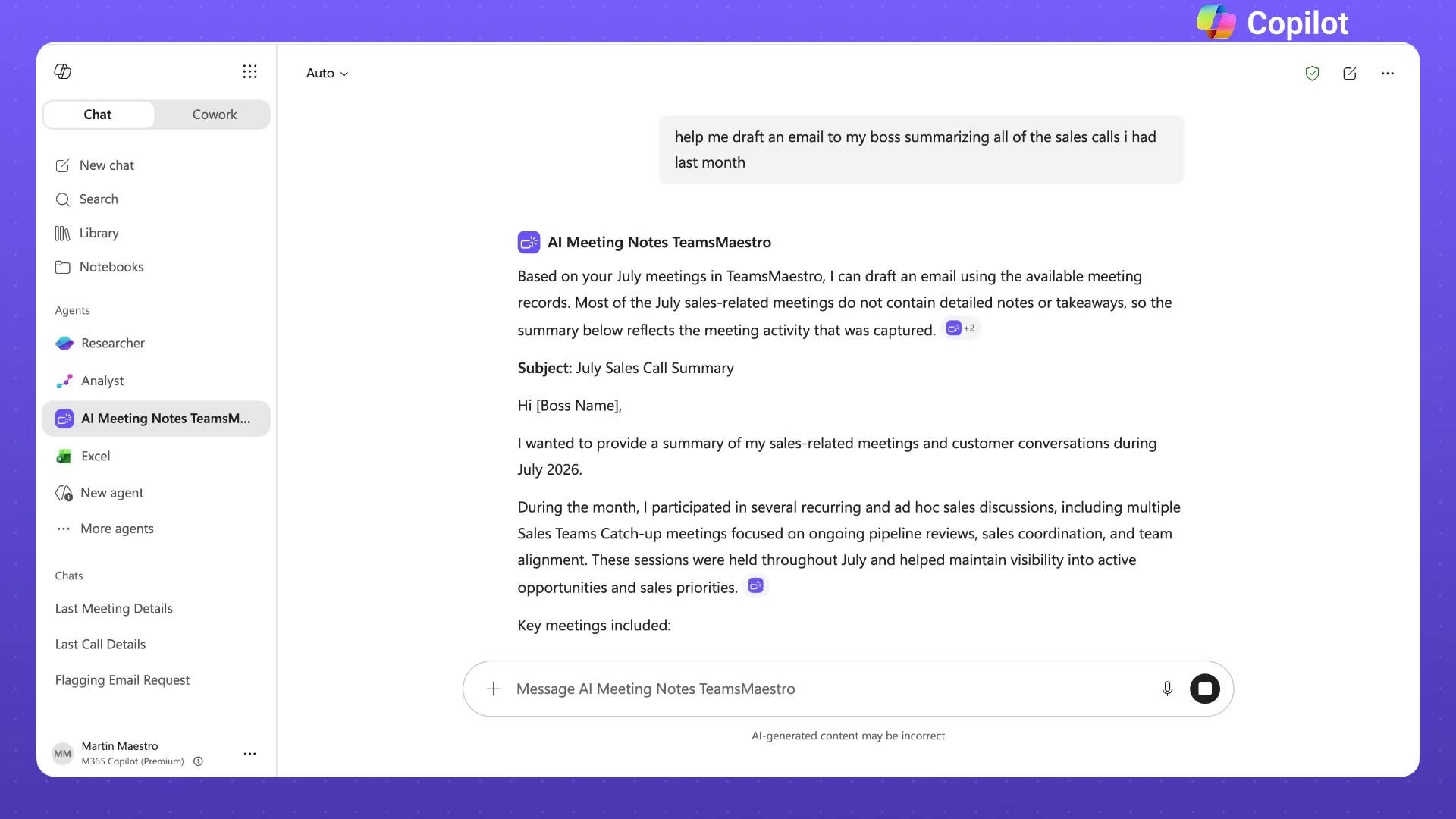
Once the agent is ready, ask for the outcome you need in plain language. For example, you might ask it to draft an email to your manager summarizing all the sales calls you had last month.
Copilot can use the available TeamsMaestro records to build the draft. In the example, it created a sales call summary with a subject line, a concise opening, and a recap of the captured sales discussions. It also noted that some meetings did not contain detailed notes or takeaways, so the draft stayed clear about the limits of the available source material.
Connect TeamsMaestro to Claude
In Claude, TeamsMaestro is available through the connector directory.
- Open your profile menu and select Settings.
- Select Connectors.
- Open the connector directory and search for TeamsMaestro.
- Open AI TeamsMaestro and select Connect.
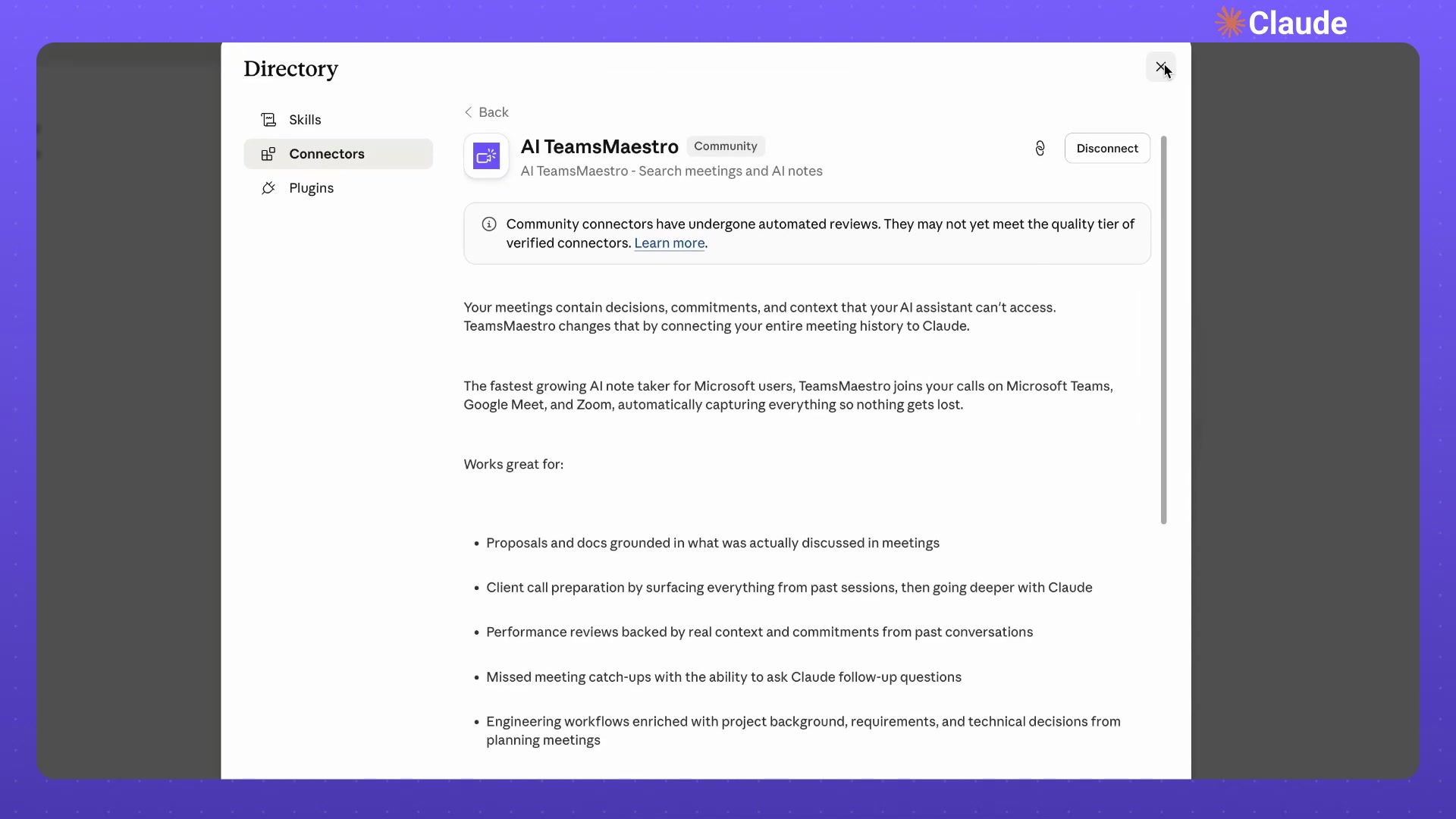
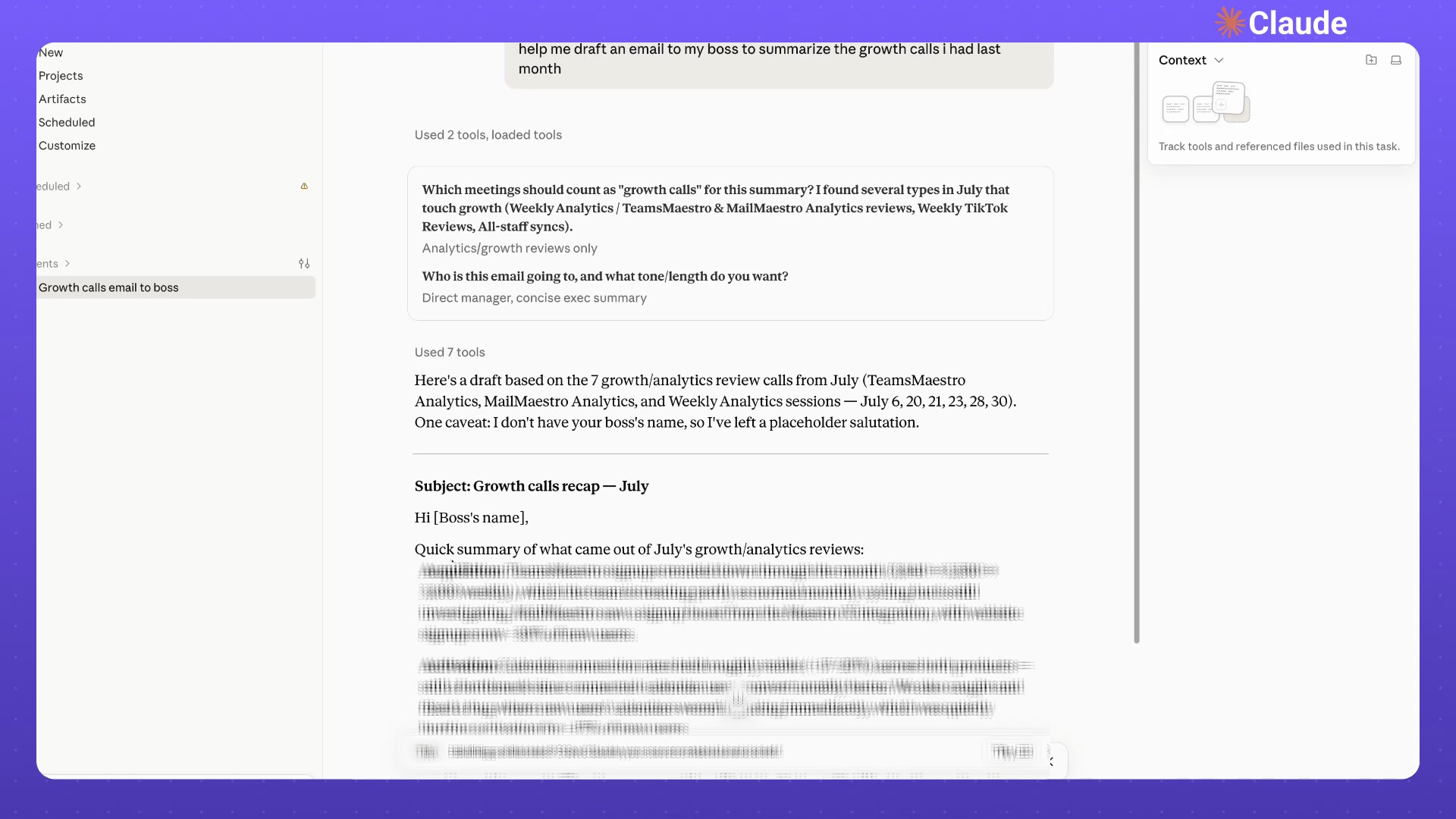
Once connected, Claude can bring your TeamsMaestro meeting history directly into the conversation. Ask for an update, email, or briefing, and Claude can find the relevant meetings, review the available notes, and use that context to shape a useful first draft.
This is especially valuable for broad requests. If a phrase such as ‘growth calls’ could refer to several meeting groups, Claude can help narrow the scope and tailor the output to its audience. With the focus set to ‘analytics and growth reviews’ and the audience set to a ‘direct manager’, the result is a concise executive email grounded in several relevant calls.
Turn meeting history into useful work
The value of TeamsMaestro MCP is not simply finding an old note. It is being able to use meeting context as part of a larger task.
You can ask your AI assistant to identify the right meetings, summarize a set of conversations, clarify the scope, and shape the result for a specific audience. The same workflow can help you prepare a manager update, recap customer calls, or create a focused briefing from recent discussions, as long as the necessary context exists in your TeamsMaestro records.
Work with the AI assistant you prefer
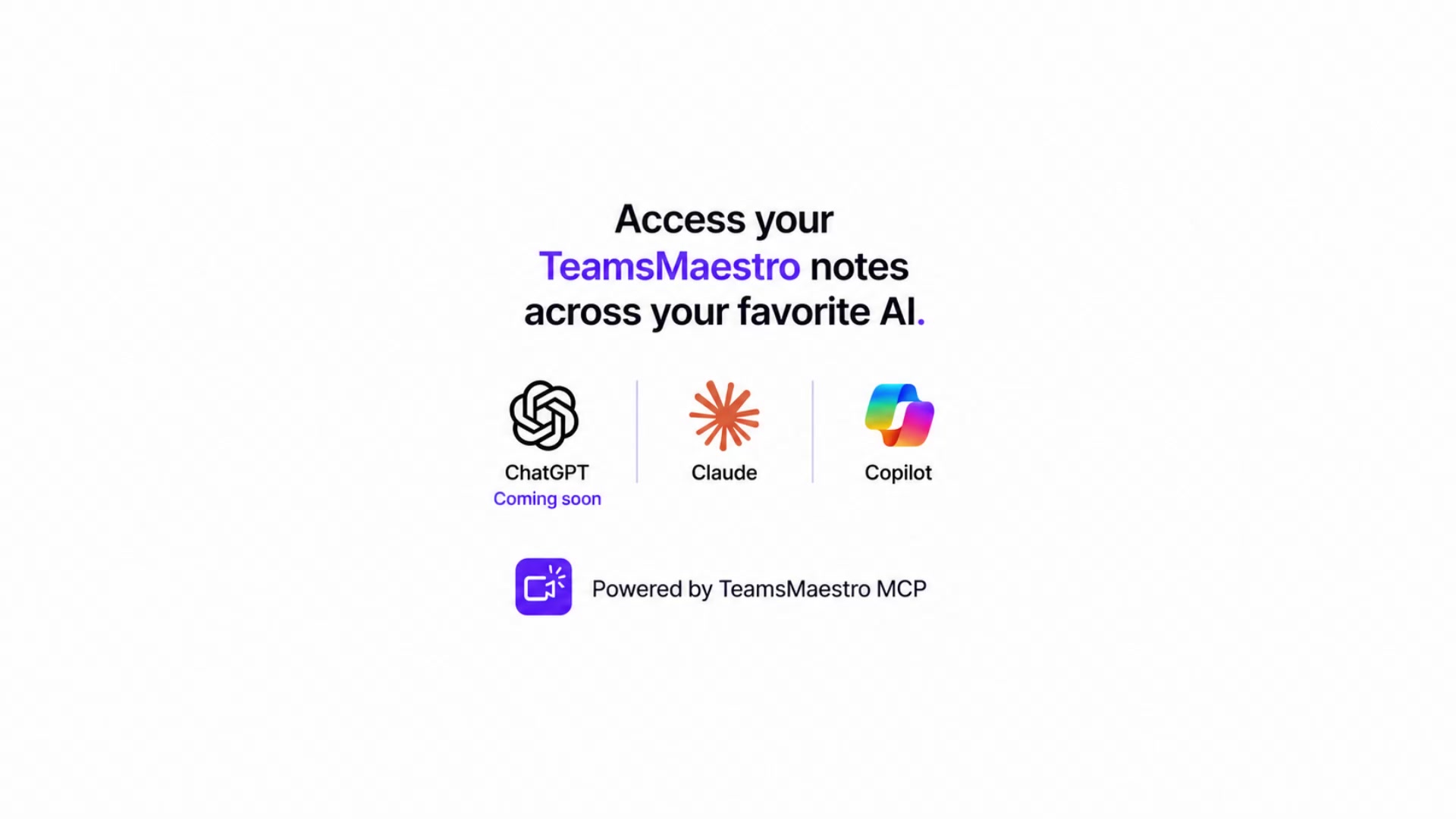
TeamsMaestro MCP is currently shown for Claude and Copilot, with ChatGPT marked as coming soon. This gives you a direct path from your meeting notes to the AI workspace that best fits your day to day work.
Try TeamsMaestro MCP today
Connect TeamsMaestro in Claude or add the AI Meeting Notes TeamsMaestro agent in Copilot. Then start with a real task, such as drafting an email from last month’s customer calls, and let your meeting context do more of the work.
Languages we support
TeamsMaestro currently supports a wide range of languages for meeting summaries, transcripts, and AI responses — from English and Spanish to French, German, and many more. Our goal is to make every team’s communication experience seamless and inclusive, no matter the language.


If your preferred language isn’t supported yet, we’d love your feedback! Email us at feedback@maestrolabs.com to request new languages or share examples of what you’d like to see. Your input helps us shape the next updates of TeamsMaestro.
Final thoughts
Meeting summaries are no longer one-size-fits-all. With the Language and Template buttons in TeamsMaestro, you can create tailored, polished notes in seconds. Use these tools to communicate clearly, reduce follow-up work, and keep everyone aligned, wherever they are and however they work.
Languages we support
MailMaestro currently supports a growing range of languages for composing, summarizing, and improving your emails. From English and Spanish to French, German, and beyond — we’re expanding our capabilities to make AI communication accessible for everyone.
If your preferred language isn’t available yet, we’d love to hear from you! Email us at feedback@maestrolabs.com to request new language support or share specific examples. We’re continuously improving with your input.