
 MailMaestro pricing
 TeamsMaestro pricing






How to set default summary templates in TeamsMaestro
Set your preferred meeting summary template once in TeamsMaestro settings and every future meeting note will automatically use that format.
TeamsMaestro can now use your preferred meeting summary template by default, so every automatic meeting note starts with the format that fits your workflow. Set it once in your meeting notes settings, and TeamsMaestro will apply that template to future notes automatically.
Why default templates matter
Every meeting has a different job. A sales call needs a different summary than a standup, a customer support call, or an internal team meeting. When the summary format matches the meeting, notes become easier to scan, easier to share, and easier to act on.
Default summary templates help remove the extra manual step from that process. Instead of choosing a format each time notes are created, TeamsMaestro lets you pick the template you want to use going forward.
What you can set in meeting notes
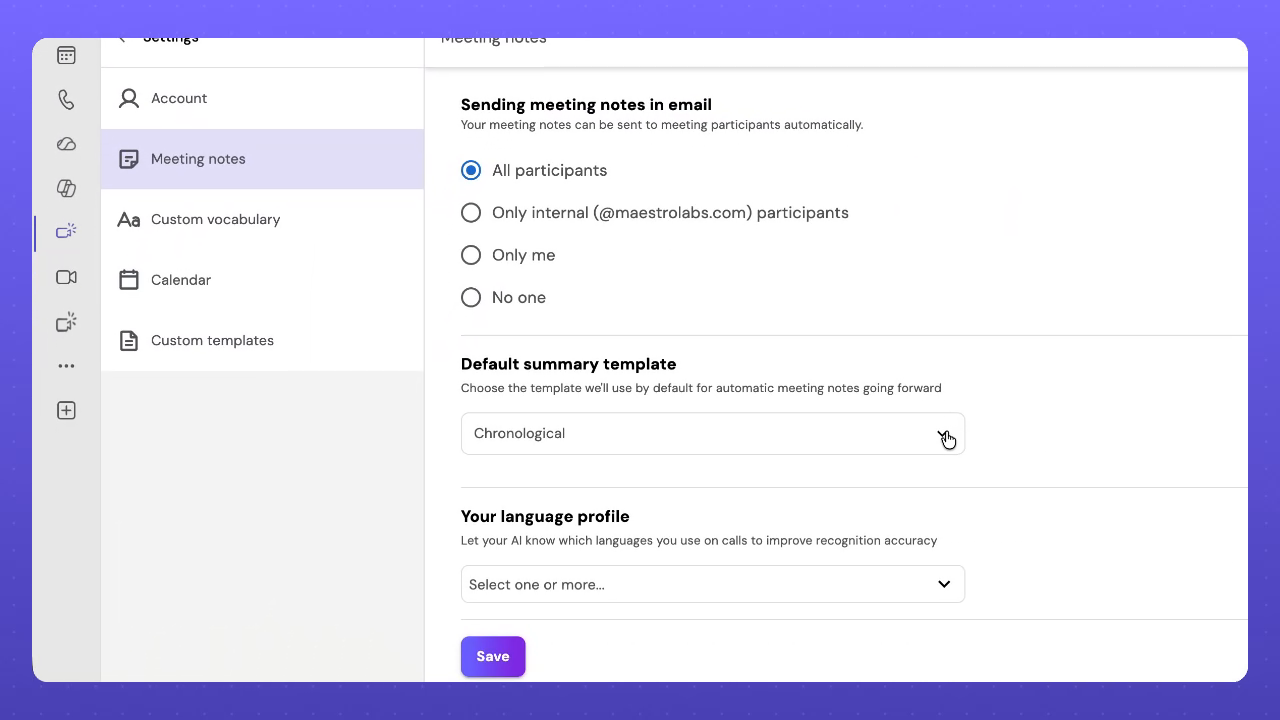
The meeting notes settings page gives you a few simple controls for how automatic notes should work.
First, you can decide who receives meeting notes by email. TeamsMaestro includes options for all participants, only internal participants, only me, or no one. This gives you control over whether notes are shared broadly, kept inside your organization, sent only to you, or not sent automatically.
Then you can choose the default summary template. This is the format TeamsMaestro will use for automatic meeting notes going forward.
You can also set your language profile. This lets your AI know which languages you use on calls, which can help improve recognition accuracy.
Choose the template that fits your workflow
The template menu includes ready made formats for common meeting types, including Basic Summary, Chronological, 1 on 1, Standup, Interview, Sales MEDDPICC, Sales BANT, Customer Success, and Town Hall Meeting.
TeamsMaestro also supports custom templates. In the template list, custom options appear alongside the standard formats, including examples like Internal Team Meeting Template, Sales Discovery Call Template, Customer Support Call Template, Customer Feedback Template, and Sales Demo Call Template.
That means your default does not have to be generic. You can choose a standard structure for everyday meetings, or use a custom template that reflects how your team already documents calls.
How to set a default summary template
You can set your default template from TeamsMaestro settings.
- Open TeamsMaestro settings.
- Go to Meeting notes.
- Choose who should receive meeting notes by email.
- Open the Default summary template menu.
- Select the template you want TeamsMaestro to use automatically.
- Add languages in your language profile if you use more than one language on calls.
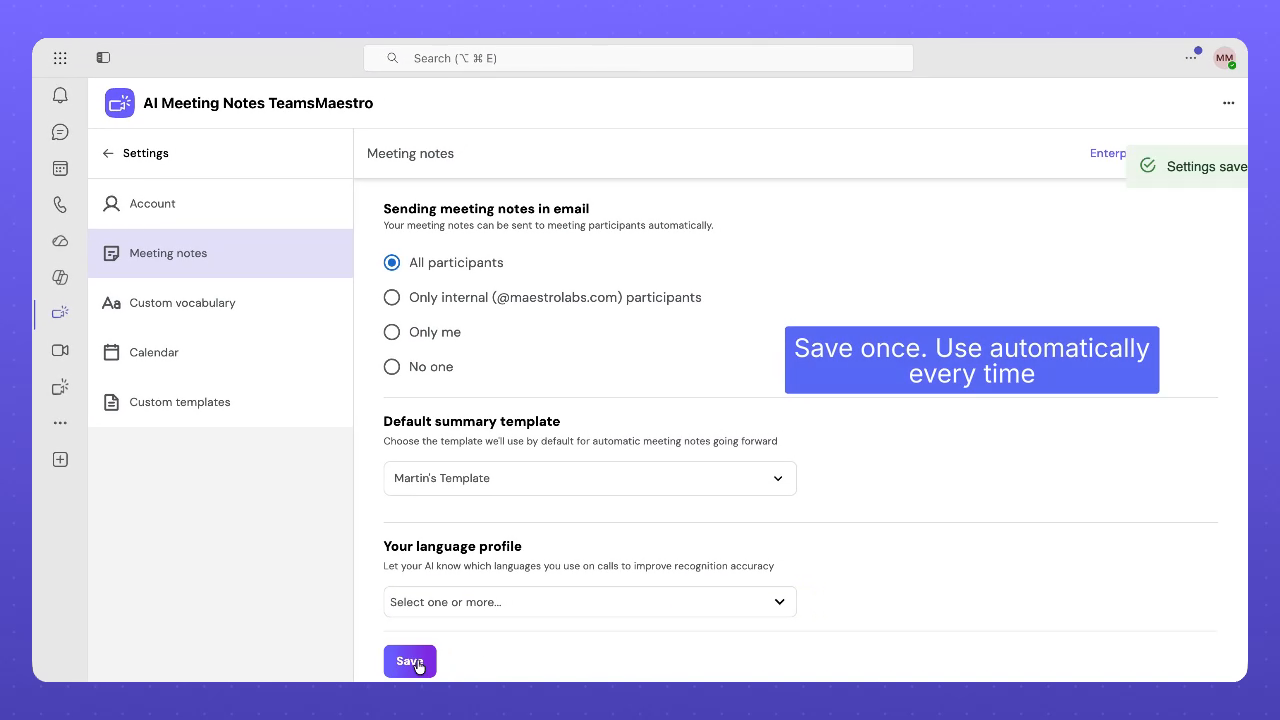
- Click Save.
Once the setting is saved, TeamsMaestro confirms the change and uses your selected template automatically the next time notes are created.
When to use a custom default
A custom default is especially useful when your team has a repeatable meeting format. For example, a sales team may want discovery calls summarized around qualification details. A support team may want customer calls organized around issues, decisions, and next steps. An internal team may want recurring syncs captured in a structure everyone already recognizes.
By setting that template once, your team can get more consistent notes without reformatting every summary after the meeting.
Why this matters
Meeting notes are most useful when they are easy to read and ready for the next action. Default templates make that easier by giving TeamsMaestro a preferred structure before the notes are created.
The result is less manual cleanup, more consistent summaries, and fewer moments spent changing the same setting again and again. Your notes start closer to the format you need, so you can move faster from meeting discussion to follow through.
Try it today
Default summary templates are available in TeamsMaestro now. Open your meeting notes settings, choose the template that fits your workflow, and save it once so TeamsMaestro can use it automatically every time.
Languages we support
TeamsMaestro currently supports a wide range of languages for meeting summaries, transcripts, and AI responses — from English and Spanish to French, German, and many more. Our goal is to make every team’s communication experience seamless and inclusive, no matter the language.


If your preferred language isn’t supported yet, we’d love your feedback! Email us at feedback@maestrolabs.com to request new languages or share examples of what you’d like to see. Your input helps us shape the next updates of TeamsMaestro.
Final thoughts
Meeting summaries are no longer one-size-fits-all. With the Language and Template buttons in TeamsMaestro, you can create tailored, polished notes in seconds. Use these tools to communicate clearly, reduce follow-up work, and keep everyone aligned, wherever they are and however they work.
Languages we support
MailMaestro currently supports a growing range of languages for composing, summarizing, and improving your emails. From English and Spanish to French, German, and beyond — we’re expanding our capabilities to make AI communication accessible for everyone.
If your preferred language isn’t available yet, we’d love to hear from you! Email us at feedback@maestrolabs.com to request new language support or share specific examples. We’re continuously improving with your input.