

 MailMaestro pricing
 TeamsMaestro pricing






Meet WordMaestro, your AI writing companion for Microsoft Word
WordMaestro brings AI writing assistance directly into Microsoft Word's sidebar
WordMaestro brings Maestro Labs AI directly into Microsoft Word, so you can improve a document without leaving the page you are working on. It helps you review text, rewrite selected sections, apply tracked changes, turn dense notes into a table, and add comments that make the next round of editing easier.
Long documents usually create two kinds of work. First, you have to make the writing clearer. Then, you have to organize the details so other people can review and act on them. This often means jumping between tools, rewriting paragraphs manually, building tables from scratch, and leaving comments one by one.
WordMaestro is built for this exact moment. It gives you a document aware assistant inside Word, ready to help with the writing and structure while keeping the document itself at the center of the workflow.
Edit your document without leaving Word
WordMaestro sits in the Word sidebar, next to the document you are editing. You can ask it to improve a selected passage, summarize content, check the document, or run a saved skill from the same workspace.
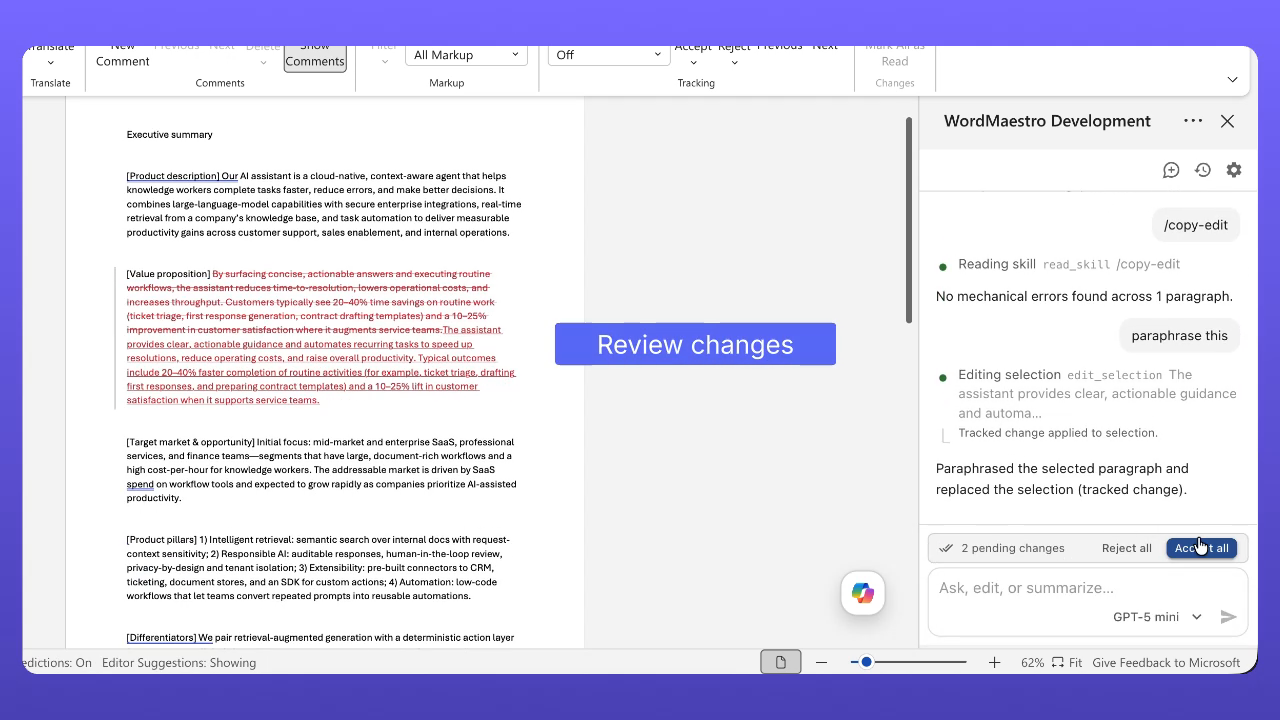
In the composer, you can write naturally. For example, when a paragraph needs to be more concise, you can select the text and ask WordMaestro to paraphrase it. WordMaestro reads the selected section, edits the wording, and applies the result back into the document as a tracked change.
This matters because AI editing should not feel like a separate copy and paste chore. The work stays where it belongs, in the Word document, with the review controls Word users already understand.
Review changes before they become final
For document editing, control matters just as much as speed. WordMaestro can apply edits as tracked changes, so you can inspect what changed before accepting anything.
In the example document, WordMaestro proofreads an executive summary and improves grammar, clarity, readability, and professional tone. It reviews multiple paragraphs, applies tracked edits, and then leaves the user with Word review controls such as accepting all changes or rejecting them.
That gives teams a cleaner way to use AI for business writing. The assistant can do the first editing pass, but the writer still decides what belongs in the final draft.
Turn long text into a structured table
WordMaestro can also help when a document has useful information but the format is hard to scan.
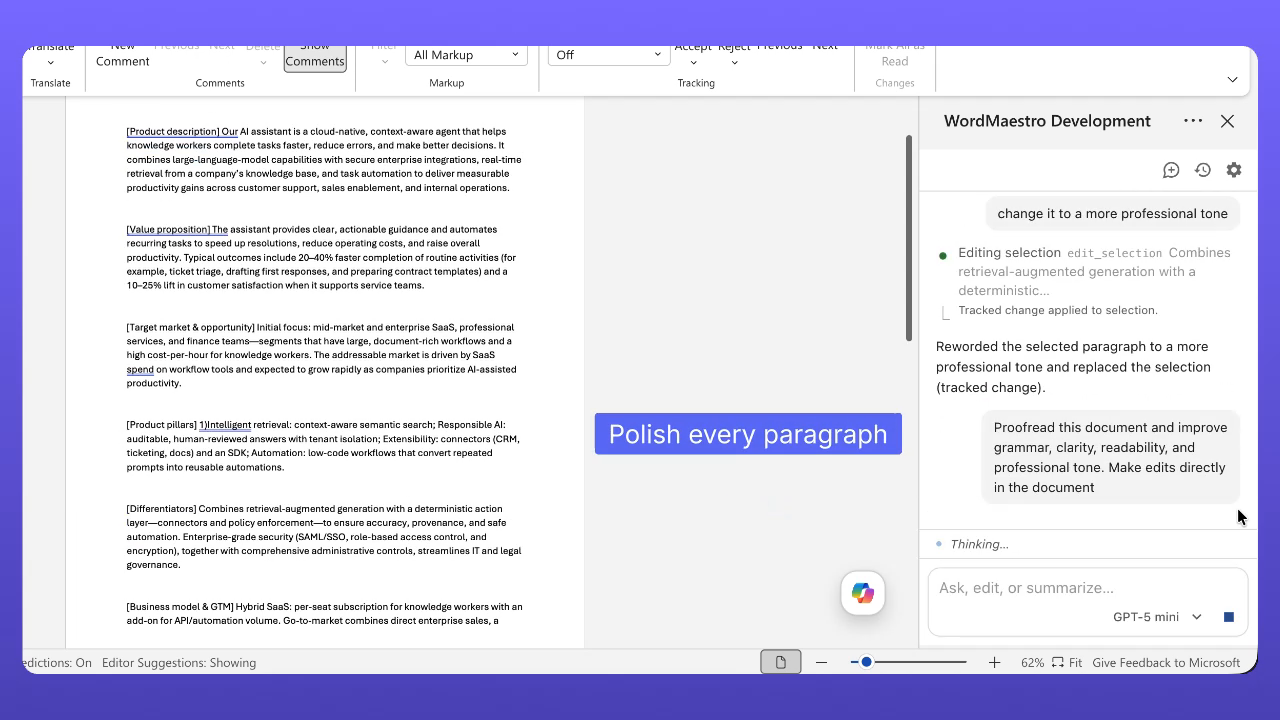
One practical example is turning a plain next step section into a table. Instead of manually copying lines into rows and columns, you can ask WordMaestro to make the text into a table. The result becomes a structured planning view with columns for the next step, owner, target date, status, and notes.
This kind of transformation is especially useful for project plans, meeting follow up, pilot plans, implementation notes, and any document where action items need to be clear at a glance.
Generate comments that help improve the draft
Good documents are not only about clean writing. They also need useful feedback.
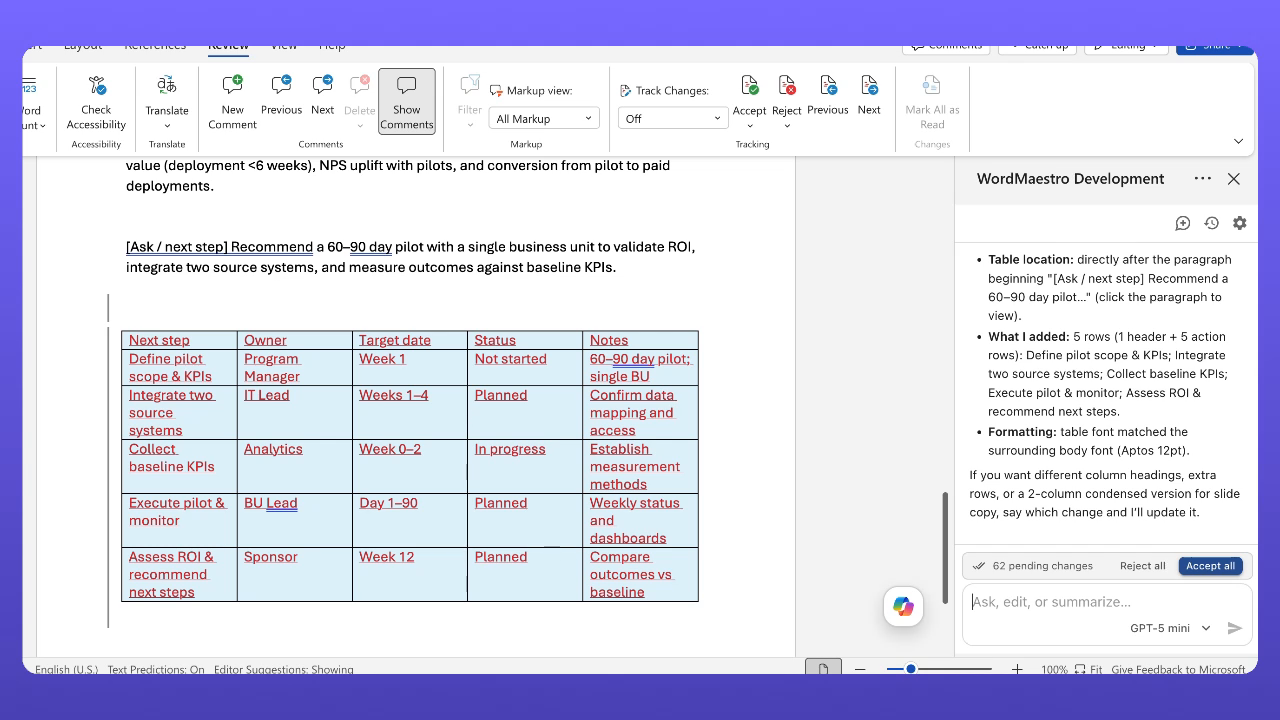
WordMaestro can add comments to selected content, helping reviewers point out what needs attention without manually writing every note from scratch. In a planning table, that could mean adding comments that highlight unclear ownership, missing timing, or places where the document needs stronger detail.
This is useful when you are preparing a draft for teammates, managers, or stakeholders. Instead of sending a document that only looks polished, you can also make the review process more focused.
Save repeat work with skills and instructions
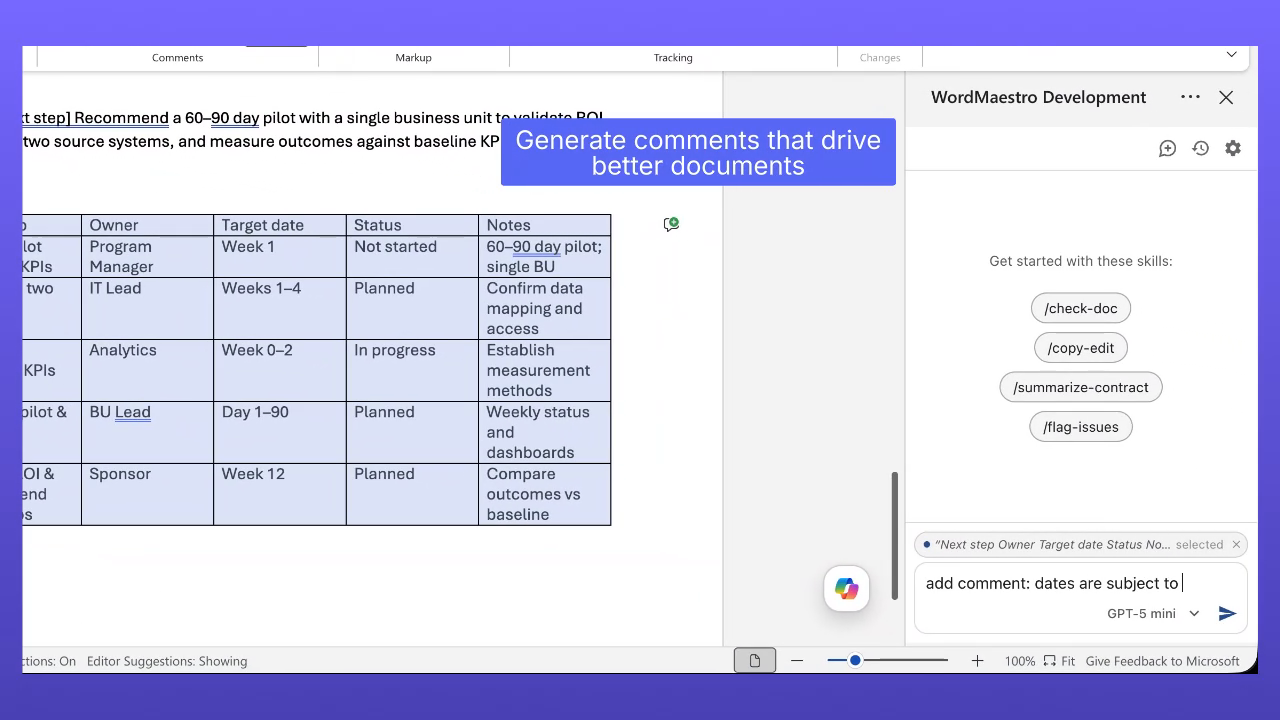
WordMaestro also supports reusable skills. The sidebar includes options such as check doc, copy edit, summarize contract, and flag issues. These are designed for repeat tasks that come up often in document work.
The settings area also includes instructions and skills, so teams can shape how WordMaestro helps with their writing. That makes it easier to keep common editing tasks consistent, whether you are cleaning up an executive summary, reviewing a contract style document, or turning notes into an organized plan.
How to use WordMaestro in a document
Here is the basic workflow:
- Open WordMaestro in Microsoft Word.
- Select the paragraph, section, or table you want to work on.
- Type what you need, such as paraphrase this, make me a table, add comments, or use a saved skill.
- Review the result in the document or in the WordMaestro sidebar.
- Accept, reject, or refine the changes before moving on.
The workflow is simple, but the payoff is big. You can move from rough text to clearer writing, from dense notes to structured information, and from a blank review pass to useful comments in the same document.
Why this matters
Most people do not need another writing tool that pulls them away from their document. They need help inside the document they are already responsible for finishing.
WordMaestro makes AI feel practical for everyday Word work. It can polish paragraphs, keep edits reviewable, organize information into tables, and help reviewers leave better comments. That means less manual formatting, less switching between tools, and a faster path from draft to useful document.
Interested in trying WordMaestro?
Sign up for the WordMaestro Beta Interest List to get an early preview of the tool, try it inside Microsoft Word, and share feedback that helps shape what we build next.
You'll get a chance to experience how WordMaestro brings Maestro Labs AI directly into Microsoft Word, making it easier to review, rewrite, organize, and improve documents without leaving the page you're working on.
The form takes about 2 minutes to complete.
We'd love to have you as part of the beta. Your feedback will help us build a better Word experience for everyone who creates, reviews, and collaborates on documents every day.
Languages we support
TeamsMaestro currently supports a wide range of languages for meeting summaries, transcripts, and AI responses — from English and Spanish to French, German, and many more. Our goal is to make every team’s communication experience seamless and inclusive, no matter the language.


If your preferred language isn’t supported yet, we’d love your feedback! Email us at feedback@maestrolabs.com to request new languages or share examples of what you’d like to see. Your input helps us shape the next updates of TeamsMaestro.
Final thoughts
Meeting summaries are no longer one-size-fits-all. With the Language and Template buttons in TeamsMaestro, you can create tailored, polished notes in seconds. Use these tools to communicate clearly, reduce follow-up work, and keep everyone aligned, wherever they are and however they work.
Languages we support
MailMaestro currently supports a growing range of languages for composing, summarizing, and improving your emails. From English and Spanish to French, German, and beyond — we’re expanding our capabilities to make AI communication accessible for everyone.
If your preferred language isn’t available yet, we’d love to hear from you! Email us at feedback@maestrolabs.com to request new language support or share specific examples. We’re continuously improving with your input.