

 MailMaestro pricing
 TeamsMaestro pricing






How to manage MailMaestro and TeamsMaestro in one dashboard
Find out how the new unified Maestro dashboard combines MailMaestro and TeamsMaestro into a single workspace.
The Maestro dashboard gives you one place to check MailMaestro activity, open TeamsMaestro meeting notes, manage email agents, and update account settings. Instead of jumping between separate product areas, you can move from email work to meeting work from the same workspace.
When your day is split between inbox follow up and meeting follow through, the small switches add up. You check which emails were labeled. You look for the meeting summary from last week. You adjust an email rule. You confirm whether the right account or calendar is connected.
The Maestro dashboard brings those everyday controls together so you can stay closer to the work that needs your attention.
Start with a clear overview
The dashboard opens with a simple overview for MailMaestro and TeamsMaestro. MailMaestro activity can show emails labeled and emails drafted, while TeamsMaestro activity can show time spent in meetings and AI summaries generated.
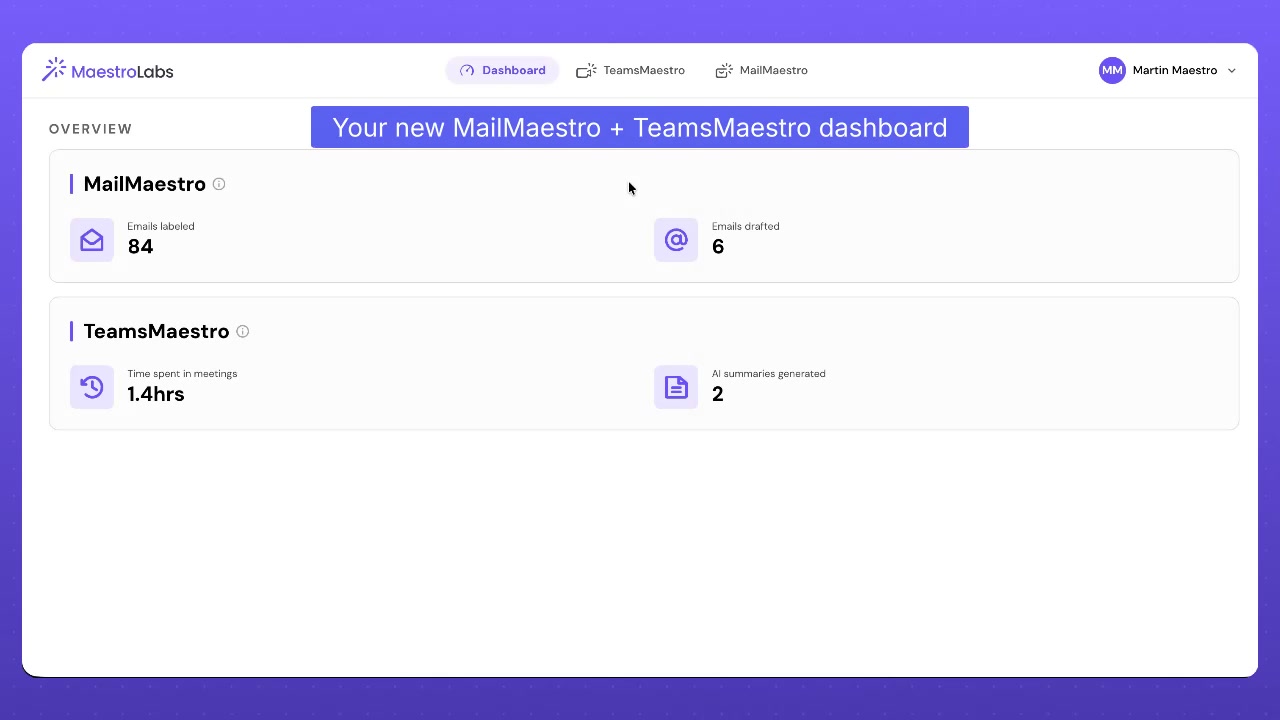
This gives you a quick read on how your assistants are working in the background. You can see email organization and draft activity in the same view as meeting summary activity, which makes the dashboard useful as a daily starting point.
The top navigation keeps the main areas close together. Dashboard, TeamsMaestro, and MailMaestro each have their own tab, so you can move between your meeting assistant and email assistant without opening separate tools.
Jump straight into meeting notes
TeamsMaestro is built into the dashboard experience, so meeting notes are easy to reach when you need them. The meeting view includes completed, upcoming, and skipped meetings, plus a search field for transcripts and participants.
Meeting notes are organized by time period, such as this week and last month, making it easier to find a specific call without scanning every transcript manually.
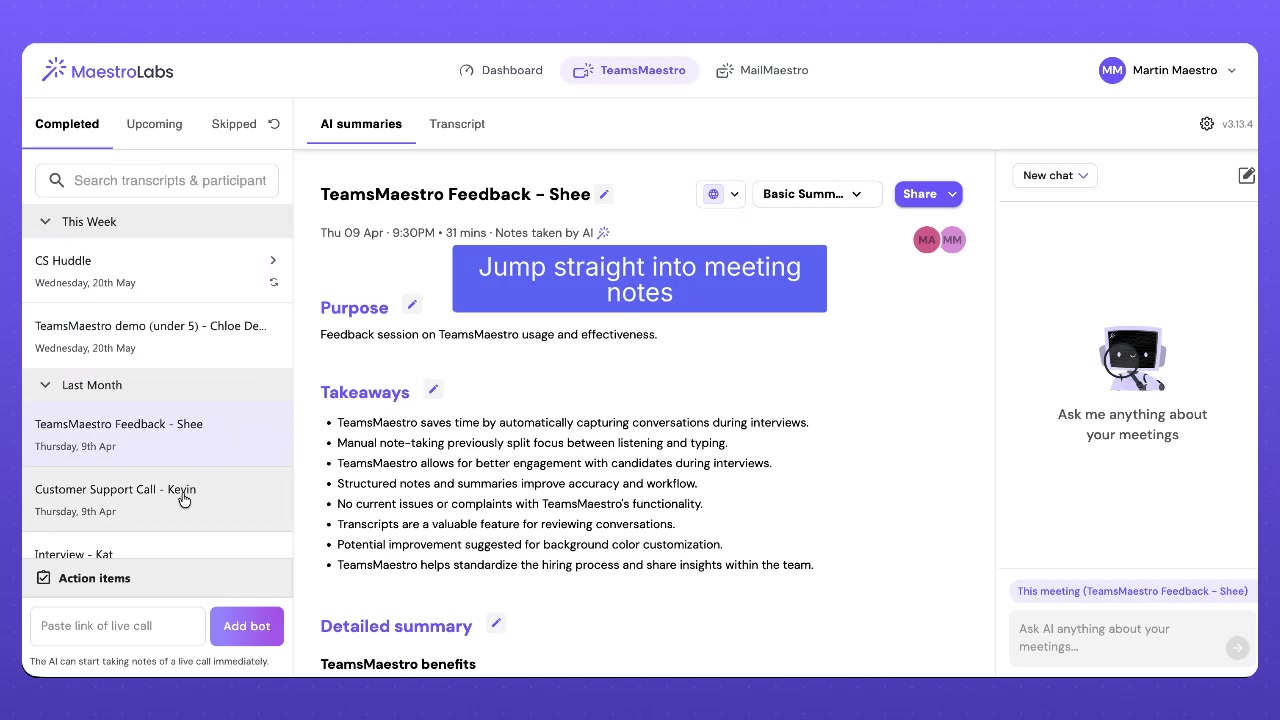
Inside a meeting note, the page keeps the essentials in one place. You can review the purpose, takeaways, and detailed summary, switch to the transcript, share the note, and use the Ask AI panel to ask questions about the meeting.
There is also an action items area and a field for adding a live call link with an "Add bot" button. This keeps TeamsMaestro useful both for reviewing past meetings and preparing to capture the next one.
Manage MailMaestro agents
MailMaestro settings are also available from the same dashboard. The agent section includes Auto labels and Auto drafts, both shown with active controls so you can manage whether they are running.
Auto labels help organize incoming email by assigning labels such as To respond, Internal update, FYI, Done, Meeting, Awaiting reply, Notification, and Marketing. Each label can have its own behavior, including keeping the email in the inbox, moving it to a folder, or archiving it.
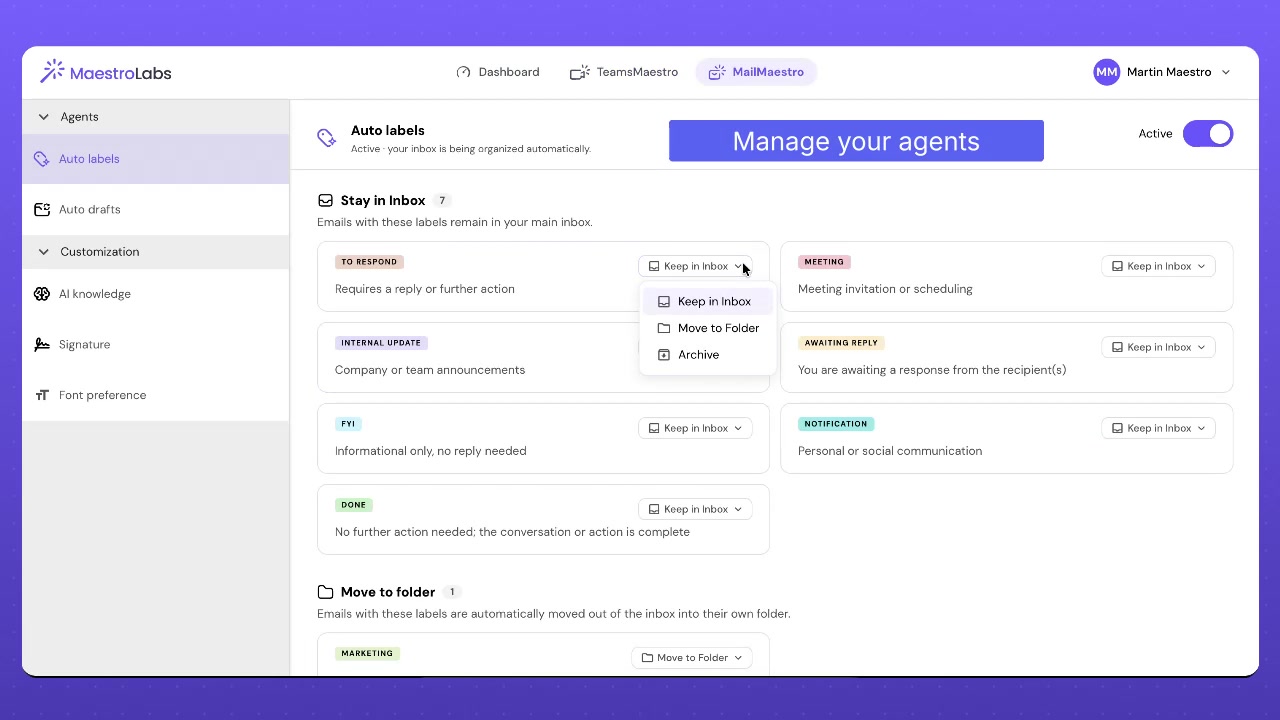
This makes the dashboard more than a status page. It gives you a practical way to decide what should stay visible and what can be filed away automatically.
Auto drafts has its own settings area. It can be turned on from the dashboard, and unused drafts can be removed automatically after a set number of days. The workflow is summarized in three simple steps: a new email arrives, a draft is generated, and you review and send it.
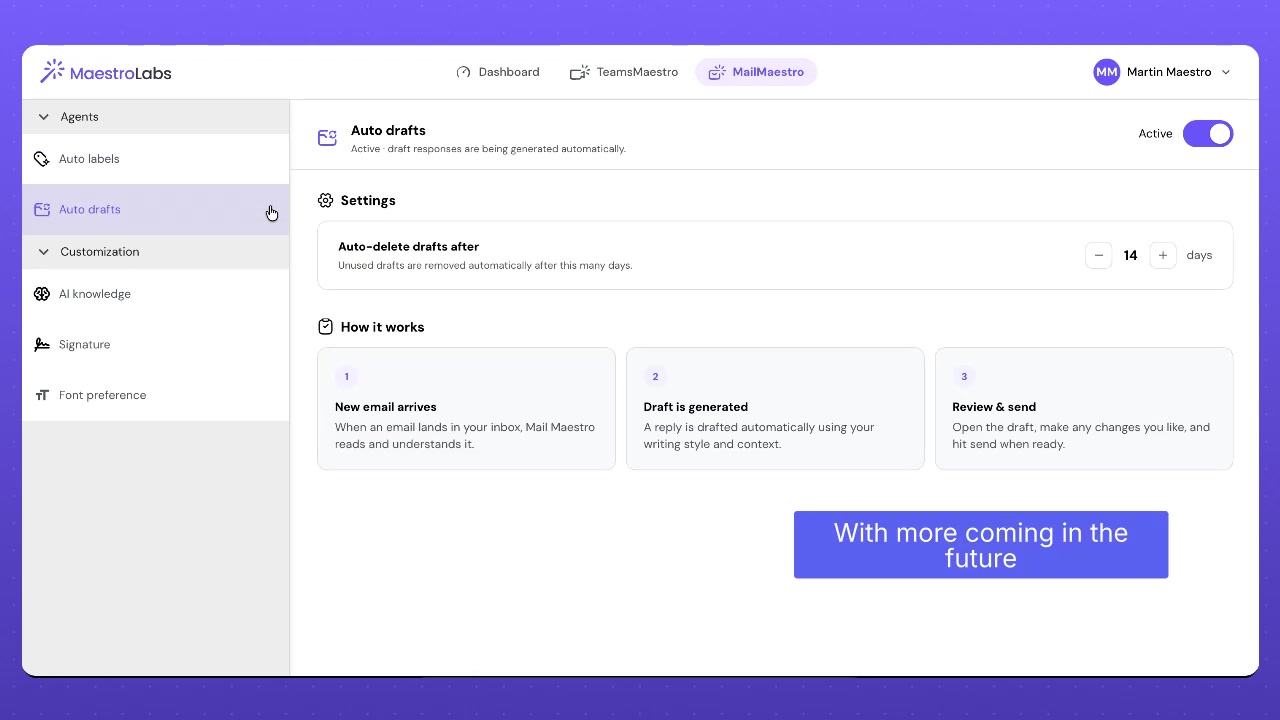
Together, Auto labels and Auto drafts support the same goal: less manual inbox sorting and faster response preparation.
Personalize how MailMaestro writes for you
The dashboard also gives you control over the details MailMaestro uses when writing. The AI knowledge area lets you add information MailMaestro should remember, such as your role, links you often attach, naming preferences, phrases to avoid, and style guidance.
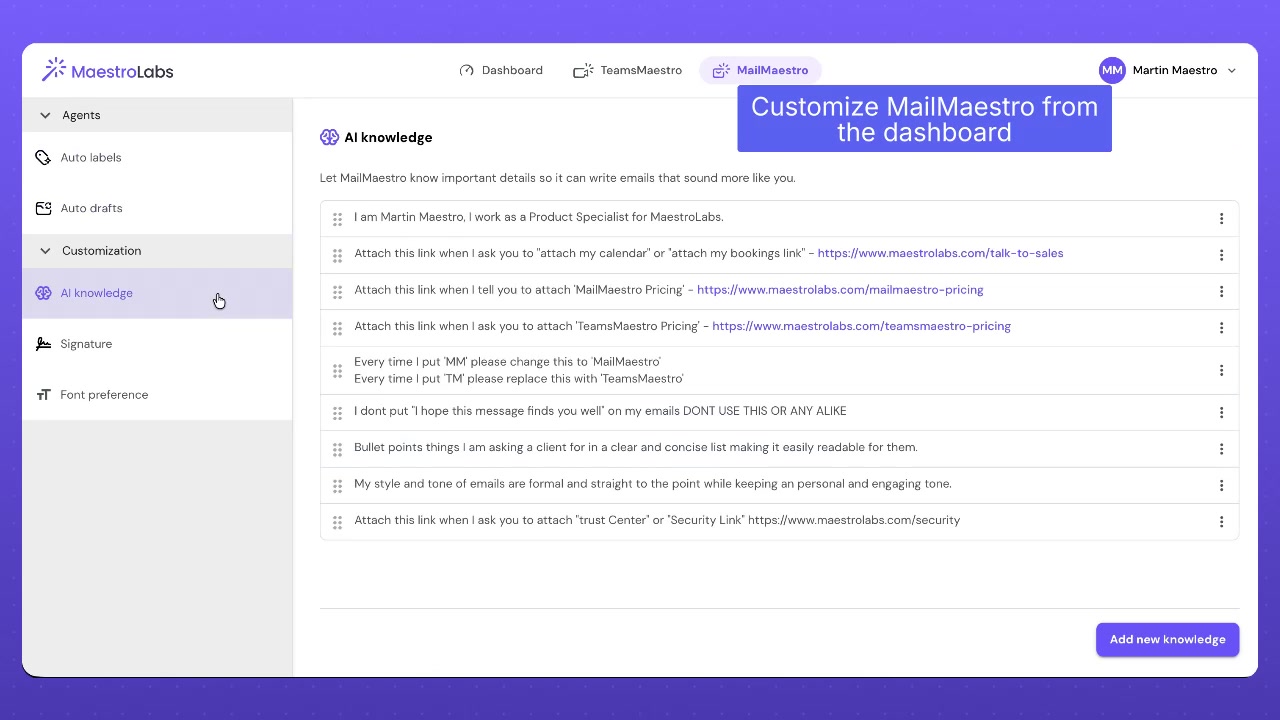
This is useful when you want generated emails to sound closer to how you actually communicate. Instead of repeating the same instructions every time, you can keep reusable context in one place.
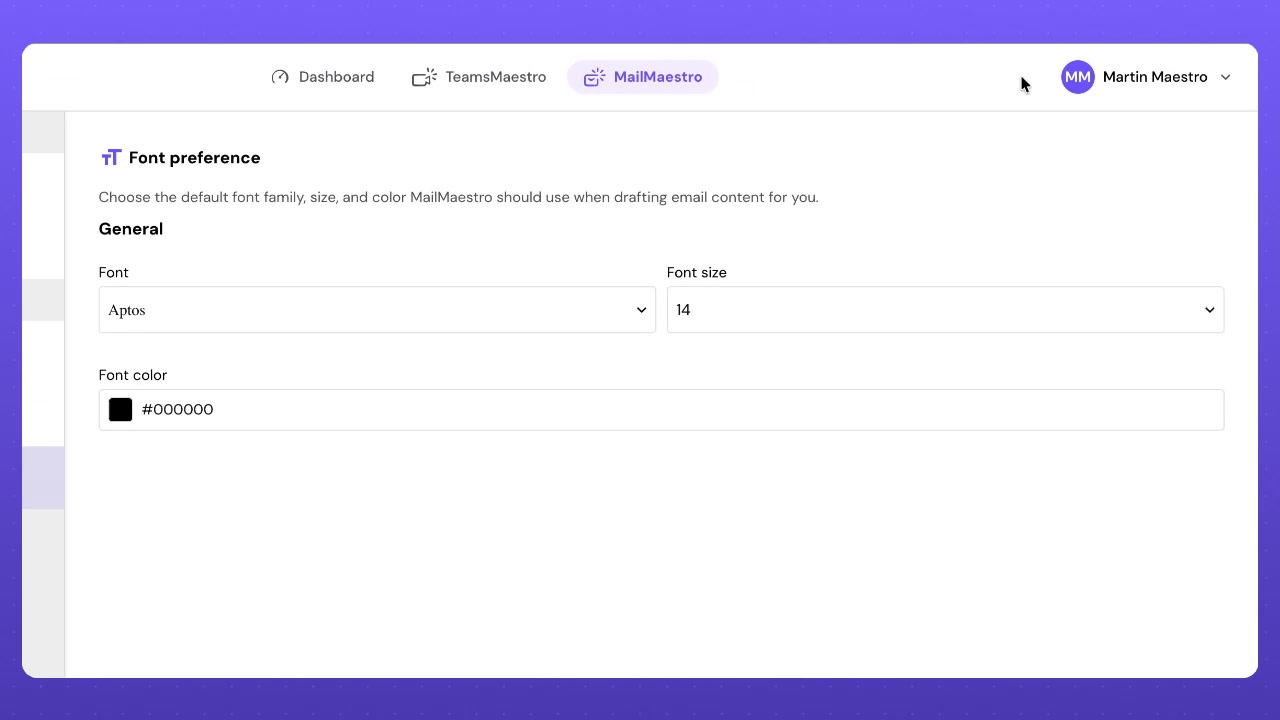
The customization section also includes Signature and Font preference. Signature settings let you set greetings and sign offs for different languages. Font preference lets you choose the default font family, size, and color MailMaestro should use when drafting email content.
These are small settings, but they help keep AI drafted emails consistent with your usual writing style and formatting.
Keep your account and integrations in one place
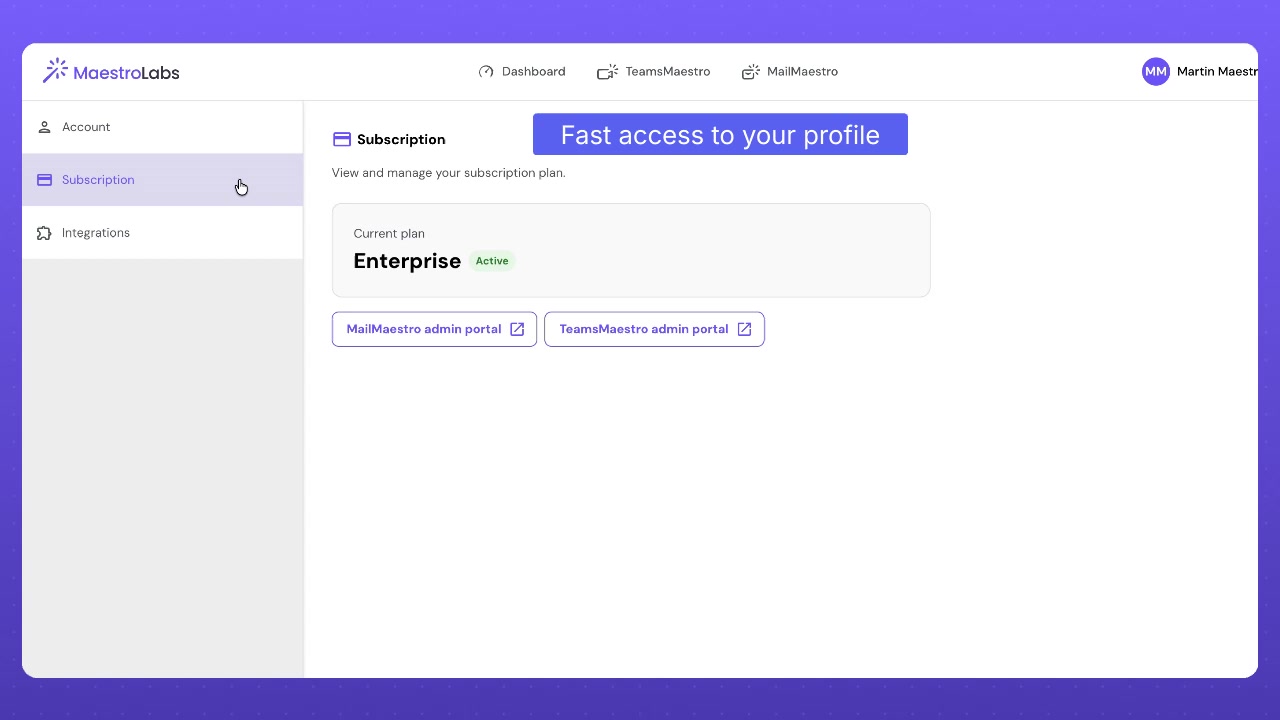
The profile area brings account details closer to the product workflow. You can view account and subscription information, see the current plan status, and open admin portals for MailMaestro and TeamsMaestro.
Integrations are centralized as well. The integrations page shows MailMaestro and TeamsMaestro connection status in one view, with MailMaestro connected to an email account and TeamsMaestro ready to connect to a calendar.
For teams using both products, this makes setup and troubleshooting more straightforward. You can see which assistant is connected, which one still needs attention, and where to take action.
Why this matters
Mail and meetings are connected in real work. A meeting creates follow up. An email starts a discussion. A customer question turns into a call, and that call turns back into next steps.
The Maestro dashboard reflects that flow. It puts MailMaestro and TeamsMaestro in one shared workspace, with the controls people need most often: activity overview, meeting notes, email agents, writing preferences, subscription details, and integrations.
That means less time hunting through separate settings and more time acting on the work itself.
Try the Maestro dashboard
The Maestro dashboard is designed for people who use AI to manage both communication and follow through. Use it to check your email and meeting activity, tune your MailMaestro agents, open TeamsMaestro notes, and keep your account connections organized.
Try it for free and see how much easier it feels when your email assistant and meeting assistant live in one place.
Languages we support
TeamsMaestro currently supports a wide range of languages for meeting summaries, transcripts, and AI responses — from English and Spanish to French, German, and many more. Our goal is to make every team’s communication experience seamless and inclusive, no matter the language.


If your preferred language isn’t supported yet, we’d love your feedback! Email us at feedback@maestrolabs.com to request new languages or share examples of what you’d like to see. Your input helps us shape the next updates of TeamsMaestro.
Final thoughts
Meeting summaries are no longer one-size-fits-all. With the Language and Template buttons in TeamsMaestro, you can create tailored, polished notes in seconds. Use these tools to communicate clearly, reduce follow-up work, and keep everyone aligned, wherever they are and however they work.
Languages we support
MailMaestro currently supports a growing range of languages for composing, summarizing, and improving your emails. From English and Spanish to French, German, and beyond — we’re expanding our capabilities to make AI communication accessible for everyone.
If your preferred language isn’t available yet, we’d love to hear from you! Email us at feedback@maestrolabs.com to request new language support or share specific examples. We’re continuously improving with your input.