
 MailMaestro pricing
 TeamsMaestro pricing






How to use web search in TeamsMaestro Ask AI feature
TeamsMaestro's Ask AI now combines meeting context with live web search.
TeamsMaestro Ask AI can now answer questions with live web context, right from the meeting workspace. That means you can move from meeting notes to practical next steps without opening a new tab or breaking your flow.
Meeting questions do not always stop at the meeting
Meeting notes are useful when you need to remember what was said. But the work that happens after a meeting often needs more than a summary.
You might want meeting best practices before running the next call. You might need to look up a participant so you can prepare for a follow up. Or you might want a quick recommendation for where to meet a colleague near the office.
Before, these questions usually meant switching away from your notes, searching the web, comparing results, and then coming back to the meeting. Ask AI web search helps bring that research step into TeamsMaestro.
What web search in Ask AI does
Ask AI already helps you work with your meeting context. With web search, it can also use current web information when a question needs outside context.
That makes Ask AI useful for two kinds of work at once: understanding what happened in a meeting and acting on what needs to happen next.
You can ask a question in plain English, keep the answer in the Ask AI side panel, and continue working from the same meeting summary.
Get practical answers without leaving your meeting notes
For general work questions, Ask AI can use web search to return clear guidance inside TeamsMaestro. A useful prompt is, "What are the best practices for running effective meetings?"
The answer comes back as a practical list, including ways to define the meeting purpose, invite only the necessary people, keep a consistent discussion structure, track action items with owners and due dates, and close with a short recap.
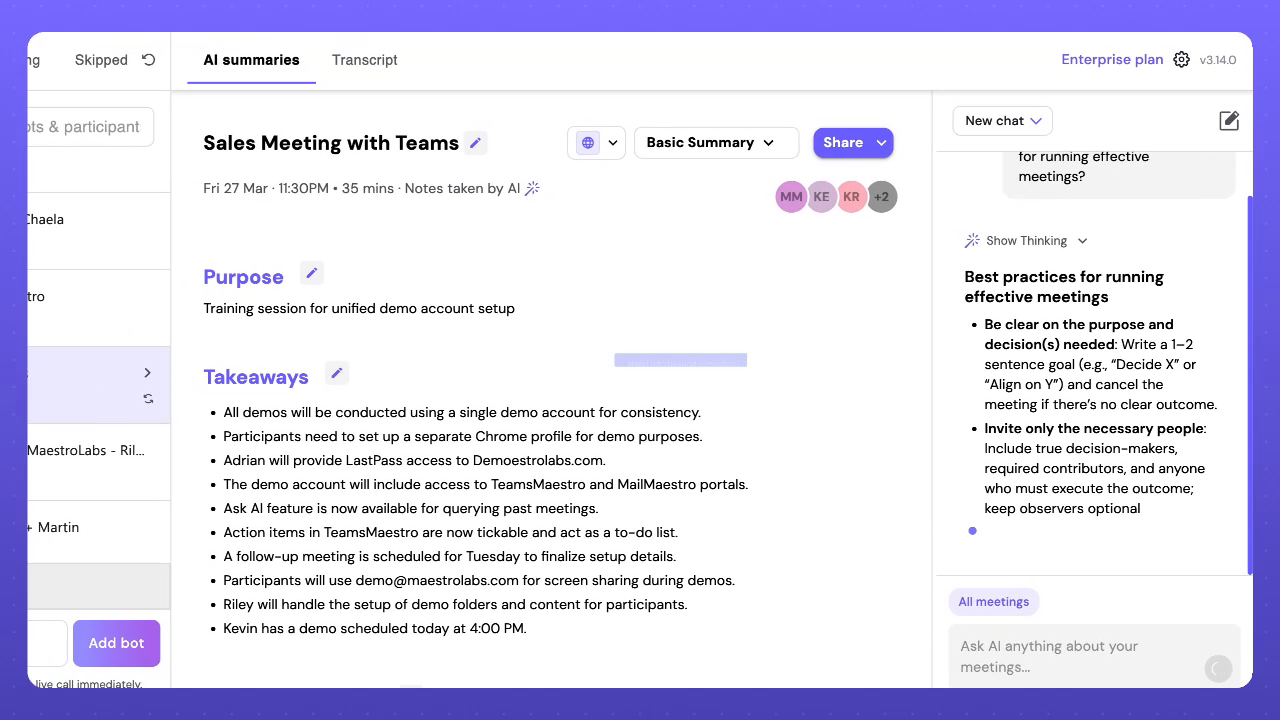
This is helpful because the answer appears beside the meeting notes you are already reviewing. You do not need to leave the meeting workspace just to turn a general question into a usable checklist.
Connect meeting context with web research
Web search becomes even more useful when the question depends on meeting context.
Ask AI can use the information from the meeting and combine it with web research when appropriate. For example, a user asks Ask AI to bring up the LinkedIn profiles of the participants in the meeting. The assistant identifies Riley Webber, Kat Dela Rosa, and Kevin Espinocilla from the transcript, then returns a confident LinkedIn match for Riley Webber.
Just as importantly, Ask AI avoids overreaching. For the other participants, it says it cannot confidently link a specific profile from the available public results without risking the wrong person, and asks for more details such as company, role, location, or email domain.
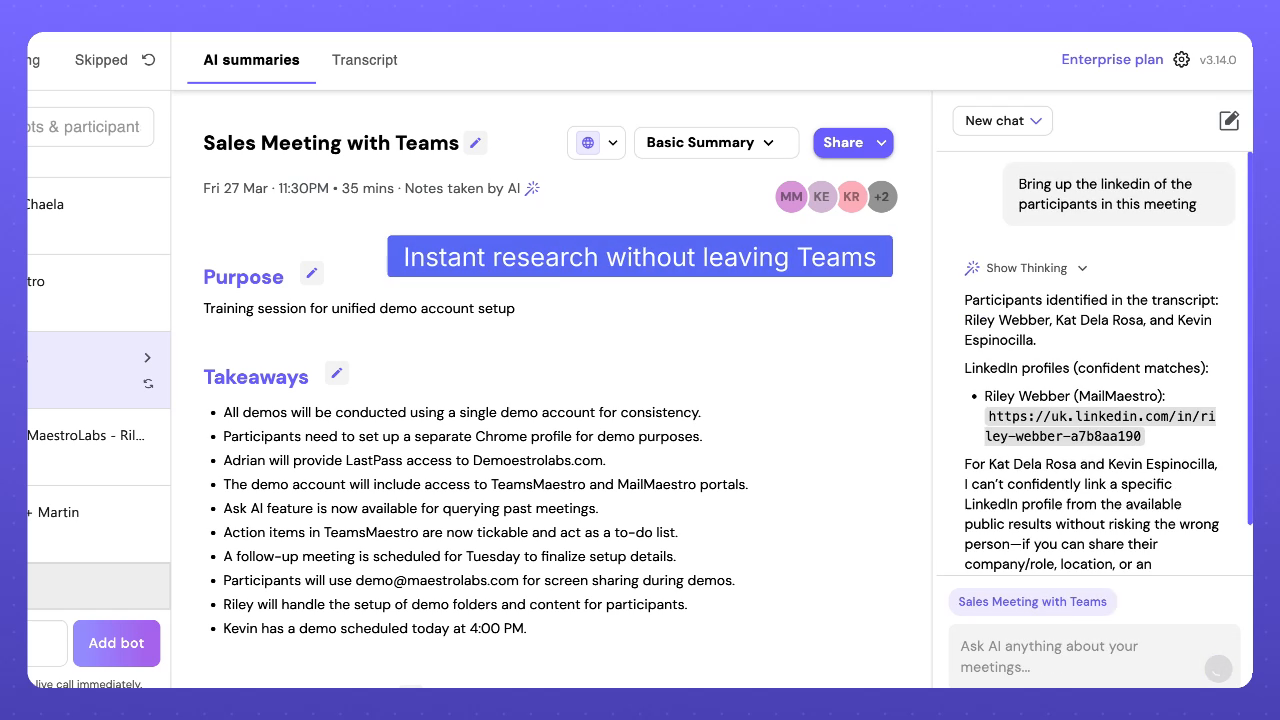
That balance matters. Web search should help you move faster, but it should also be careful when identity or source confidence is unclear.
Turn meeting follow up into action
Ask AI web search can also help with small planning moments that come directly after a meeting.
In one example, the user asks for good coffee shops for a one on one near Robinson Road in Singapore. Ask AI returns nearby options such as Alchemist at 71 Robinson Road, LUME Cafe at 108 Robinson Road, Sojourner Coffee in Capital Tower, Starbucks Reserve in Capital Tower, and Jewel Coffee in SBF Centre.
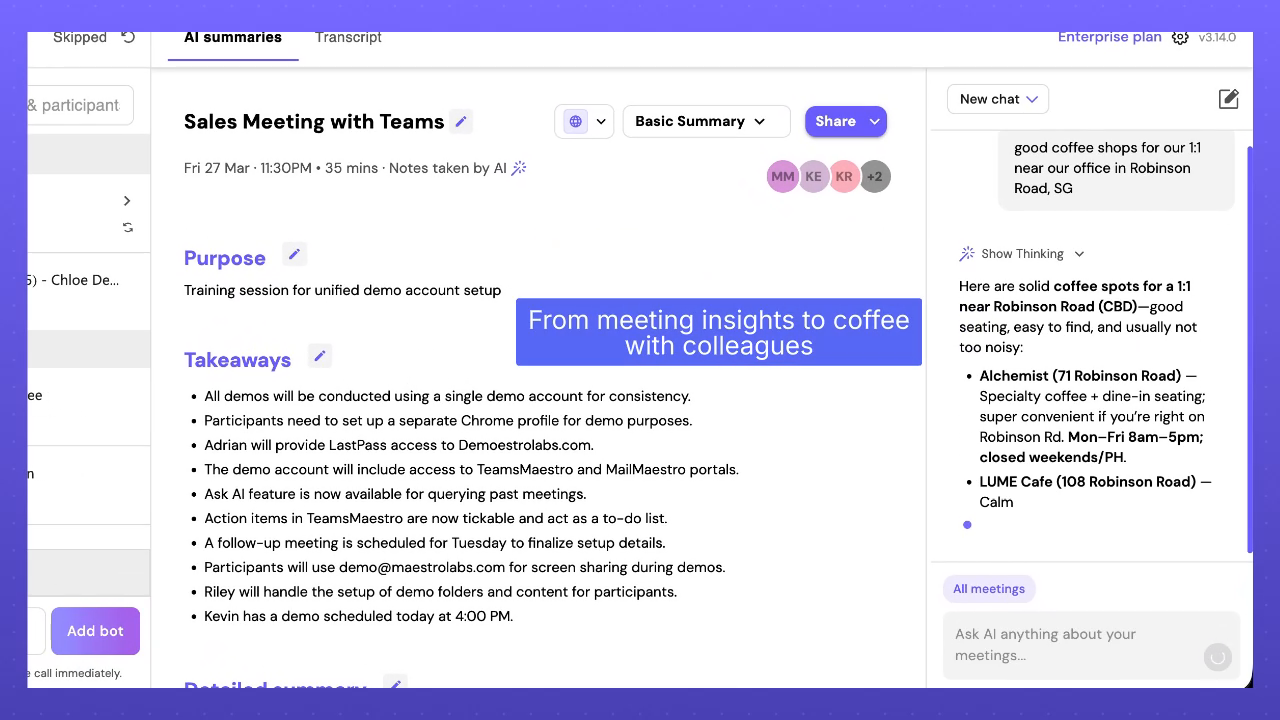
This is a simple example, but it shows the real value of keeping research close to your meeting workflow. A follow up idea can become a concrete next step without turning into a separate search task.
How to use web search in Ask AI
You can use Ask AI web search from the Ask AI panel in TeamsMaestro.
- Open a meeting summary in TeamsMaestro.
- Open Ask AI from the side panel.
- Choose the scope that fits your question, such as this meeting or all meetings.
- Ask a question that needs either meeting context, web context, or both.
- Review the answer in the side panel and use it to decide your next step.
Use meeting focused prompts when you want Ask AI to work from the meeting record. Use broader prompts when you need outside context. For mixed questions, include the meeting detail and the external information you need in the same prompt.
A few useful prompts to try
• Try questions like these when you want Ask AI to connect your meeting work with web research:
• What are the best practices for running this type of meeting?
• Bring up the LinkedIn profiles of the participants in this meeting.
• Find good coffee shops near our office for a one on one.
• Give me current context on a company, topic, or person mentioned in this meeting.
Keep the prompt specific. The more clearly you describe the meeting context and the web information you need, the more useful the answer will be.
Why this matters
The best meeting assistant does not only summarize what already happened. It helps you keep moving.
With web search in Ask AI, TeamsMaestro can help you go from notes to research to action in one place. You can prepare better questions, look up useful context, plan follow ups, and make the next step easier without leaving the meeting view.
Try it in TeamsMaestro
Ask AI web search is built for the moments when your meeting notes raise a new question. Open Ask AI in TeamsMaestro, ask what you need to know, and keep your work moving from the same place your meeting context already lives.
Languages we support
TeamsMaestro currently supports a wide range of languages for meeting summaries, transcripts, and AI responses — from English and Spanish to French, German, and many more. Our goal is to make every team’s communication experience seamless and inclusive, no matter the language.


If your preferred language isn’t supported yet, we’d love your feedback! Email us at feedback@maestrolabs.com to request new languages or share examples of what you’d like to see. Your input helps us shape the next updates of TeamsMaestro.
Final thoughts
Meeting summaries are no longer one-size-fits-all. With the Language and Template buttons in TeamsMaestro, you can create tailored, polished notes in seconds. Use these tools to communicate clearly, reduce follow-up work, and keep everyone aligned, wherever they are and however they work.
Languages we support
MailMaestro currently supports a growing range of languages for composing, summarizing, and improving your emails. From English and Spanish to French, German, and beyond — we’re expanding our capabilities to make AI communication accessible for everyone.
If your preferred language isn’t available yet, we’d love to hear from you! Email us at feedback@maestrolabs.com to request new language support or share specific examples. We’re continuously improving with your input.