

 MailMaestro pricing
 TeamsMaestro pricing






How to send timely follow-ups with MailMaestro
MailMaestro can now help you stay on top of unanswered emails by preparing follow-up drafts automatically. When someone has not replied within your chosen timeframe, MailMaestro can draft a contextual message for you to review and send.
Following up is one of those small tasks that quietly creates a lot of inbox friction. You know the thread matters, but remembering when to check back, finding the right context, and writing a polite reminder all take time.
Follow-ups in MailMaestro are built to make that process lighter. Instead of starting from a blank reply, you get a ready draft based on the original conversation.
What follow-ups do
Follow-ups watch for email threads that have gone quiet after you send a message. If no one responds within the timeframe you set, MailMaestro flags the thread and prepares a follow-up draft.
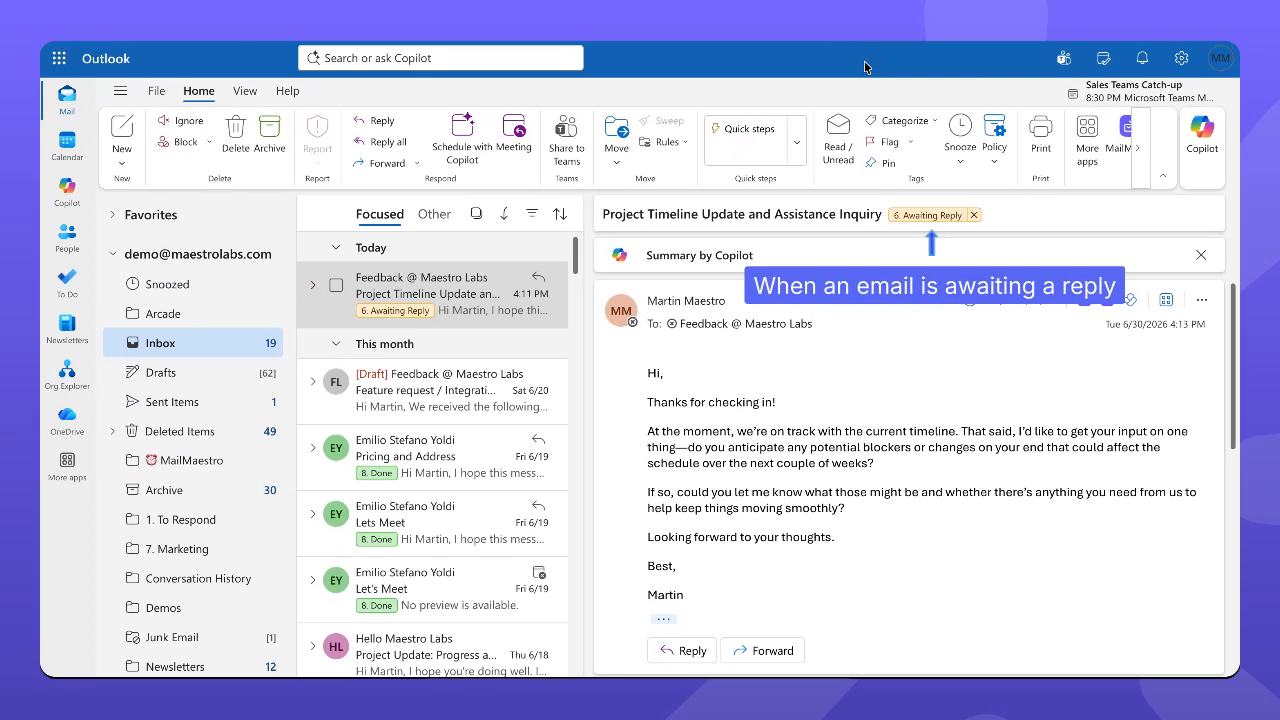
The draft appears as part of the email thread in Outlook, so you can review it in context before sending. You stay in control of the final message, while MailMaestro handles the remembering and first draft.
Set when MailMaestro should step in
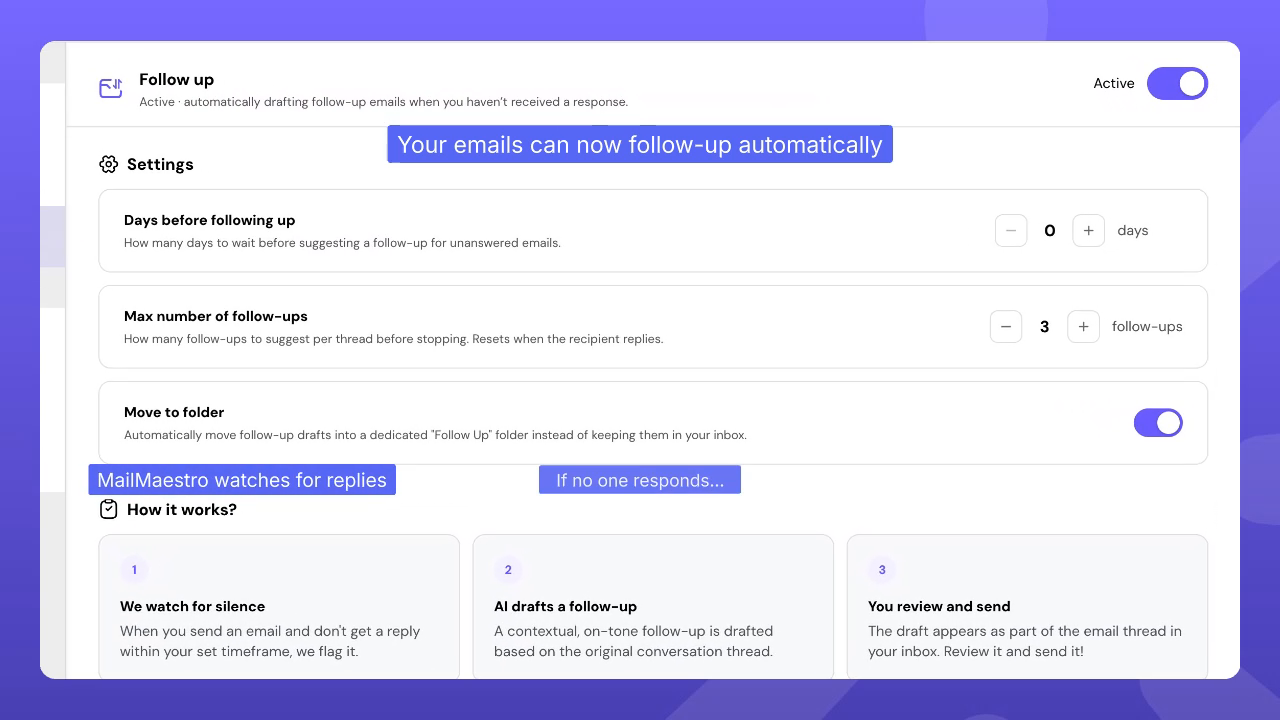
The Follow-up settings page gives you a few simple controls.
You can choose how many days MailMaestro should wait before suggesting a follow-up for an unanswered email. You can also set the maximum number of follow ups MailMaestro should suggest per thread before stopping. In the example setup, the maximum is set to three follow ups, and the counter resets when the recipient replies.
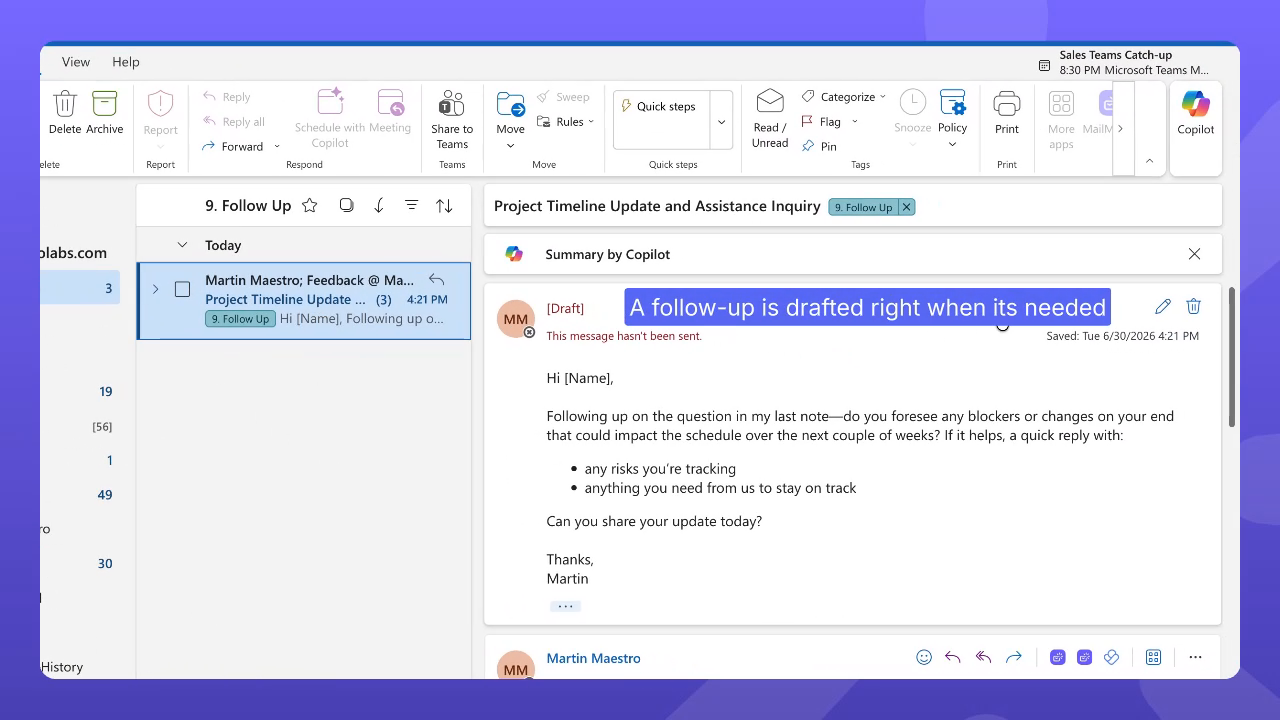
There is also a Move to folder option. When this is turned on, follow-up drafts are moved into a dedicated Follow Up folder instead of staying in your inbox.
That choice is useful if you want follow ups grouped in one place, separate from the rest of your incoming messages.
How the follow-up workflow works
MailMaestro keeps the process simple:
- MailMaestro watches for silence after you send an email.
- If the recipient does not reply within your selected timeframe, MailMaestro drafts a contextual follow-up based on the conversation thread.
- The draft appears in Outlook so you can review it, edit it if needed, and send it.
This turns follow-up from a manual reminder task into a review step. You still decide what goes out, but you no longer need to rebuild the context every time.
Review suggested drafts in Outlook
In Outlook, follow-up threads can be labeled so you can spot them quickly. A thread that needs your attention can appear with a Follow Up label, while other labels such as To Respond, Awaiting Reply, or Done help show what stage different conversations are in.
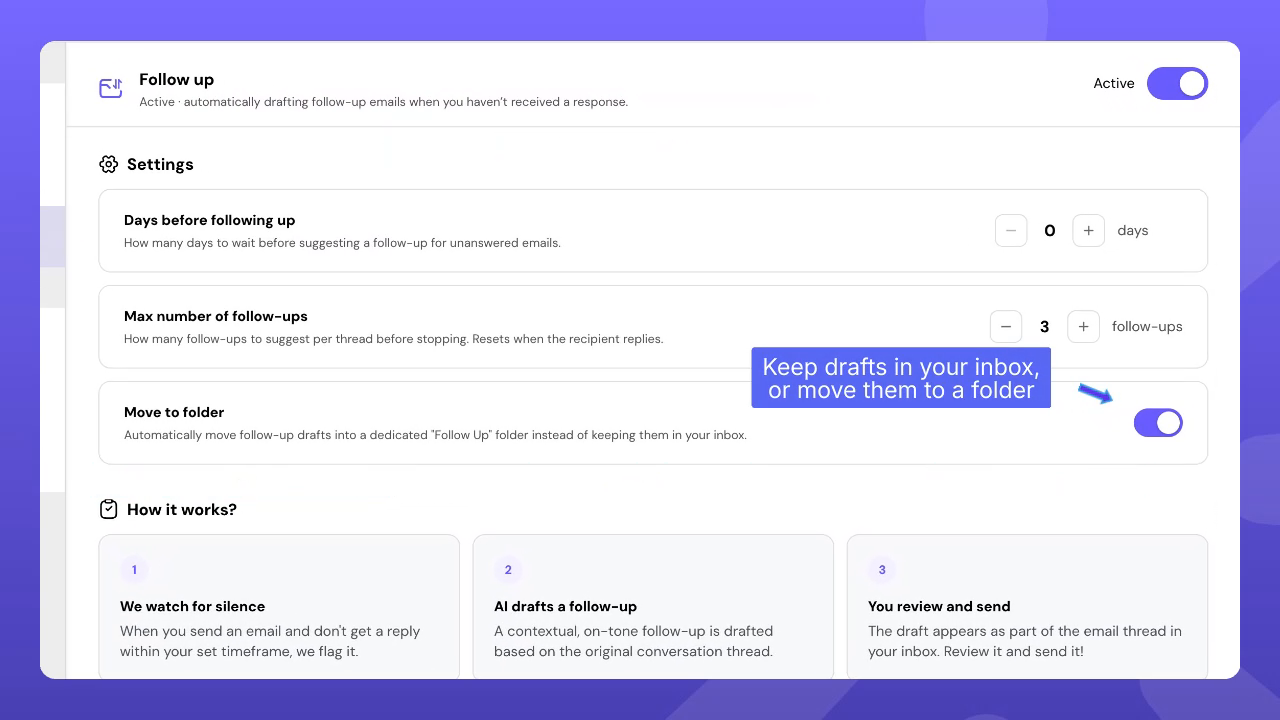
When a follow-up draft is ready, it appears as a draft in the conversation. The example draft follows up on a project timeline question and asks whether there are any blockers or changes that could affect the schedule over the next couple of weeks.
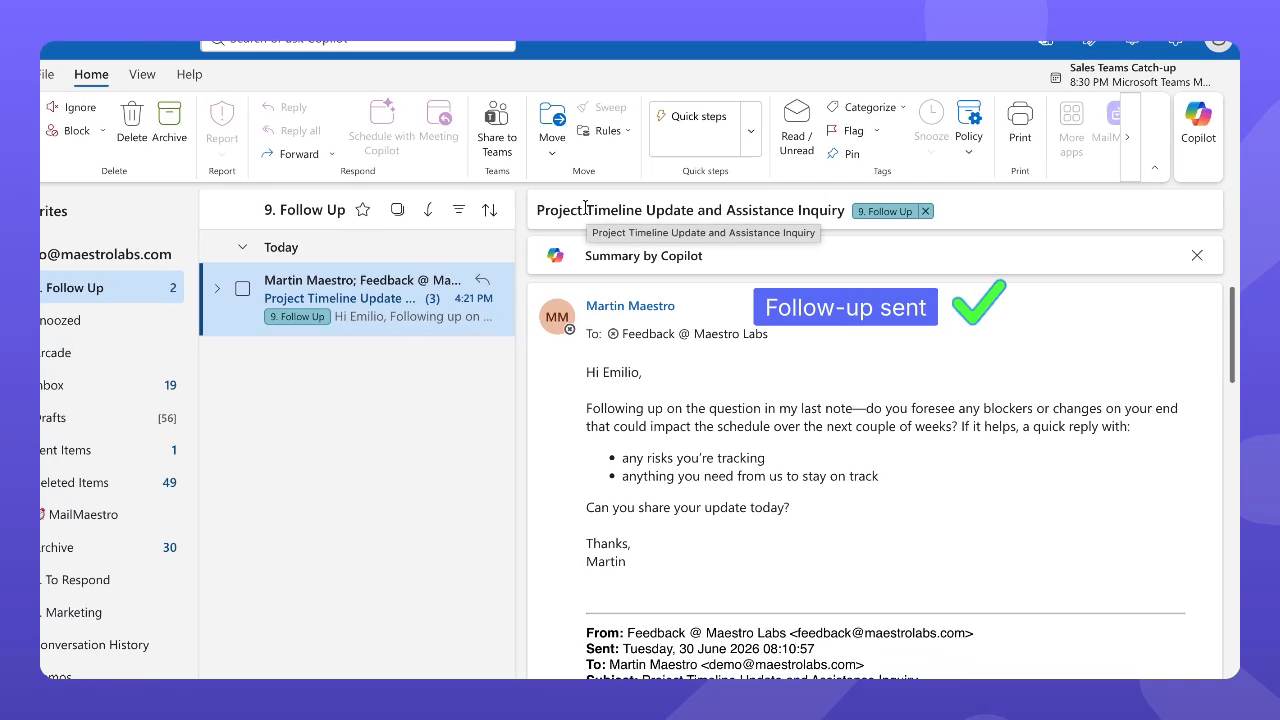
That draft is not sent automatically. You can read it, adjust the wording, and send it when it looks right.
Keep follow-ups organized
The dedicated Follow Up folder makes it easier to find draft reminders when you are ready to clear them. In the example inbox, the Follow Up folder shows several items waiting for review.
Once a follow up is sent, the message stays connected to the original thread, keeping the full conversation history together. This helps you keep momentum without creating a separate tracking system.
Why it matters
Good follow-ups are timely, specific, and easy for the recipient to answer. The hard part is remembering to send them at the right moment and writing them with enough context. MailMaestro helps with both.
It watches for unanswered messages, drafts a relevant reply, and keeps the result where you already work. This means fewer missed conversations, less manual checking, and a faster path from waiting to taking action.
Try follow-ups in MailMaestro
Turn on Follow-up in MailMaestro, choose when MailMaestro should suggest a reminder, and decide whether drafts should stay in your inbox or move to the Follow Up folder. The next time a thread goes quiet, MailMaestro can prepare the draft so all you need to do is review and send.
Languages we support
TeamsMaestro currently supports a wide range of languages for meeting summaries, transcripts, and AI responses — from English and Spanish to French, German, and many more. Our goal is to make every team’s communication experience seamless and inclusive, no matter the language.


If your preferred language isn’t supported yet, we’d love your feedback! Email us at feedback@maestrolabs.com to request new languages or share examples of what you’d like to see. Your input helps us shape the next updates of TeamsMaestro.
Final thoughts
Meeting summaries are no longer one-size-fits-all. With the Language and Template buttons in TeamsMaestro, you can create tailored, polished notes in seconds. Use these tools to communicate clearly, reduce follow-up work, and keep everyone aligned, wherever they are and however they work.
Languages we support
MailMaestro currently supports a growing range of languages for composing, summarizing, and improving your emails. From English and Spanish to French, German, and beyond — we’re expanding our capabilities to make AI communication accessible for everyone.
If your preferred language isn’t available yet, we’d love to hear from you! Email us at feedback@maestrolabs.com to request new language support or share specific examples. We’re continuously improving with your input.