
 MailMaestro pricing
 TeamsMaestro pricing






How to install TeamsMaestro for your organization
Key Takeaways
- Deploy TeamsMaestro to your whole organization from the Microsoft 365 admin center.
- Admins can target everyone, specific groups, or a single pilot team.
- No Microsoft 365 Copilot license is required to use TeamsMaestro.
- Users see TeamsMaestro in Microsoft Teams after their next app restart.
- Test the rollout with one group before deploying to everyone.
Deploy TeamsMaestro across your organization from the Microsoft 365 admin center. As an admin, you can roll it out to everyone, to specific teams, or to a single pilot group first.
1. Go to the Integrated Apps page in the Microsoft 365 admin center: Integrated Apps.
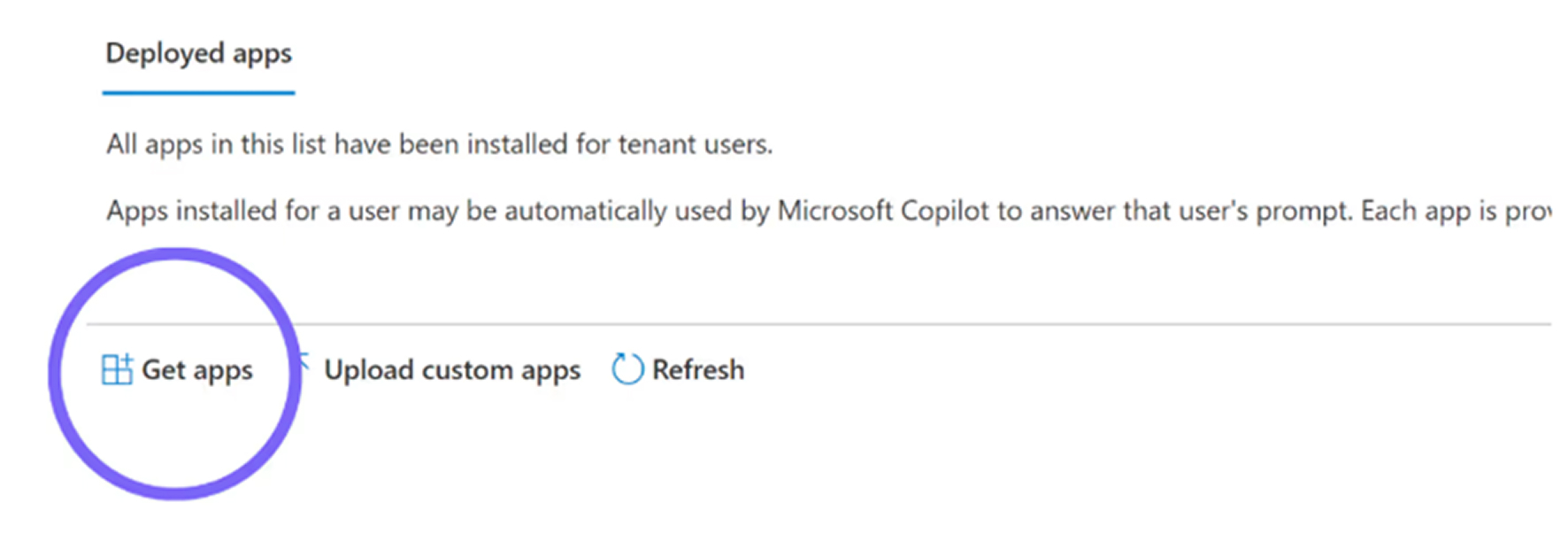
2. On the Integrated Apps page, click Get apps to open the app store.
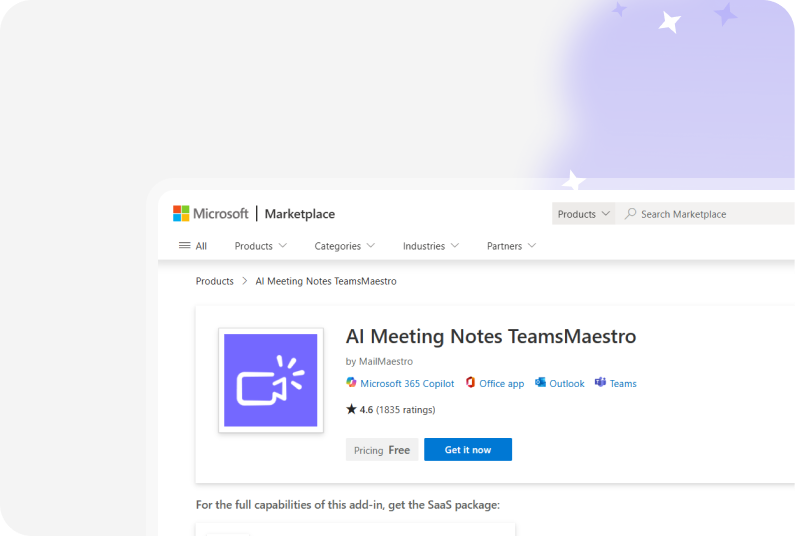
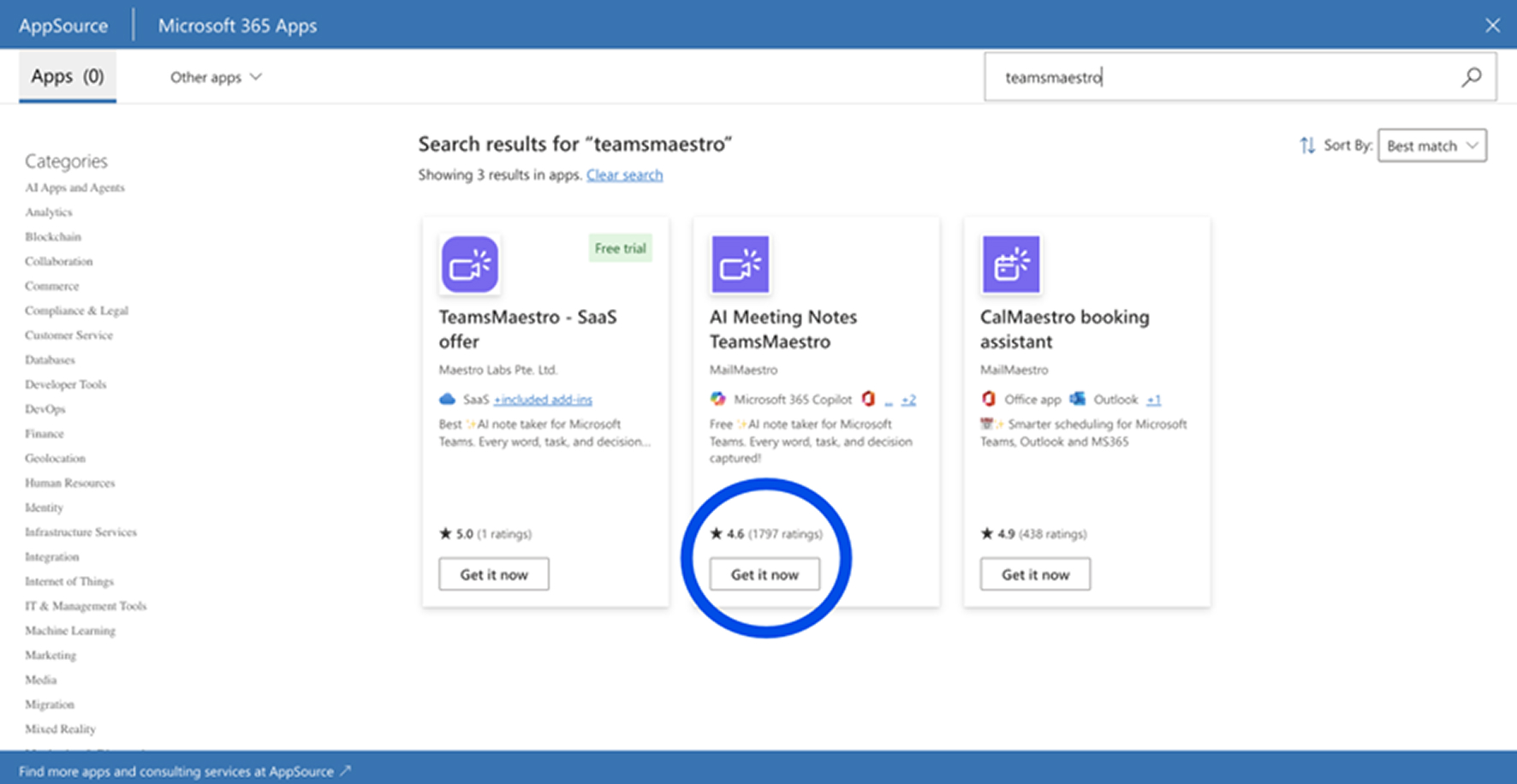
3. Search for TeamsMaestro and click Get it now once it appears in the results.
4. Choose whether to test the deployment first or skip straight to rollout.
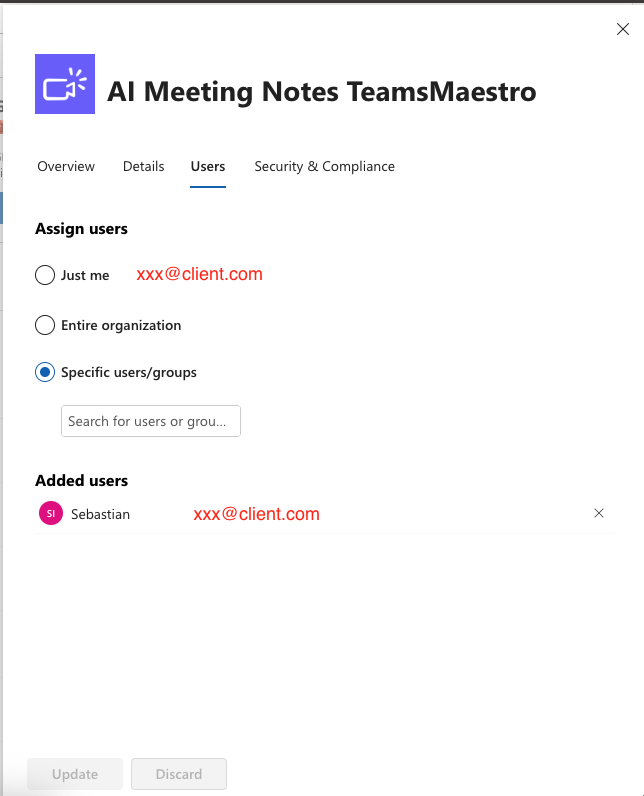
5. Assign the users who should get TeamsMaestro. You can deploy it to yourself, to your entire organization, or to a specific group. If you're running a pilot, create a group and assign it there.
6. To deploy to everyone, click Entire organization, then Next.
7. Review the permissions TeamsMaestro requests. If everything looks right, click Next.
8. Click Finish deployment.
9. Let the users you assigned know that TeamsMaestro will appear in Microsoft Teams the next time they restart the app.
Questions or issues? Reach out to feedback@maestrolabs.com.
Once it's deployed, TeamsMaestro joins your team's Teams calls automatically and turns each one into notes, a transcript, and action items. See how it works.
Languages we support
TeamsMaestro currently supports a wide range of languages for meeting summaries, transcripts, and AI responses — from English and Spanish to French, German, and many more. Our goal is to make every team’s communication experience seamless and inclusive, no matter the language.


If your preferred language isn’t supported yet, we’d love your feedback! Email us at feedback@maestrolabs.com to request new languages or share examples of what you’d like to see. Your input helps us shape the next updates of TeamsMaestro.
Final thoughts
Meeting summaries are no longer one-size-fits-all. With the Language and Template buttons in TeamsMaestro, you can create tailored, polished notes in seconds. Use these tools to communicate clearly, reduce follow-up work, and keep everyone aligned, wherever they are and however they work.
Languages we support
MailMaestro currently supports a growing range of languages for composing, summarizing, and improving your emails. From English and Spanish to French, German, and beyond — we’re expanding our capabilities to make AI communication accessible for everyone.
If your preferred language isn’t available yet, we’d love to hear from you! Email us at feedback@maestrolabs.com to request new language support or share specific examples. We’re continuously improving with your input.
Frequently Asked Questions