
 MailMaestro pricing
 TeamsMaestro pricing






How to find your TeamsMaestro meeting notes in Outlook
You invited TeamsMaestro to your meeting, the meeting has ended, and now you’re waiting for your notes to arrive. However, when you check your Outlook inbox, the email doesn’t seem to be there.
Don’t worry. Your meeting notes may already be available even if you don’t see an email. If email delivery is enabled in your TeamsMaestro settings, Outlook may have placed the message under Other instead of Focused. If you’ve chosen not to receive meeting notes by email, you can still access them directly from your TeamsMaestro dashboard.
What’s the difference between Focused and Other?
Outlook separates your inbox into two tabs to help you manage your emails more easily. The Focused tab contains messages that Outlook considers important, while the Other tab is generally used for automated or less urgent emails.
Because TeamsMaestro sends your meeting notes automatically after a meeting, Outlook may initially classify the message as an automated email and place it under Other. You can find this tab at the top of your email list, right beside Focused.
How to find your TeamsMaestro meeting notes
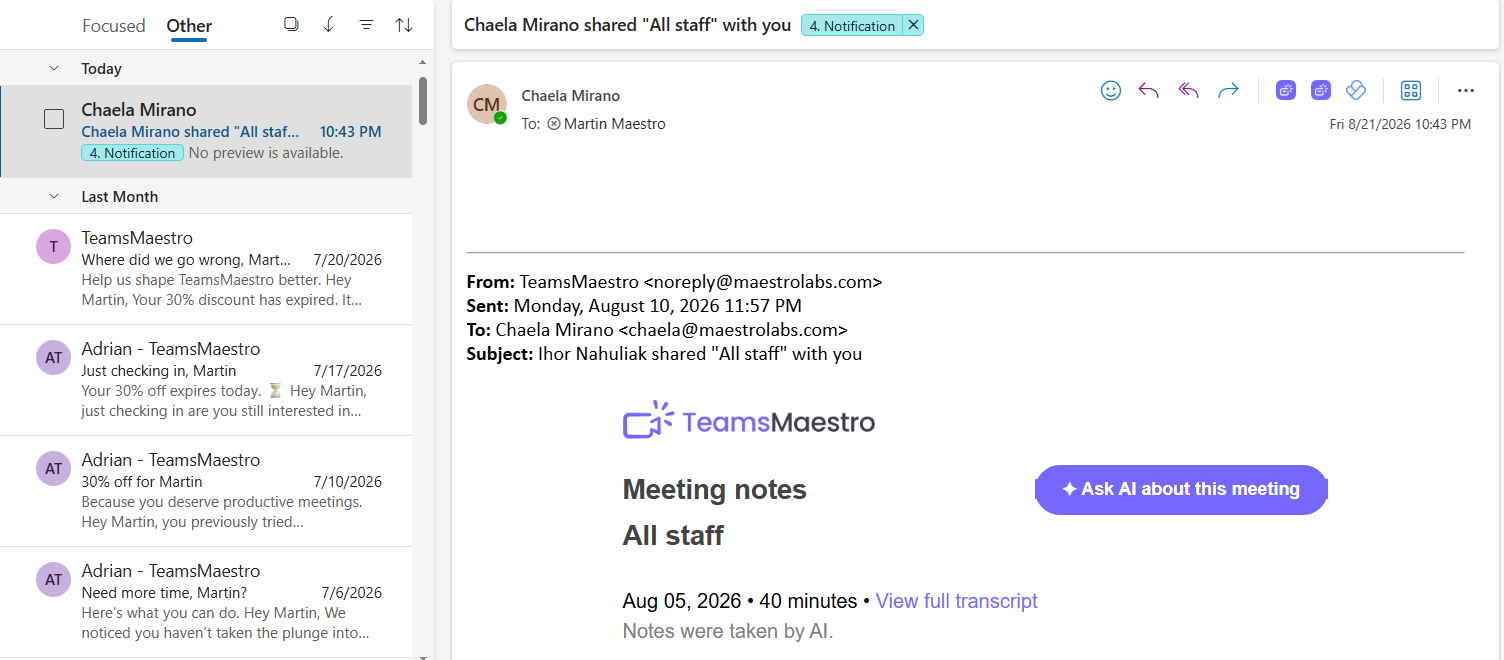
Open your Outlook inbox and select the Other tab at the top of your email list. From there, look for an email from TeamsMaestro containing your meeting notes.
Once you find it, you can tell Outlook that future TeamsMaestro emails are important to you, so they will appear in your Focused inbox instead.
How to always receive TeamsMaestro notes in Focused
%20(1).jpg)
- While viewing the Other tab, right-click the TeamsMaestro email.
- Select Move.
- Choose Always move to Focused inbox.
That’s all you need to do. Outlook will move the selected email to Focused and should place future meeting notes from the same sender there as well.
Make sure you choose Always move to Focused inbox, rather than simply Move to Focused inbox. The regular move option only changes the location of the email you selected, while the “Always move” option also applies to future messages from that sender.
Still can’t find your meeting notes?
Try searching your mailbox for TeamsMaestro or the title of your meeting. It may also help to check your Junk Email folder, just in case the message was filtered there.
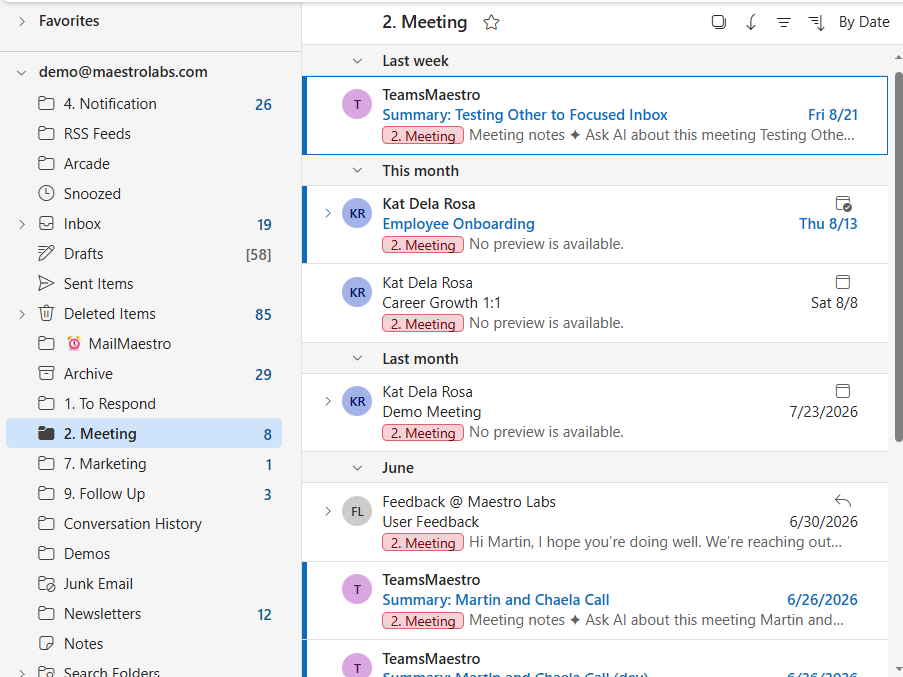
If you use MailMaestro with auto-labels enabled, your TeamsMaestro notes may also be filed automatically under 2. Meetings.
You can also access your notes directly from the Maestro Labs dashboard. After signing in, select TeamsMaestro, open the Completed tab, and choose the meeting you want to review. From there, go to AI Summaries to view your meeting notes.
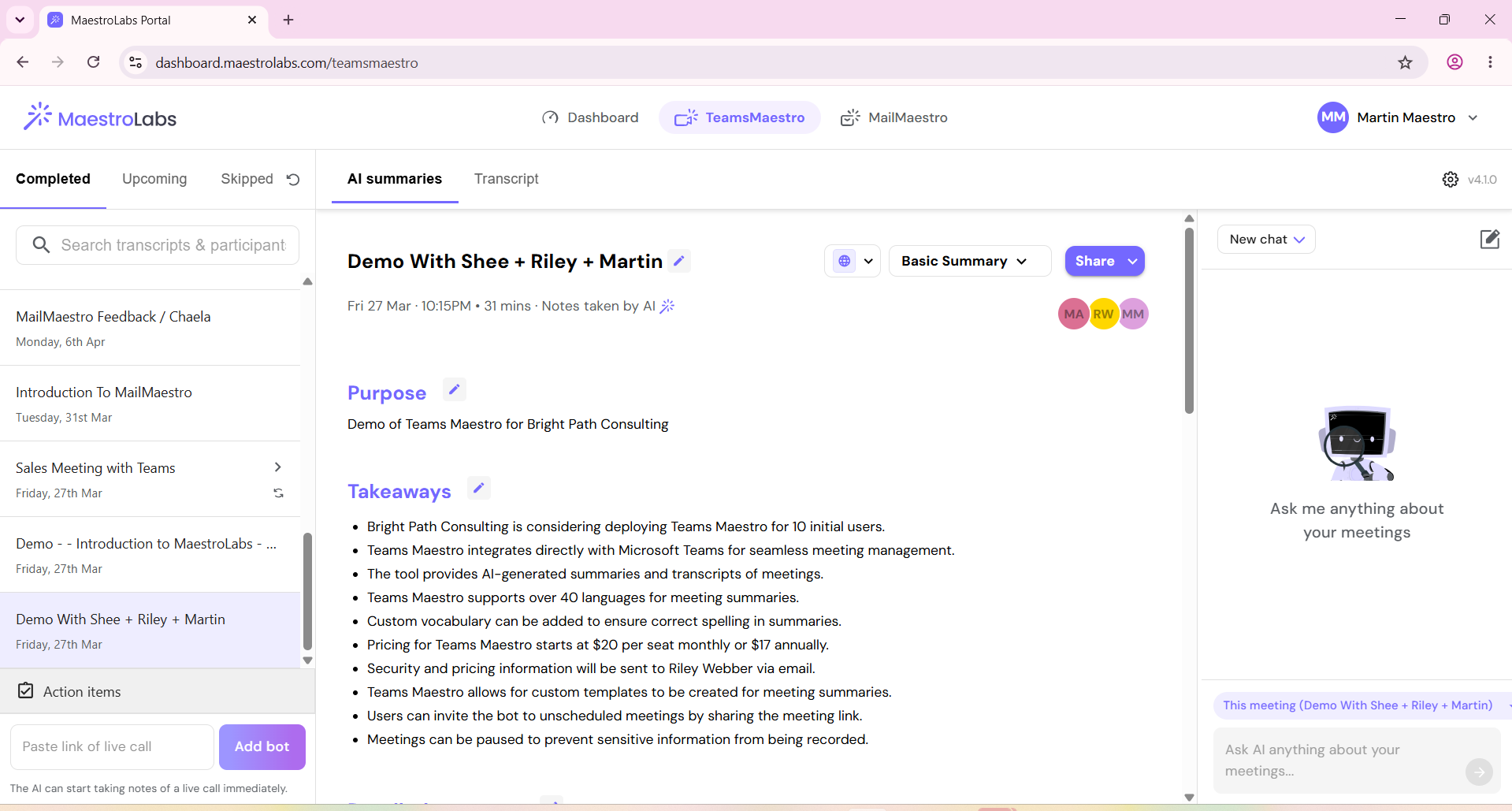
In most cases, the email is simply waiting under Other, but your notes will remain available in your TeamsMaestro dashboard whenever you need them. Once you select Always move to Focused inbox, future TeamsMaestro emails should also be easier to find as soon as they arrive.
Languages we support
TeamsMaestro currently supports a wide range of languages for meeting summaries, transcripts, and AI responses — from English and Spanish to French, German, and many more. Our goal is to make every team’s communication experience seamless and inclusive, no matter the language.


If your preferred language isn’t supported yet, we’d love your feedback! Email us at feedback@maestrolabs.com to request new languages or share examples of what you’d like to see. Your input helps us shape the next updates of TeamsMaestro.
Final thoughts
Meeting summaries are no longer one-size-fits-all. With the Language and Template buttons in TeamsMaestro, you can create tailored, polished notes in seconds. Use these tools to communicate clearly, reduce follow-up work, and keep everyone aligned, wherever they are and however they work.
Languages we support
MailMaestro currently supports a growing range of languages for composing, summarizing, and improving your emails. From English and Spanish to French, German, and beyond — we’re expanding our capabilities to make AI communication accessible for everyone.
If your preferred language isn’t available yet, we’d love to hear from you! Email us at feedback@maestrolabs.com to request new language support or share specific examples. We’re continuously improving with your input.