

 MailMaestro pricing
 TeamsMaestro pricing






How to use Ask AI for instant product FAQs in MailMaestro and TeamsMaestro
Ask AI now provides instant product help directly within your workflow. No more switching tabs or losing focus.
Ask AI now makes product help feel much closer to the work itself. Instead of leaving MailMaestro or TeamsMaestro to search for setup steps, users can ask a question in plain English and get a clear answer inside the assistant panel.
This matters because productivity tools are only useful when people know how to use them at the exact moment they need help. Ask AI gives users a faster way to understand settings, turn on key features, and keep moving through email and meeting workflows without breaking focus.
Product help should not slow down the work
Most users do not want to stop what they are doing to look through help pages. They want to know which setting to open, what option to choose, and whether the feature is available for their plan.
This is where product FAQs in Ask AI are useful. The assistant can answer practical setup and usage questions from the same place users are already working. In MailMaestro, that means help is available beside the Outlook inbox. In TeamsMaestro, it means users can ask questions while reviewing meeting notes, summaries, transcripts, and calendar related workflows.
What Ask AI product FAQs do
Ask AI product FAQs turn common product questions into simple, actionable answers. Users can ask about MailMaestro features like Auto Drafts and Auto Label, or TeamsMaestro workflows like downloading transcripts and connecting a calendar.
The answers are written as direct guidance instead of generic help text. They include the product area to open, the setting to look for, and the next action to take. When the answer depends on a plan or a user environment, Ask AI can make that clear too.
How to use Ask AI for product FAQs
The workflow is simple enough to fit into the moment when a question comes up.
- Open Ask AI from MailMaestro or TeamsMaestro.
- Choose the product FAQ context when it is available.
- Type your product question in natural language.
- Review the answer and follow the listed steps.
- Ask a follow up question if you need a more specific click path or want help for a different product area.
This makes Ask AI especially useful for setup questions. A user can ask how to activate Auto drafts, how to turn on Auto label, how to download a transcript, or how to connect a calendar without leaving the current workflow.
Get MailMaestro setup answers in Outlook
MailMaestro users can use Ask AI to clarify email productivity features directly from the Outlook sidebar.
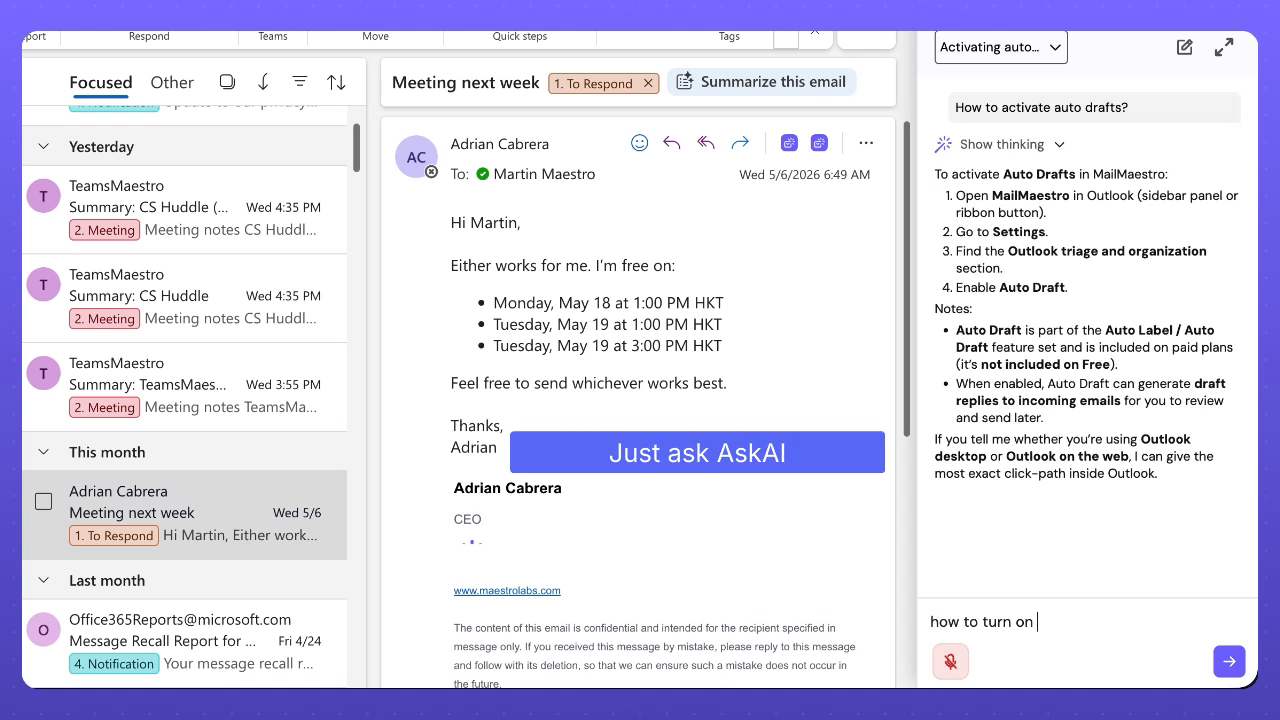
For Auto drafts, Ask AI explains that users should open MailMaestro in Outlook, go to settings, find the Outlook triage and organization section, and enable Auto draft. The answer also notes that Auto drafts can generate draft replies to incoming emails for users to review and send later.
That is the right kind of help for a busy inbox. Users do not need a long article when they are trying to finish one task. They need the setting path, the feature name, and a quick reminder of what the feature will do once enabled.
Ask AI can also answer follow up questions about Auto label. The guidance covers opening MailMaestro, going to settings, finding Outlook triage and organization, enabling Auto label, and optionally configuring what happens for each category, such as keeping an email in the inbox, moving it to a folder, or archiving it.
.png)
Find TeamsMaestro answers while reviewing meeting notes
TeamsMaestro users can also use Ask AI for product questions while working with meeting content.
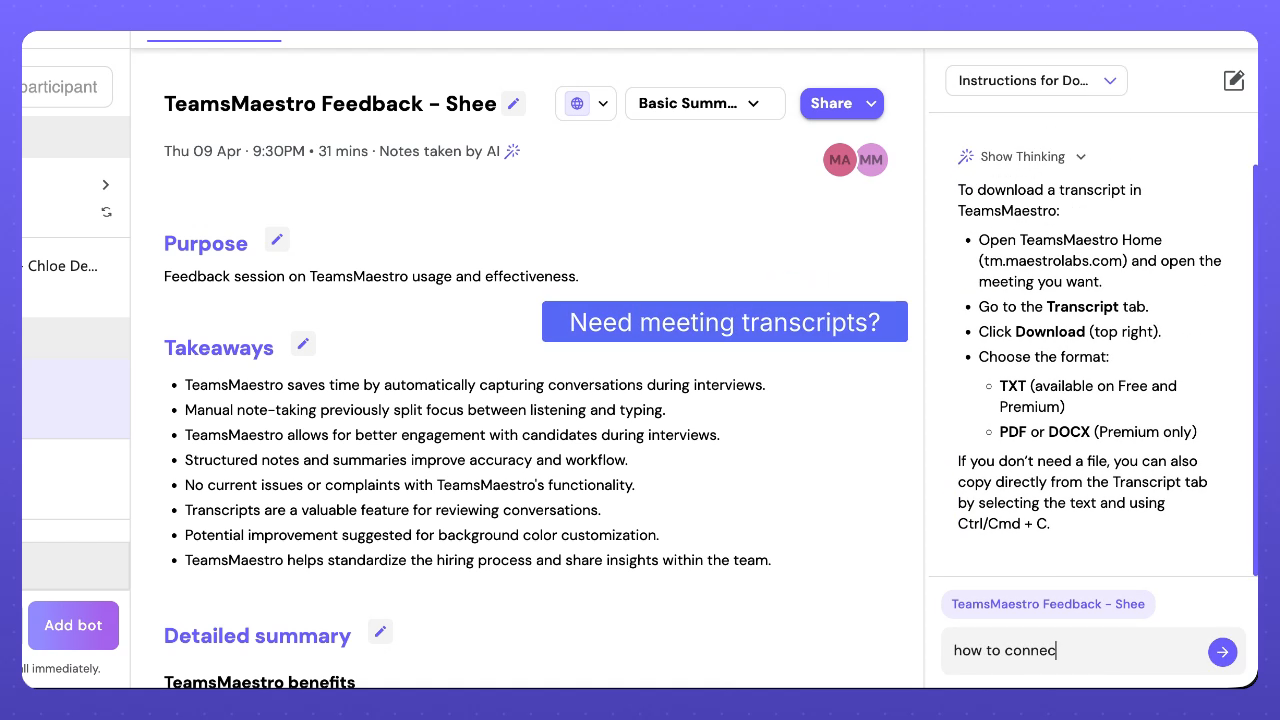
When a user needs meeting transcripts, Ask AI can explain how to open TeamsMaestro Home, choose the right meeting, go to the Transcript tab, and use Download from the top right. It also clarifies the available formats shown in the product answer: TXT for Free and Premium, and PDF or DOCX for Premium.
If the user does not need a file, the answer gives a simple alternative: copy directly from the Transcript tab by selecting the text and using the standard copy command.
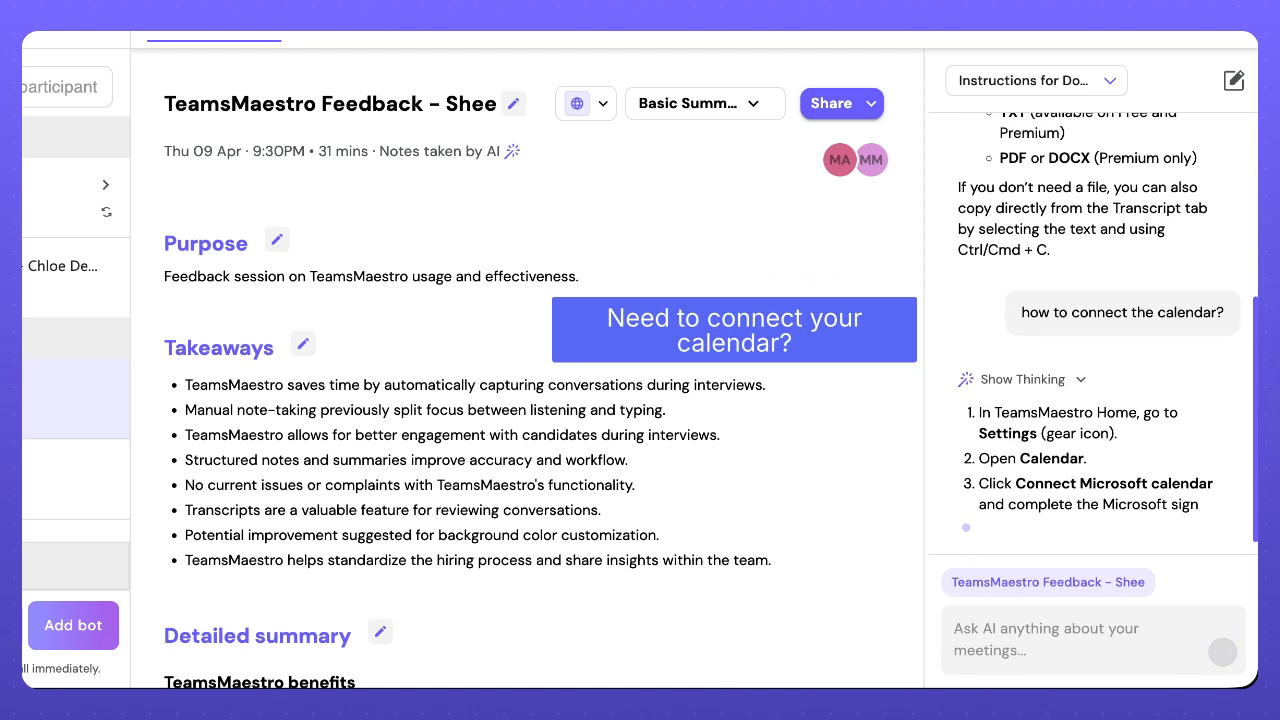
Ask AI can also help with calendar setup in TeamsMaestro. The answer guides users to TeamsMaestro Home, settings, Calendar, and Connect Microsoft calendar, followed by the Microsoft sign in and permissions flow. It also points users to auto join preferences, including all meetings, only internal, only external, and manual.
For specific upcoming meetings or recurring series, Ask AI explains that users can go to Upcoming calls and toggle "Join this meeting" to override the default.
Why this is useful for teams
Product FAQs in Ask AI reduce the small moments of friction that make teams slow down.
New users can find setup guidance without waiting for support. Existing users can discover features they may not have fully configured yet. Admins and team leads can point people to a product answer inside the workflow instead of repeating the same instructions.
The positioning is simple: Ask AI does not only help users work with their emails and meetings. It also helps them understand how to get more value from MailMaestro and TeamsMaestro.
That makes the product easier to adopt, easier to explain, and easier to use during a normal workday.
Try Ask AI the next time you need product help
The next time you are setting up MailMaestro or TeamsMaestro, try asking Ask AI before leaving the product.
Ask how to activate Auto Drafts, turn on Auto Label, download a transcript, or connect your calendar. AskAI gives you the steps where you need them, so you can keep your email and meeting workflows moving.
Upgrade to Premium MailMaestro, TeamsMaestro Pro, or Maestro Duo to unlock Ask AI, an instant, context-aware assistant that helps you draft smarter replies and save time across Mail and Teams.
Languages we support
TeamsMaestro currently supports a wide range of languages for meeting summaries, transcripts, and AI responses — from English and Spanish to French, German, and many more. Our goal is to make every team’s communication experience seamless and inclusive, no matter the language.


If your preferred language isn’t supported yet, we’d love your feedback! Email us at feedback@maestrolabs.com to request new languages or share examples of what you’d like to see. Your input helps us shape the next updates of TeamsMaestro.
Final thoughts
Meeting summaries are no longer one-size-fits-all. With the Language and Template buttons in TeamsMaestro, you can create tailored, polished notes in seconds. Use these tools to communicate clearly, reduce follow-up work, and keep everyone aligned, wherever they are and however they work.
Languages we support
MailMaestro currently supports a growing range of languages for composing, summarizing, and improving your emails. From English and Spanish to French, German, and beyond — we’re expanding our capabilities to make AI communication accessible for everyone.
If your preferred language isn’t available yet, we’d love to hear from you! Email us at feedback@maestrolabs.com to request new language support or share specific examples. We’re continuously improving with your input.


