

 MailMaestro pricing
 TeamsMaestro pricing







A standup and a weekly product sync shouldn't produce the same notes. One needs blockers and progress. The other needs decisions, metrics, and owners. When the template is wrong, you end up fixing the summary after the meeting.
TeamsMaestro lets you choose the summary template and language from the upcoming meeting itself, before anyone joins. You can set it for a single meeting or for every future meeting in the series.
How to set a summary template for an upcoming meeting
- Open TeamsMaestro and go to Upcoming.
- Select the meeting.
- Click the Summary template chip under the meeting details.
- Pick a template and a language.
- Under Apply to, choose Only this meeting or All future meetings.
- Click Save.
Open the summary template settings
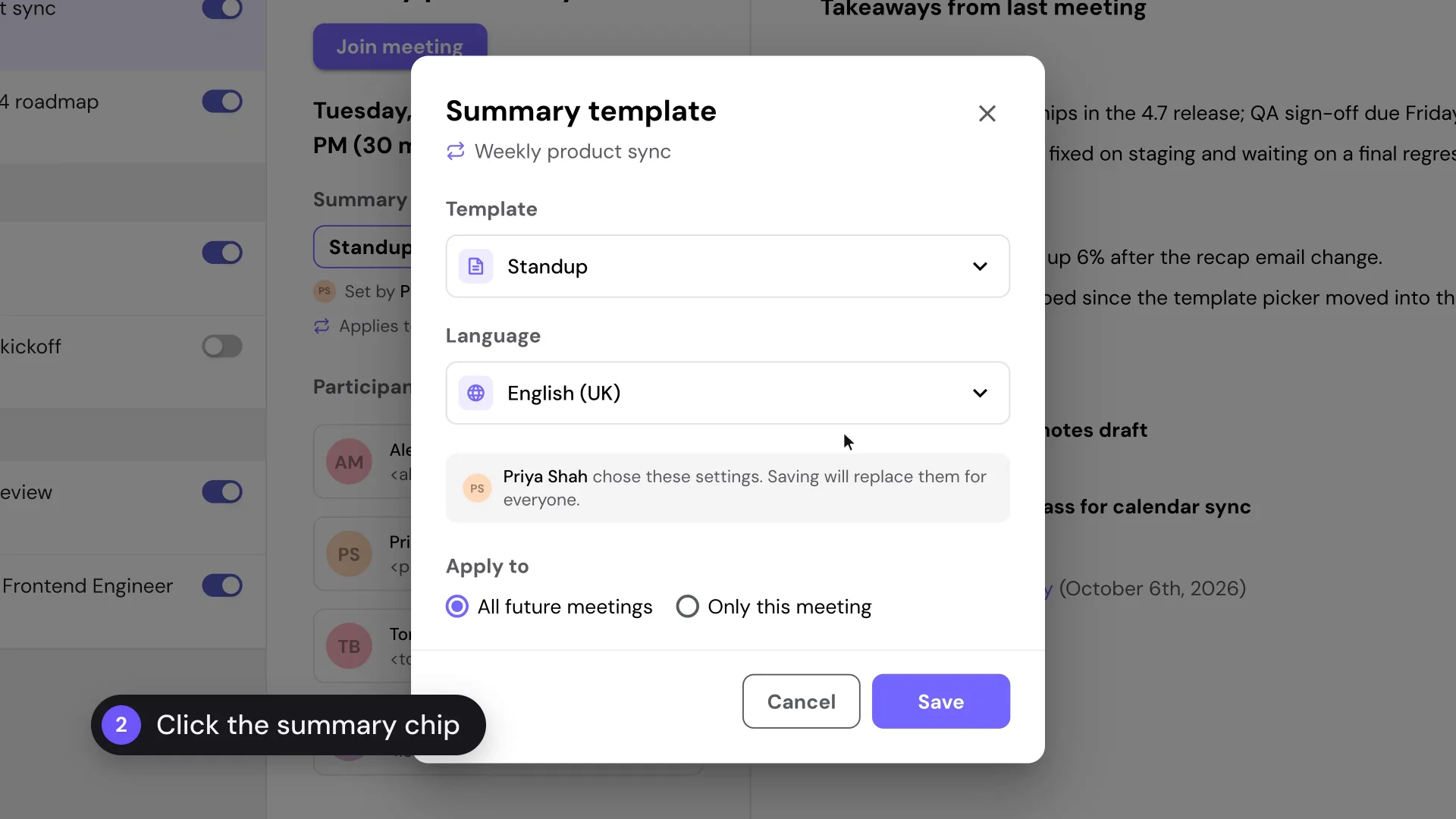
The Summary template chip sits under the meeting date and time. It shows the current template and language, so you can check them at a glance. Click it to open the settings.
Choose a template and language
The dialog has two dropdowns. Template sets how the summary is structured. Language sets the language TeamsMaestro writes it in.
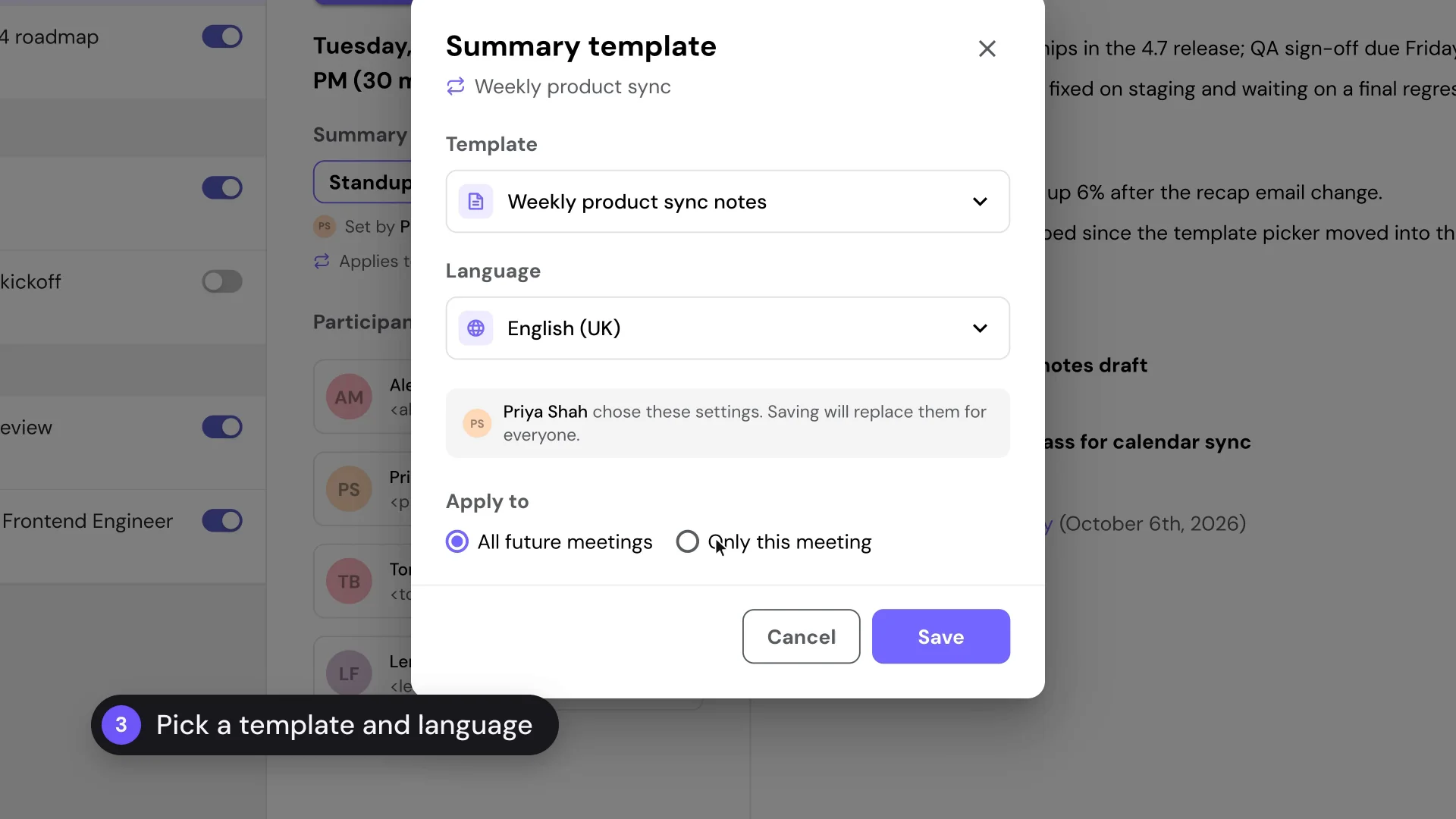
In this example, a weekly product sync switches from the Standup template to a custom Weekly product sync notes template. Your custom templates appear in the same list as the standard ones, so you can use the format your team already relies on.
Apply it to one meeting or the whole series
For recurring meetings, choose how far the change goes:
- Only this meeting: for a session that needs a different format, like a quarterly planning review inside a weekly sync.
- All future meetings: when the series should keep the same template and language from now on.
The dialog also shows who chose the current settings, with a note that saving will replace them for everyone. So before you click Save, you know you're changing it for the whole meeting, not only for yourself.
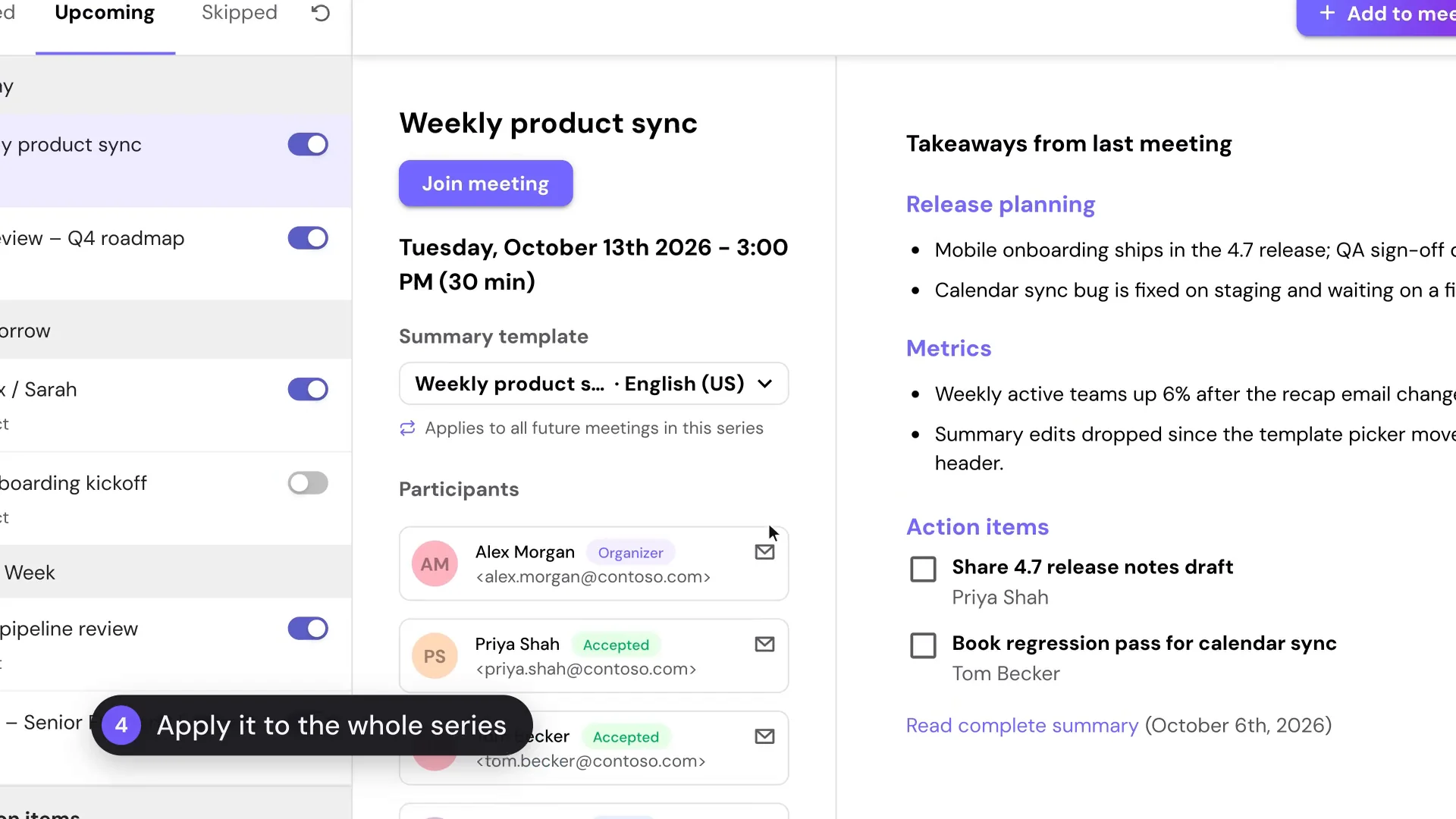
After you save, the chip shows the new template and language. If you applied it to the series, you'll see Applies to all future meetings in this series underneath.
When to use this instead of your default template
Your default summary template covers most meetings automatically. Use the upcoming meeting setting for the ones that need something different, like a recurring sales call or a sync your team summarizes in another language.
Already had the meeting? You can still change the template or translate the summary afterward.
Set up your next recurring meeting
Open your next recurring meeting in Upcoming, pick the template and language once, and apply it to the series. TeamsMaestro takes the notes in your Teams meetings in the format you choose. Try it free.


follow-up on our previous call, ask if he’s ready to start cooperation let him know that our discount ends tomorrow ask him if he had time to calculate roi


