

 MailMaestro pricing
 TeamsMaestro pricing






How to use Ask AI to automate your email management tasks
Ask AI in MailMaestro can now help you act on your inbox, not just understand it. From moving messages into folders to creating meetings and forwarding emails, you can use plain language to get common mailbox work done faster.
Your inbox should not need so many manual steps
Email work often starts with a simple question and turns into a string of small actions.
You find the right messages. You create a folder. You move related emails. You open a thread, check the context, schedule time with the right person, forward the message, or mark it so you can come back later.
None of those steps are difficult on their own. Together, they add friction to the workday.
Ask AI actions in MailMaestro are designed for exactly that gap. Instead of asking the assistant only for information about your emails, you can ask it to take action across your mailbox using normal language.
What Ask AI actions can do
Ask AI sits inside MailMaestro for Outlook and lets you describe the result you want. MailMaestro then uses your mailbox context to complete the action and show you what changed.
The workflow supports practical inbox tasks like:
- Finding emails from a specific sender
- Moving matching emails into a folder
- Creating a new folder when needed
- Archiving groups of emails
- Creating a meeting from a prompt
- Forwarding the selected email to another person
- Creating a response draft
- Categorizing emails
- Marking emails as read or important
The important shift is that the assistant is no longer limited to summarizing or answering questions. It can help with the actual mailbox maintenance that usually happens after you understand what needs to be done.
Move and organize emails with one request
One of the clearest uses is inbox organization.
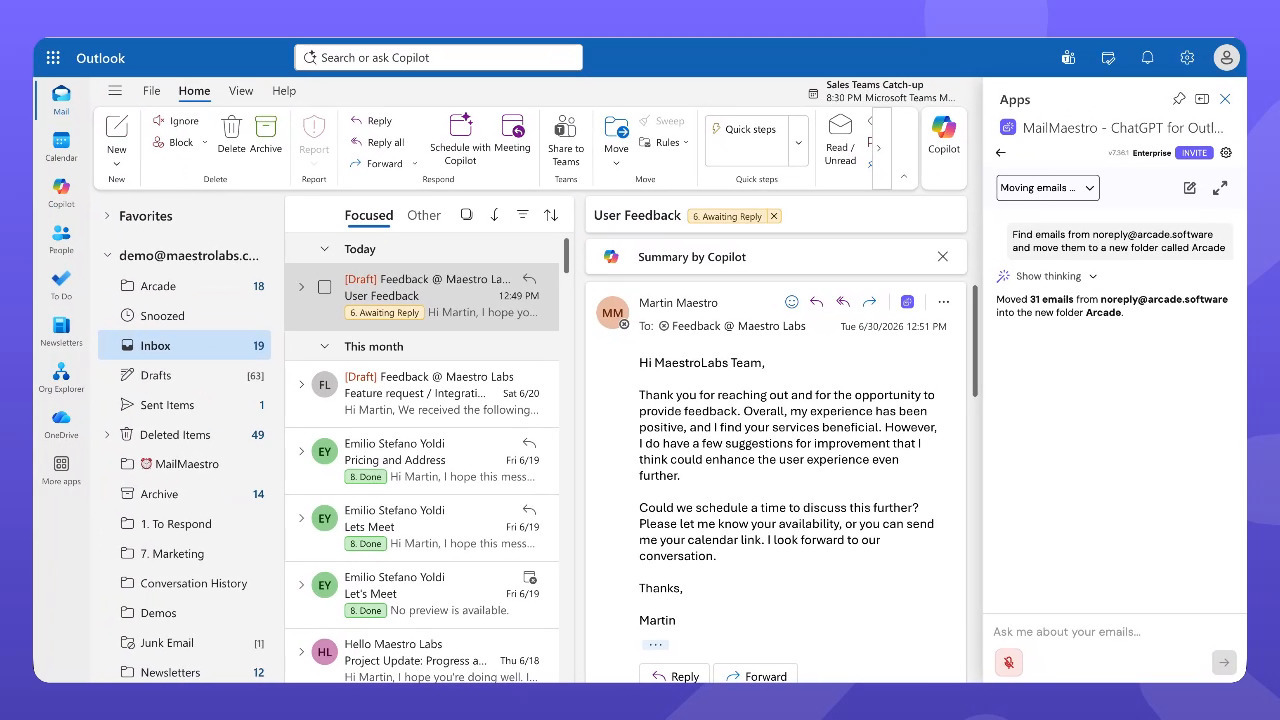
For example, you can ask MailMaestro to find emails from a sender and move them into a new folder. In the recorded workflow, Ask AI takes a request to find emails from noreply at arcade dot software and move them into a new folder called Arcade. MailMaestro then confirms that 31 emails were moved into the new Arcade folder.
That turns a repetitive clean up task into a single request. There is no need to search, select messages one by one, create the folder manually, and move everything yourself.
This is especially useful for product updates, notifications, newsletters, customer activity emails, and other recurring senders that can crowd the inbox but still need to be kept for later.
Archive the clutter when you are done with it
Ask AI actions can also help clear out messages after they have served their purpose.
When a group of emails no longer needs attention, you can ask MailMaestro to archive them. The action is shown alongside a bulk action flow, with the mailbox reflecting the cleanup after the request is completed.
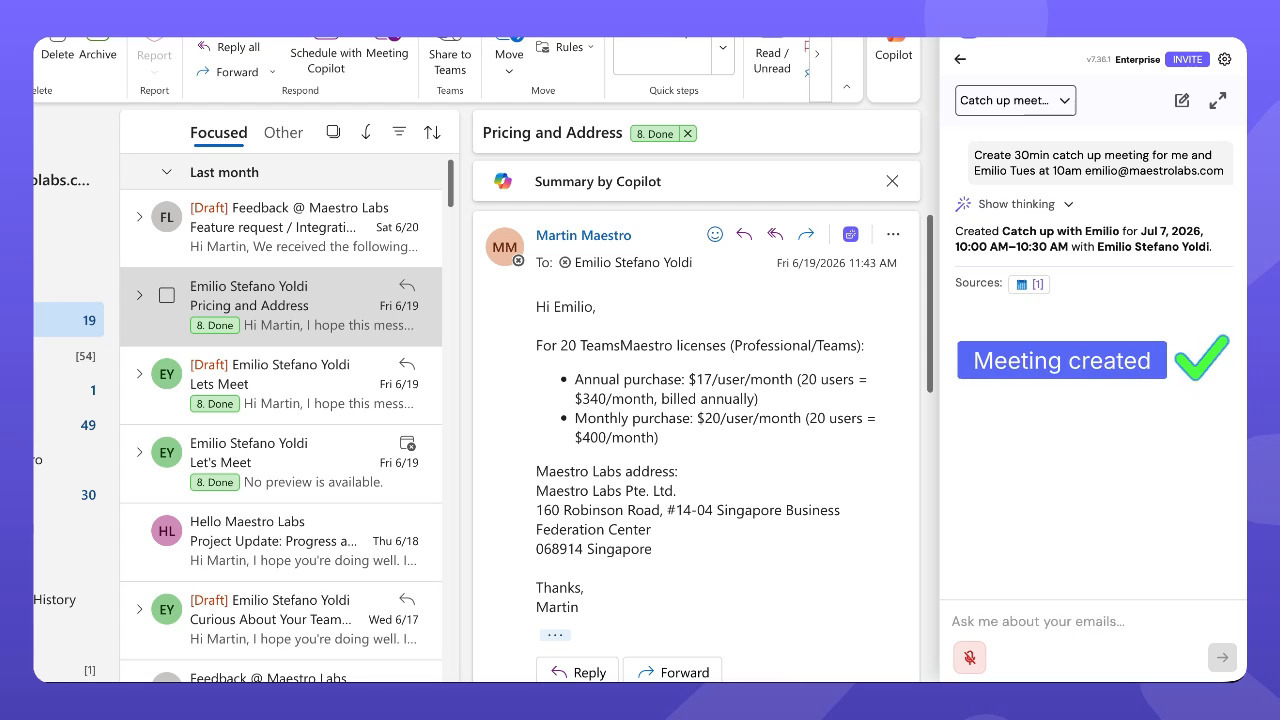
This keeps your inbox focused on current work while preserving messages in archive for search and reference.
Create meetings directly from email context
Email often leads to scheduling. Ask AI actions can help there too.
In the workflow, a prompt asks MailMaestro to create a 30 minute catch up meeting with Emilio on Tuesday at 10 AM using his email address. MailMaestro responds with a created calendar event named Catch up with Emilio for Jul 7, 2026, from 10:00 AM to 10:30 AM, and shows a source reference for the action.
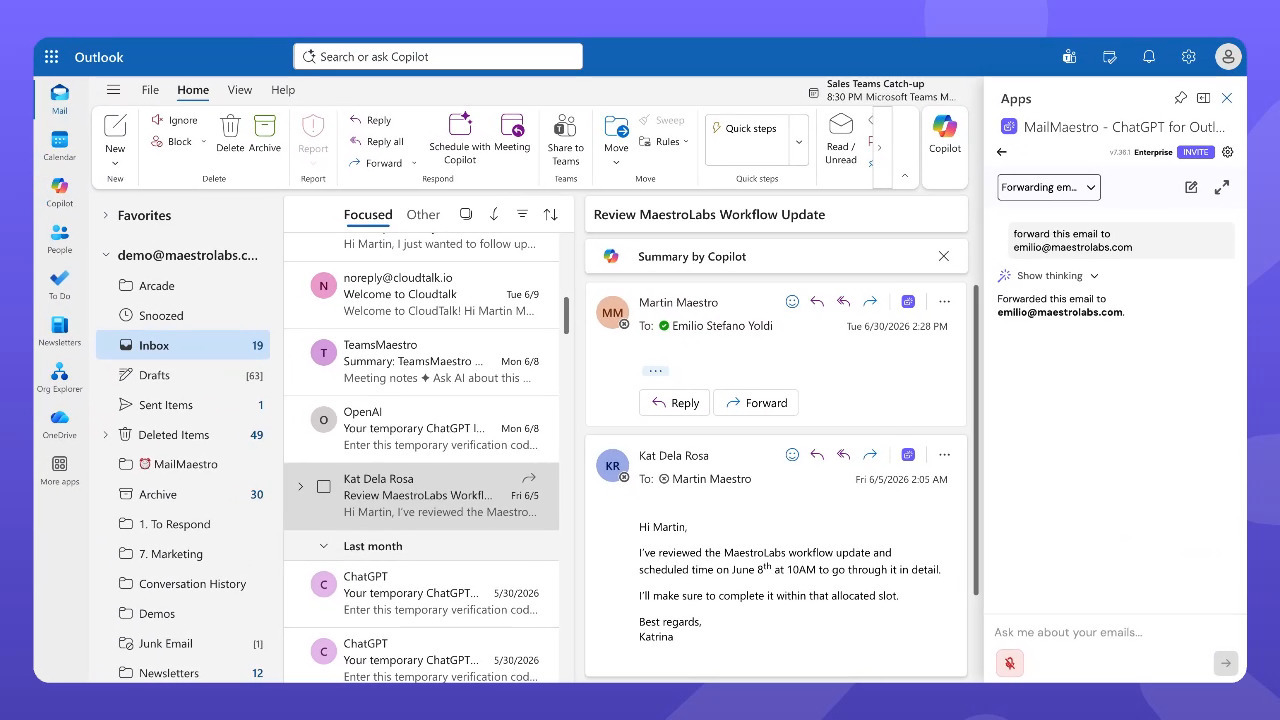
That matters because scheduling often depends on details already sitting inside the email thread. Instead of leaving the message, opening the calendar, entering the attendee, writing the event title, and checking the time again, you can ask from the same MailMaestro panel and keep moving.
Forward emails without breaking flow
Ask AI actions also work for quick handoffs.
When an email needs to go to someone else, you can prompt MailMaestro to forward it to the right address. In the workflow, the selected email is forwarded to emilio@maestrolabs.com, and MailMaestro confirms when the action is complete.
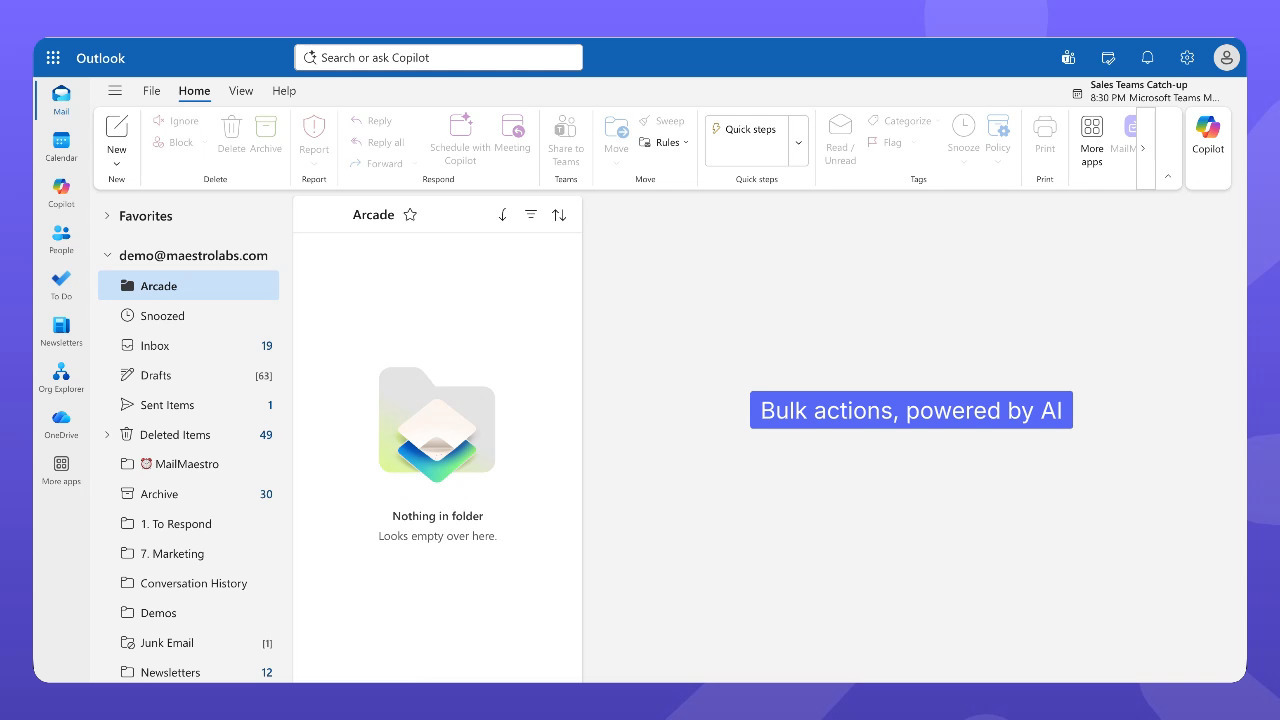
This is useful when the next step is obvious but still takes a few clicks. Ask AI turns that handoff into a short instruction, so you can stay inside the thread and move on.
How to use Ask AI actions
When Ask AI actions are available in MailMaestro, the workflow is simple:
- Open MailMaestro in Outlook.
- Open Ask AI from the MailMaestro sidebar.
- Ask for the action you want in plain language.
- Include the key details, such as sender, folder name, recipient, meeting time, or email address.
- Review the confirmation message after MailMaestro completes the action.
For best results, be specific about the target and the outcome. For example, name the sender when moving emails, include the folder name when organizing messages, and include the recipient address when forwarding or scheduling.
Why this matters
Most email assistants help you understand your inbox faster. That is useful, but understanding is only half the job.
The next step is action.
Ask AI actions help close that gap. You can move from an email task to a completed mailbox action without manually jumping between search, folders, calendar, forwarding, and message settings.
For busy teams, this means less time spent on inbox maintenance and more time spent on the actual work behind the email. You stay in context, give a clear instruction, and let MailMaestro handle the repetitive parts.
Try Ask AI actions in MailMaestro
Ask AI actions make MailMaestro more than an email assistant for writing and summarizing. It becomes a practical way to manage the small inbox tasks that add up throughout the day. Try it with a simple request the next time your inbox needs cleanup. Move a set of messages, create a meeting from a thread, or forward an email to the right person using one plain language prompt.
MailMaestro works with Outlook and Gmail, so you can start using AI to make email feel lighter, faster, and easier to manage.
Languages we support
TeamsMaestro currently supports a wide range of languages for meeting summaries, transcripts, and AI responses — from English and Spanish to French, German, and many more. Our goal is to make every team’s communication experience seamless and inclusive, no matter the language.


If your preferred language isn’t supported yet, we’d love your feedback! Email us at feedback@maestrolabs.com to request new languages or share examples of what you’d like to see. Your input helps us shape the next updates of TeamsMaestro.
Final thoughts
Meeting summaries are no longer one-size-fits-all. With the Language and Template buttons in TeamsMaestro, you can create tailored, polished notes in seconds. Use these tools to communicate clearly, reduce follow-up work, and keep everyone aligned, wherever they are and however they work.
Languages we support
MailMaestro currently supports a growing range of languages for composing, summarizing, and improving your emails. From English and Spanish to French, German, and beyond — we’re expanding our capabilities to make AI communication accessible for everyone.
If your preferred language isn’t available yet, we’d love to hear from you! Email us at feedback@maestrolabs.com to request new language support or share specific examples. We’re continuously improving with your input.