

 MailMaestro pricing
 TeamsMaestro pricing







Meet the all new Maestro Labs team portal, a central place for administrators to manage users, licenses, and product adoption across MailMaestro and TeamsMaestro. It brings day to day account management and practical usage insights together, so you can support your team with a clearer view of what is active and what still needs attention.
Keep team administration in one place
Managing productivity tools across a growing team can quickly become fragmented. One person needs access. Another needs an admin role. A license count changes. Someone has MailMaestro but has not finished setting up a feature. Meeting usage grows, but it is difficult to see how that activity is distributed across the team.
The all new team portal puts these jobs in one central workspace. You can manage your MaestroDuo seats, review users and their current status, and move between MailMaestro and TeamsMaestro insights from the same navigation.
Access is straightforward. Administrators can continue with Microsoft or Google, or sign in with an email address and password.
Manage licenses and users with less manual work
The Users view gives you a quick picture of who has access. It shows each team member, their status, and the date they were assigned. Search helps you find a person by name or email, while filters let you focus on all users, active users, or pending invitations.
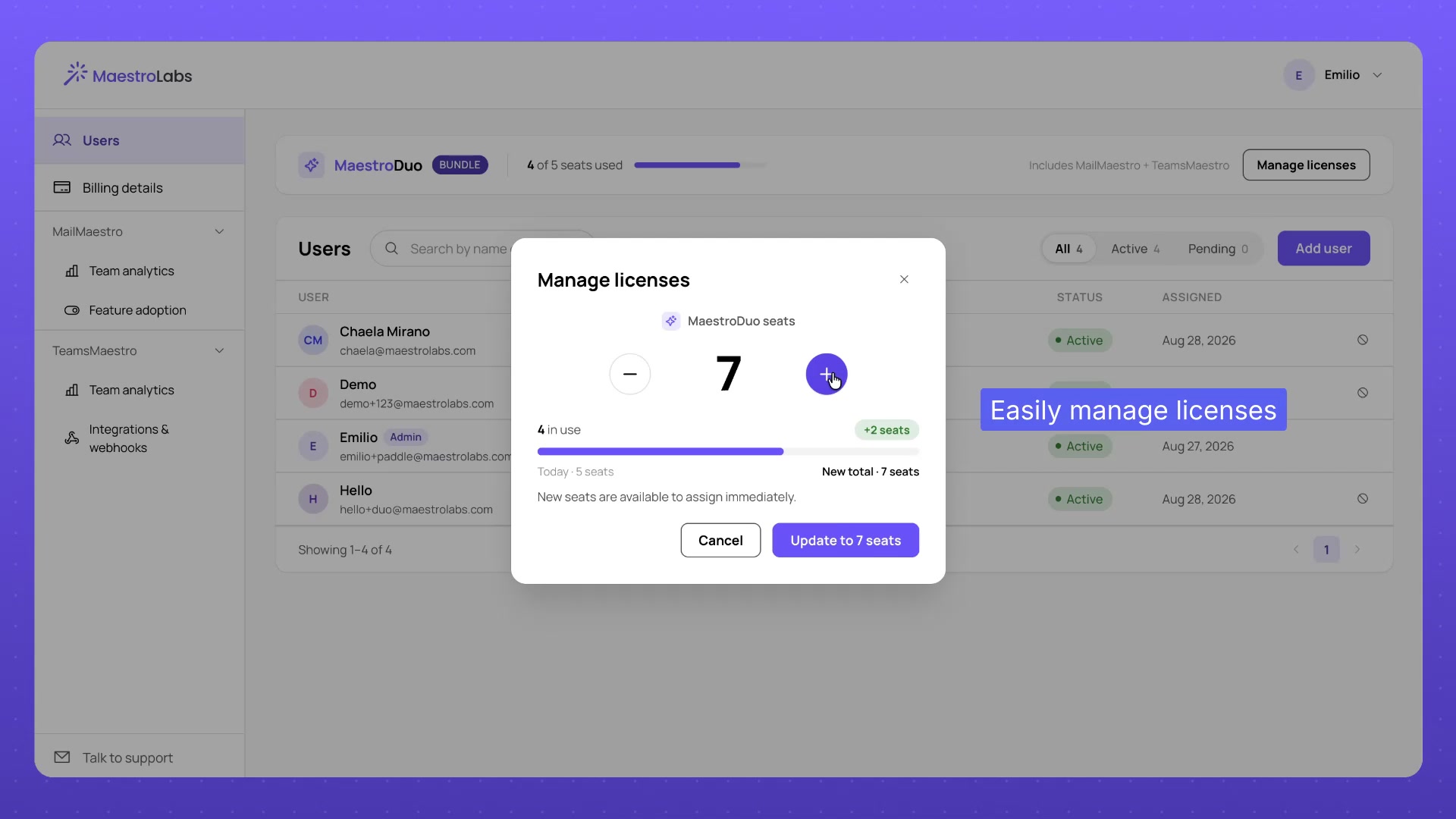
Your current seat usage appears at the top of the page. Select Manage licenses when you need to update the number of seats for your team. This keeps license changes close to the user list, so you can review capacity and membership together.
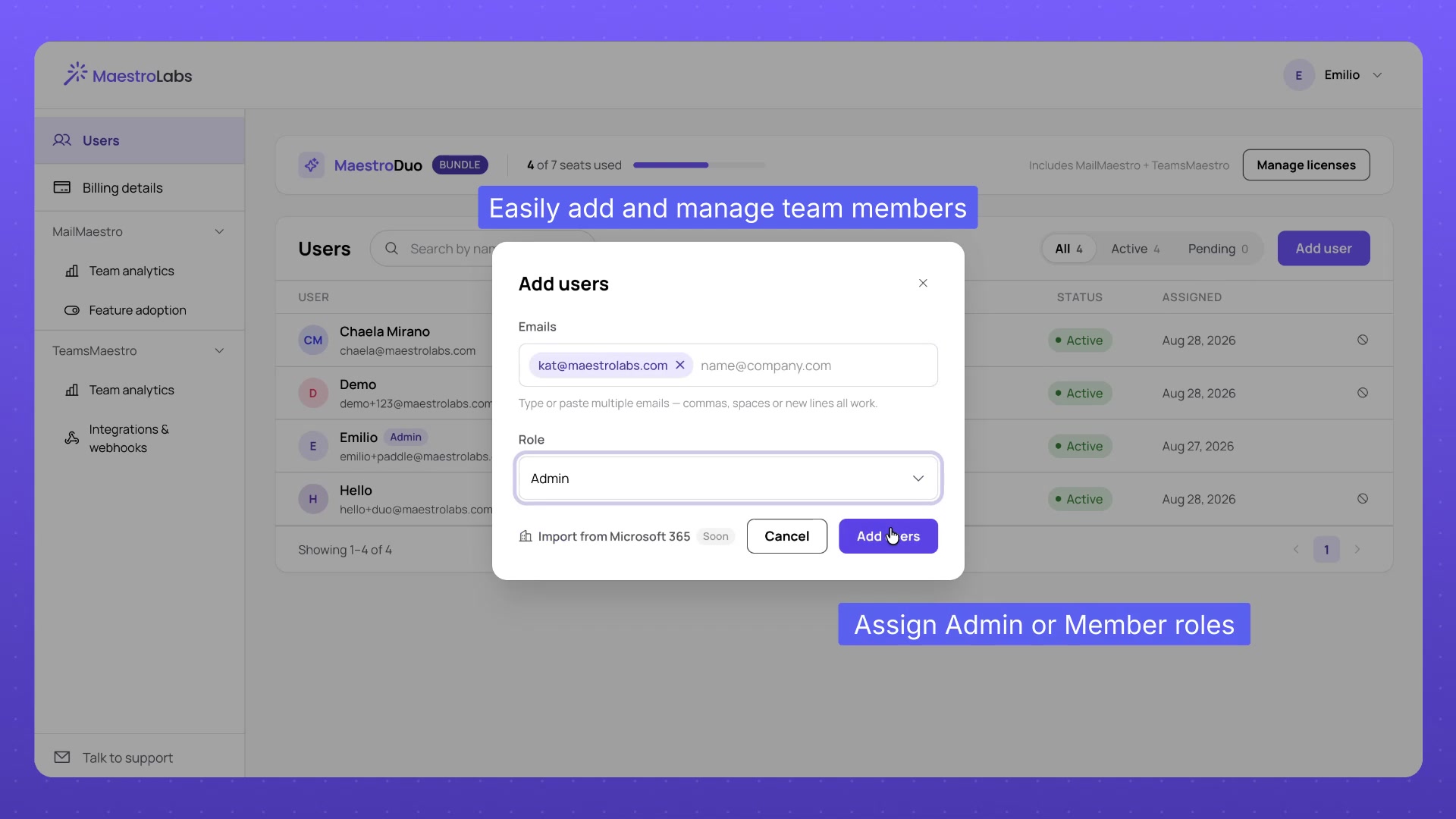
Adding people follows a simple flow:
- Open Users and select Add user.
- Enter one or more email addresses.
- Choose Member or Admin as the role.
- Add the selected users.
The same window also includes an option to import people from Microsoft 365.
Understand how your team uses MailMaestro
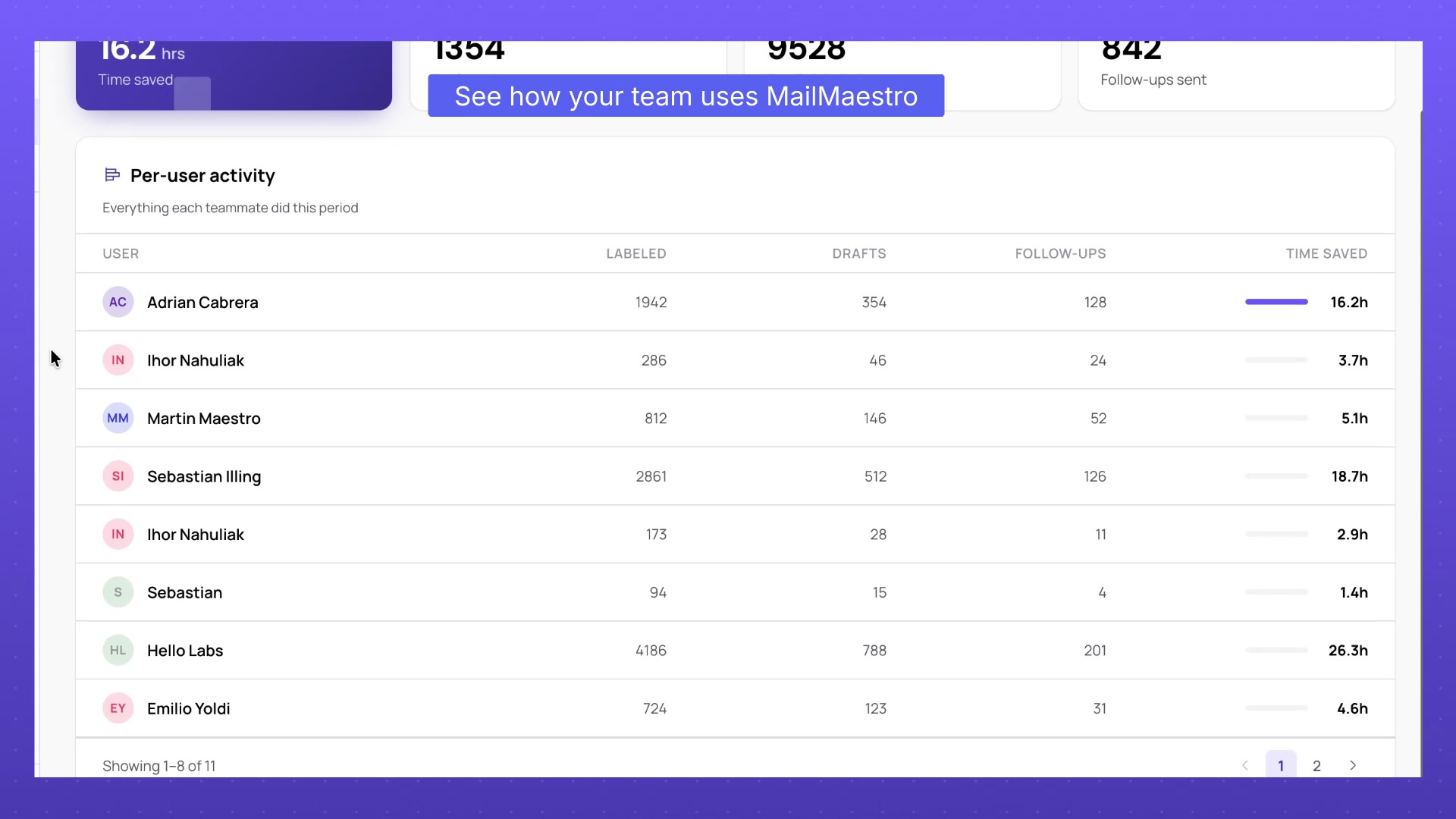
MailMaestro team analytics turns activity into a view that administrators can scan quickly. Summary metrics cover time saved, emails labeled, drafts created, and follow ups sent.
Below the summary, per user activity shows how that work is distributed across the team. You can compare labels, drafts, follow ups, and estimated time saved for each teammate. This makes it easier to see where MailMaestro is already part of the daily workflow and where a teammate may need help getting started.
Find setup gaps before they become adoption gaps
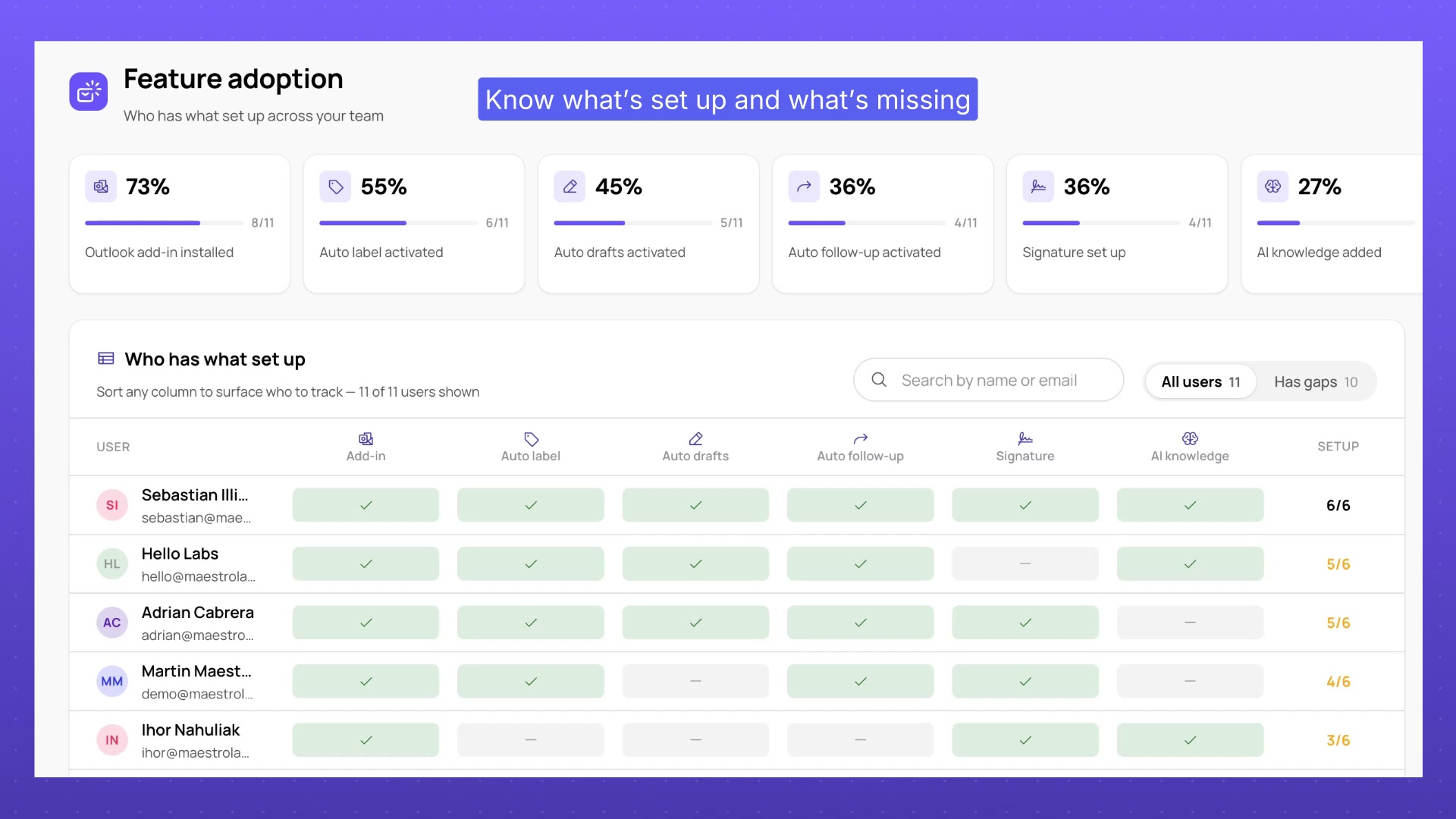
Feature adoption goes a step beyond activity totals. It shows the share of users who have completed key MailMaestro setup steps, including the Outlook add in, Auto Label, Auto Drafts, Auto Follow Up, signatures, and AI knowledge.
The user level grid shows which features each person has set up. You can search by name or email, switch to the Has gaps view, and sort the columns to surface the people who may need a reminder or guidance.
This is a useful distinction. Activity tells you what the team is doing. Feature adoption helps explain which capabilities are ready to use and which ones are still missing from a teammate's setup.
Review TeamsMaestro usage at a glance
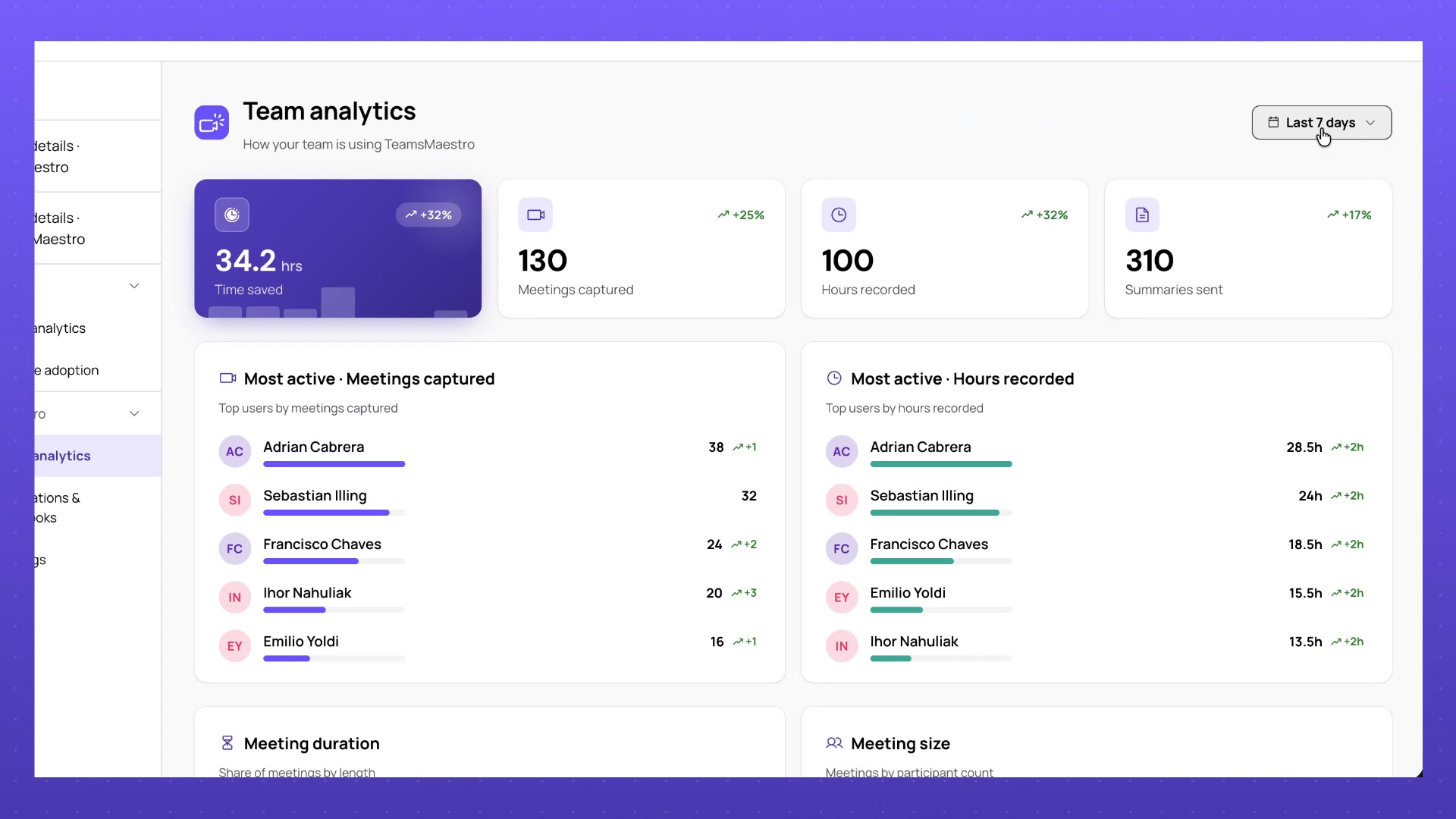
TeamsMaestro analytics gives administrators a similar view of meeting activity. At the top, you can review time saved, meetings captured, hours recorded, and summaries sent.
The page also highlights the most active users by meetings captured and hours recorded. Additional views break activity down by meeting duration and meeting size, giving you more context than a single total can provide.
Use the date selector to review the last 7 days, last 30 days, last 90 days, or a custom range. This makes it easier to look at a recent period or compare activity across a reporting window that matters to your team.
Give every teammate the right support
Good administration is not only about assigning licenses. It is about knowing whether people can access the tools, whether the right features are set up, and how the products are being used.
The all new Maestro Labs team portal brings those signals together. Administrators can manage membership and seats, spot incomplete MailMaestro setup, and understand MailMaestro and TeamsMaestro activity without moving between separate reports.
Open the team portal to review your team, update access, and see where a little guidance can help more people get value from Maestro Labs. Reviewing seats first? See MailMaestro plans or TeamsMaestro plans.
Lorem ipsum dolor sit amet, consectetur adipiscing elit. Suspendisse varius enim in eros elementum tristique. Duis cursus, mi quis viverra ornare, eros dolor interdum nulla, ut commodo diam libero vitae erat. Aenean faucibus nibh et justo cursus id rutrum lorem imperdiet. Nunc ut sem vitae risus tristique posuere.


follow-up on our previous call, ask if he’s ready to start cooperation let him know that our discount ends tomorrow ask him if he had time to calculate roi


