

 MailMaestro pricing
 TeamsMaestro pricing








The existing Maestro dashboard now supports Google. Google users can sign in to the same dashboard used to manage MailMaestro and TeamsMaestro, while MailMaestro users can now use Auto labels and Auto drafts directly in Gmail.
The existing Maestro dashboard now supports Google
A busy workday can scatter context across an inbox, a calendar, and one meeting after another. The hard part is often not doing the work. It is finding the message that needs a reply, recovering the decision from a call, or remembering which conversation still needs a follow up.
This is the Maestro dashboard you already know, now with Google support. Choose Continue with Google to sign in, then move between TeamsMaestro and MailMaestro from the same navigation.
The dashboard also gives you a quick view of your activity, including emails labeled, emails drafted, time spent in meetings, and AI summaries generated. That means you can understand what Maestro is handling without checking each tool separately.
Turn Google Meet conversations into clear next steps
TeamsMaestro gives your meeting history a practical home. Completed, upcoming, and skipped meetings are organized in separate views, and search helps you find transcripts or participants when you need to return to a conversation.
Open a completed meeting and the AI summary brings the useful parts forward. Purpose, takeaways, and a detailed summary are available in the main view, with the transcript close by for added context.
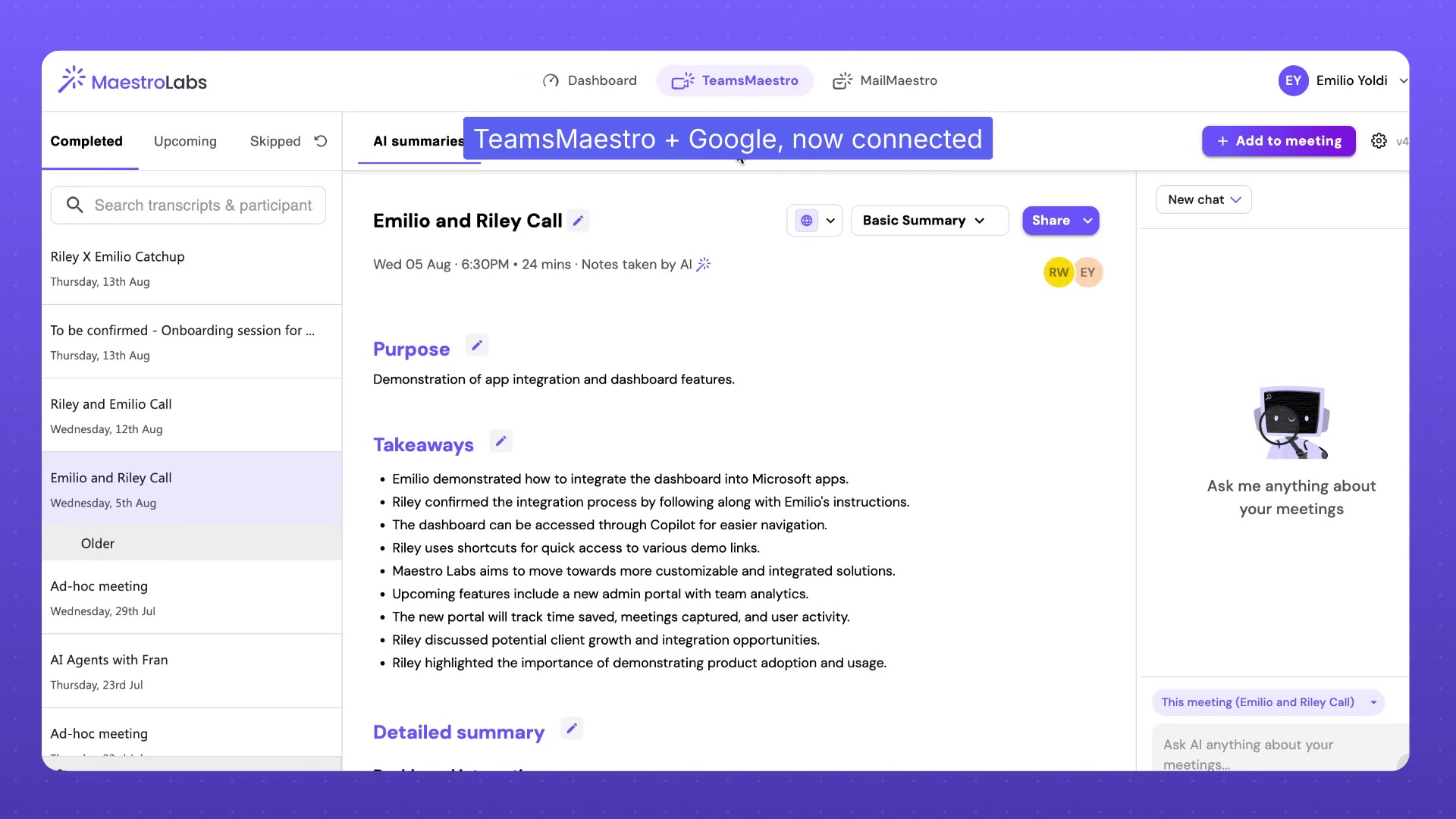
An Ask AI panel sits beside the summary so you can ask questions about the selected meeting. This makes it easier to move from remembering that a conversation happened to finding the information you need from it.
Auto labels and Auto drafts now work in Gmail
Two of MailMaestro's most useful automations, Auto labels and Auto drafts, now work in Gmail. Their controls live in the MailMaestro area of the existing Maestro dashboard, alongside Follow up and customization settings. For the fuller picture of how MailMaestro compares to Gmail's built-in Gemini and other AI email tools, see Best AI email assistant for Gmail.
See what every email needs
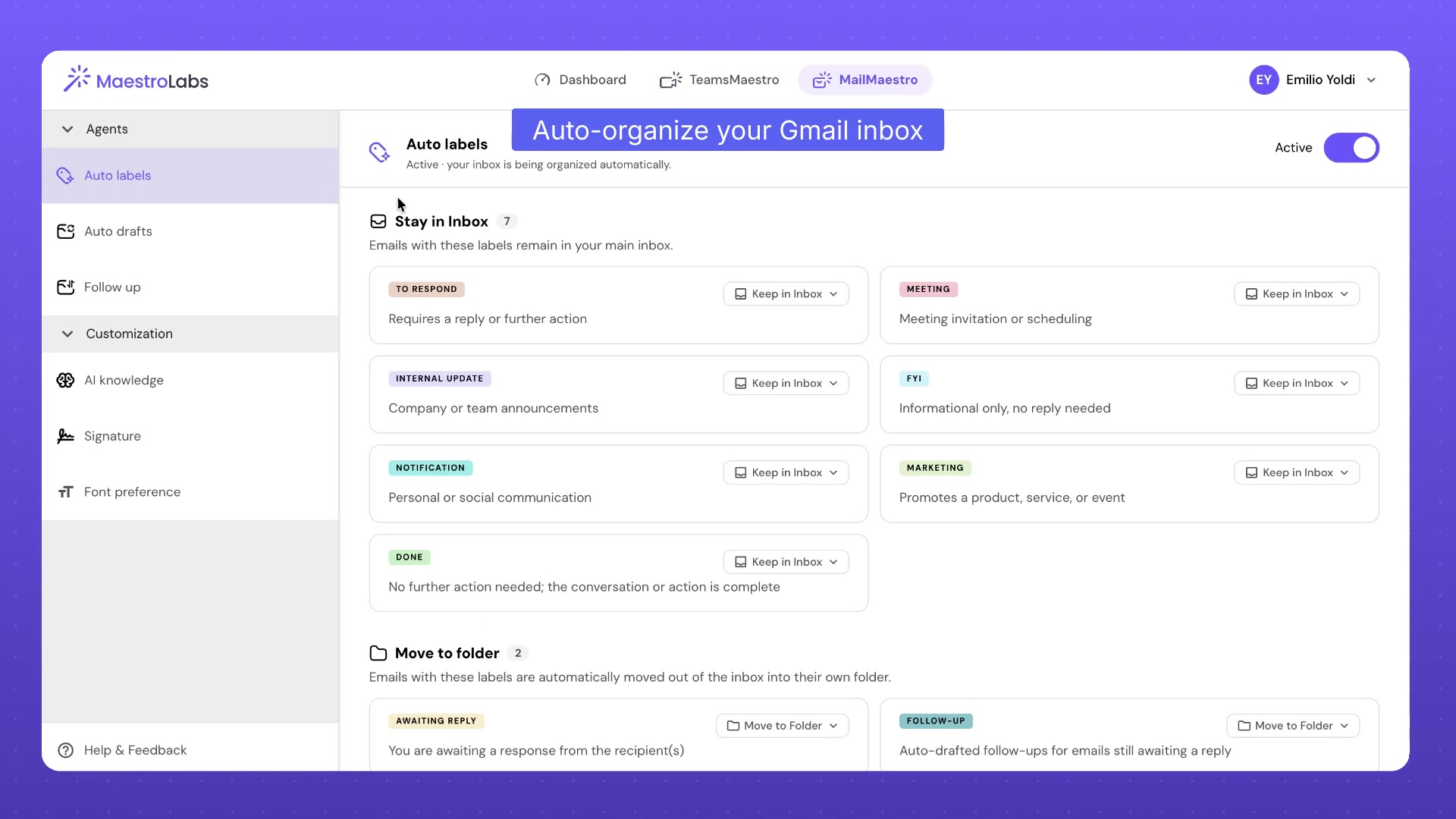
The Auto labels feature now organizes Gmail by context. Messages can be marked as To respond, Meeting, Internal update, FYI, Notification, Marketing, Awaiting reply, Follow up, or Done.
You can decide which categories stay in the inbox and which move to a folder. Action oriented messages remain visible, while lower priority categories can be routed out of the way.
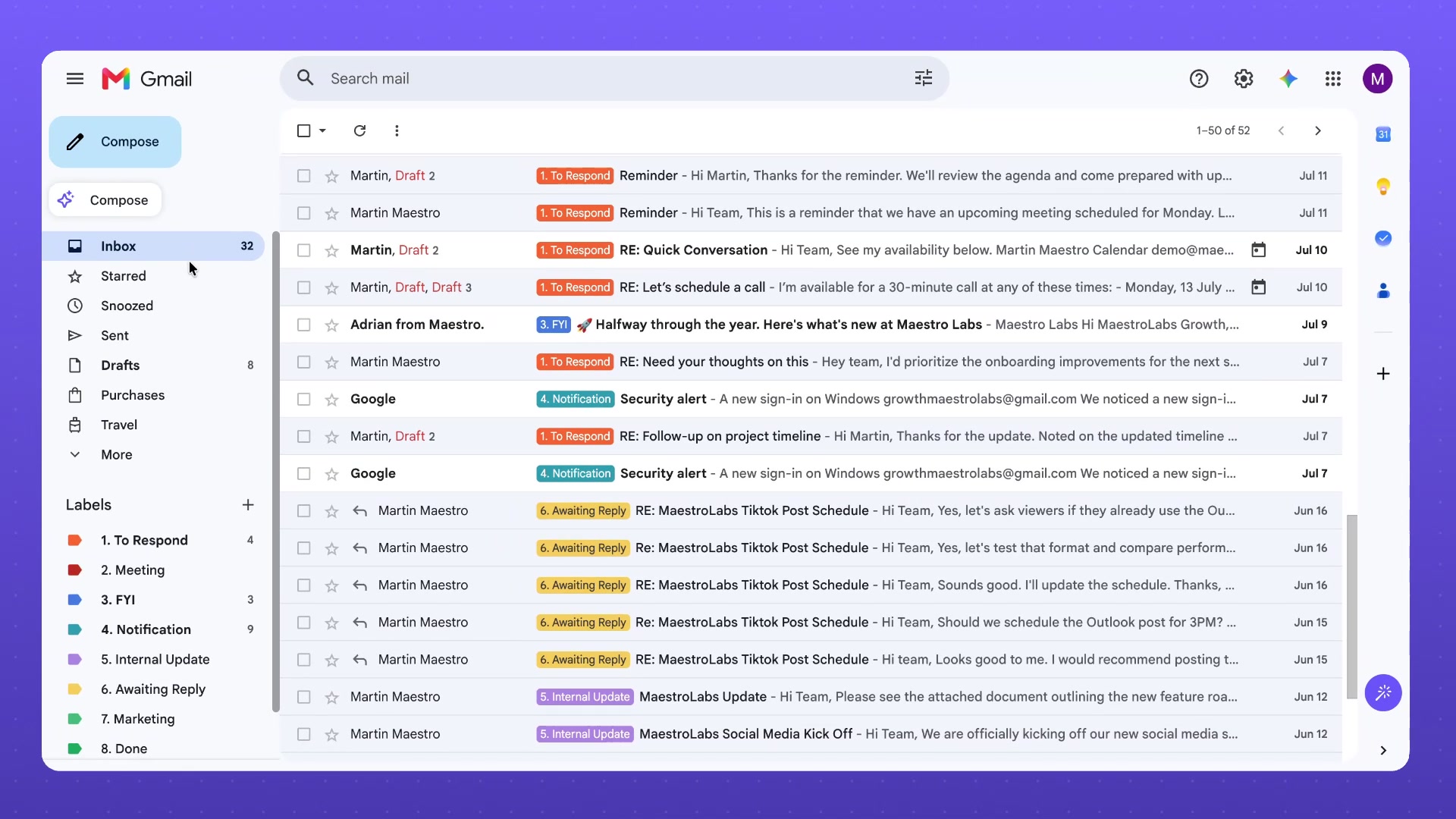
The result is an inbox you can scan by next action. Labels appear beside subject lines and in the Gmail navigation, so it is easier to separate messages that need a response from updates that only need awareness.
Start with a reply already prepared
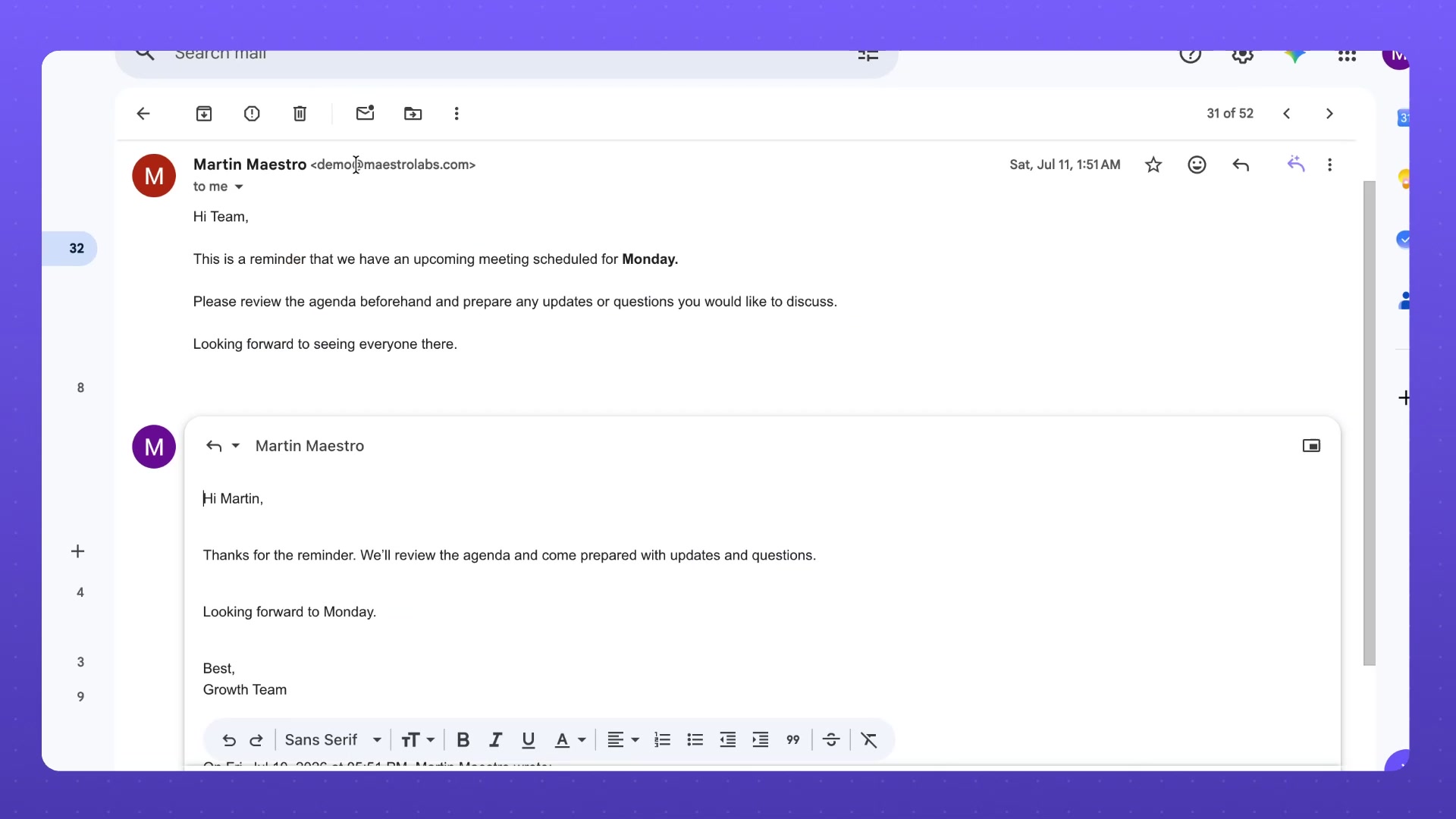
The Auto drafts feature now prepares a response when a new email arrives in Gmail. MailMaestro reads the message and its context, generates a draft using your writing preferences, and leaves the final review with you.
Open the conversation, review the prepared reply, make any changes you need, and send it when ready. You can also choose how many days drafts should remain before they are automatically deleted.
Follow up without keeping a mental list
Follow up watches for conversations that go quiet. You choose how many days to wait and the maximum number of follow ups. When a reply has not arrived within that window, MailMaestro prepares a contextual message for you to review and send.
A folder option can also keep these conversations grouped together, making it easier to see which threads are still waiting for movement.
Set your preferences once
MailMaestro can use saved guidance when it writes. AI knowledge lets you add details or instructions that matter to your emails, such as a phone number, a preferred writing pattern, or a formatting preference.
You can also create signatures for the languages you write in and select a default font, size, and color. These controls help generated drafts arrive closer to your usual style, with less cleanup before you send.
How to get started with Maestro for Google
- Open the Maestro dashboard and choose Continue with Google.
- Select TeamsMaestro to review meeting summaries, transcripts, and Ask AI.
- Select MailMaestro to activate the email workflows you want to use.
- Review Auto labels routing, Auto drafts timing, and Follow up settings.
- Add AI knowledge, signatures, and font preferences to personalize future drafts.
- Return to Gmail to review labels, prepared replies, and follow up messages as part of your normal inbox routine.
Spend less time recovering context
The value of Maestro for Google is not another place to manage. It is fewer small decisions scattered across the day.
Meeting summaries keep important context available after a call. Auto labels show what each email needs. Auto drafts give you a strong starting point. Follow up keeps quiet threads from depending on memory.
By adding Google support to the existing Maestro dashboard, MailMaestro and TeamsMaestro now bring a more organized workflow to Gmail and Google Meet. For MailMaestro users, that means Auto labels and Auto drafts can handle more of the routine work directly inside Gmail.
Try Maestro for Google
Try MailMaestro free — sign in with Google and start with the workflow that costs you the most time today. Want the meeting side first? Explore TeamsMaestro. Then let Maestro handle more of the routine work around your email and meetings.
Lorem ipsum dolor sit amet, consectetur adipiscing elit. Suspendisse varius enim in eros elementum tristique. Duis cursus, mi quis viverra ornare, eros dolor interdum nulla, ut commodo diam libero vitae erat. Aenean faucibus nibh et justo cursus id rutrum lorem imperdiet. Nunc ut sem vitae risus tristique posuere.


follow-up on our previous call, ask if he’s ready to start cooperation let him know that our discount ends tomorrow ask him if he had time to calculate roi


