

 MailMaestro pricing
 TeamsMaestro pricing







Not every meeting happens on a call. Some happen around a table, in a hallway, or at a client's office where you never open your laptop. Those are often the conversations where decisions get made and nobody writes them down.
The TeamsMaestro app for iPhone covers both. Send the notetaker to an online call, or record the room with your phone. Either way, you get the same summary and action items you already get from your other meetings.
How to take meeting notes on your iPhone
- Download the TeamsMaestro app from the App Store and sign in.
- Open your meetings and tap + to add your notetaker.
- Choose Add a meeting link for an online call, or Record with your phone for a meeting in the room.
- Tap Pause notetaker if part of the conversation should stay off the record.
- Tap Stop recording when the meeting ends.
- Open the meeting to review the summary, transcript, and action items.
Choose how the notetaker joins
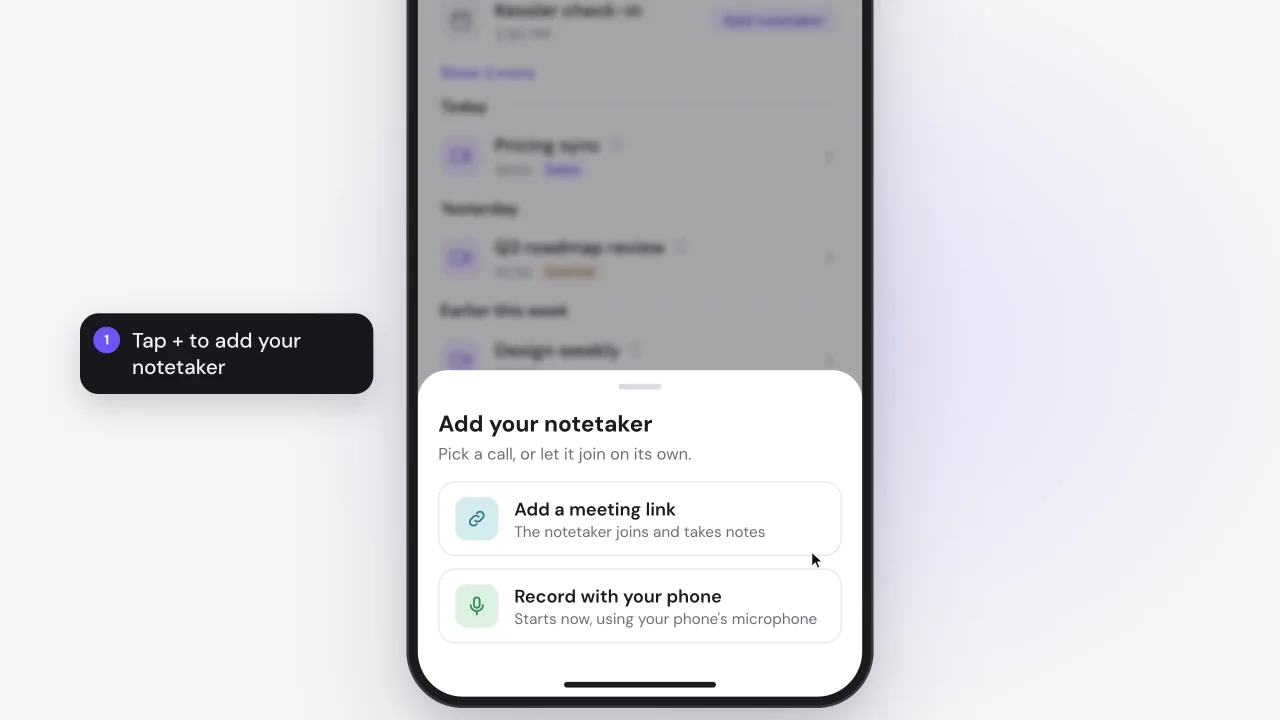
After you tap +, the Add your notetaker menu gives you two options:
- Add a meeting link: the notetaker joins the online call and takes notes for you.
- Record with your phone: recording starts right away, using your phone's microphone. Use this when everyone is in the same room.
Record an in-person meeting
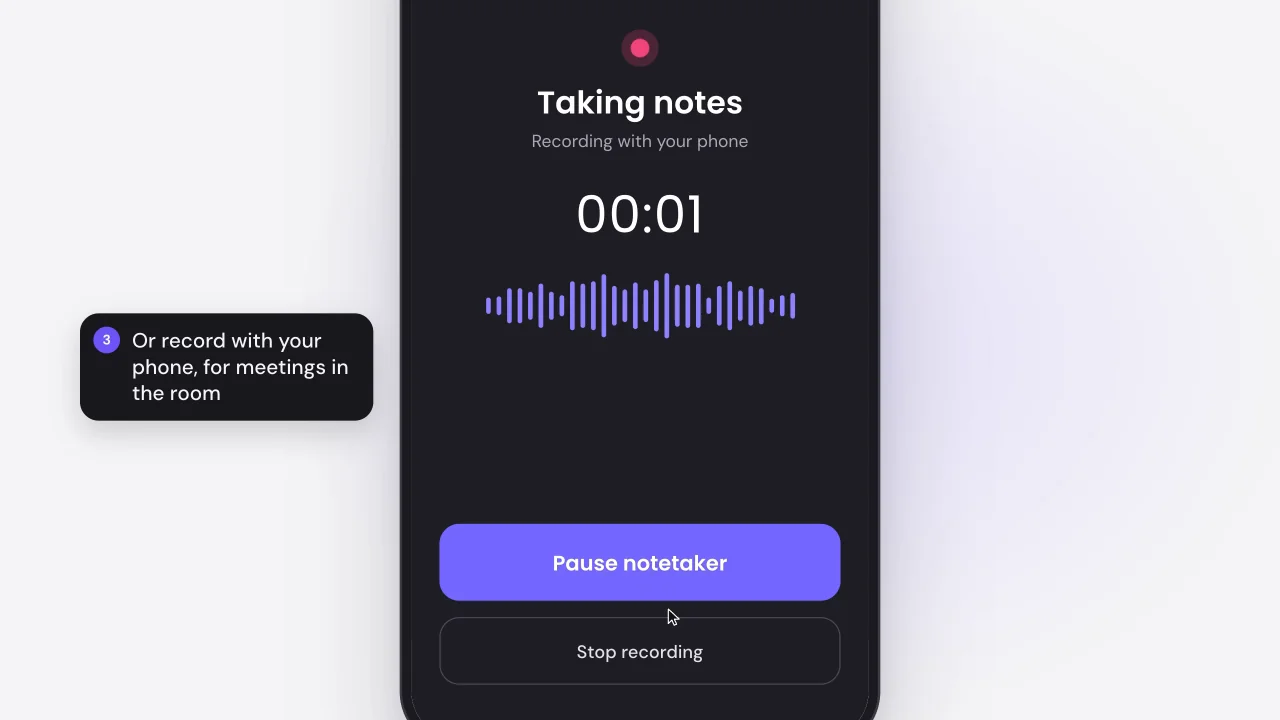
The recording screen shows a timer, so you can see it's running. Tap Pause notetaker when the conversation turns confidential or goes off topic, then resume when you're ready. When you're done, tap Stop recording.
You don't need to set up a call just to get a notetaker into the room. Put your phone on the table and start the meeting.
Review the summary and action items
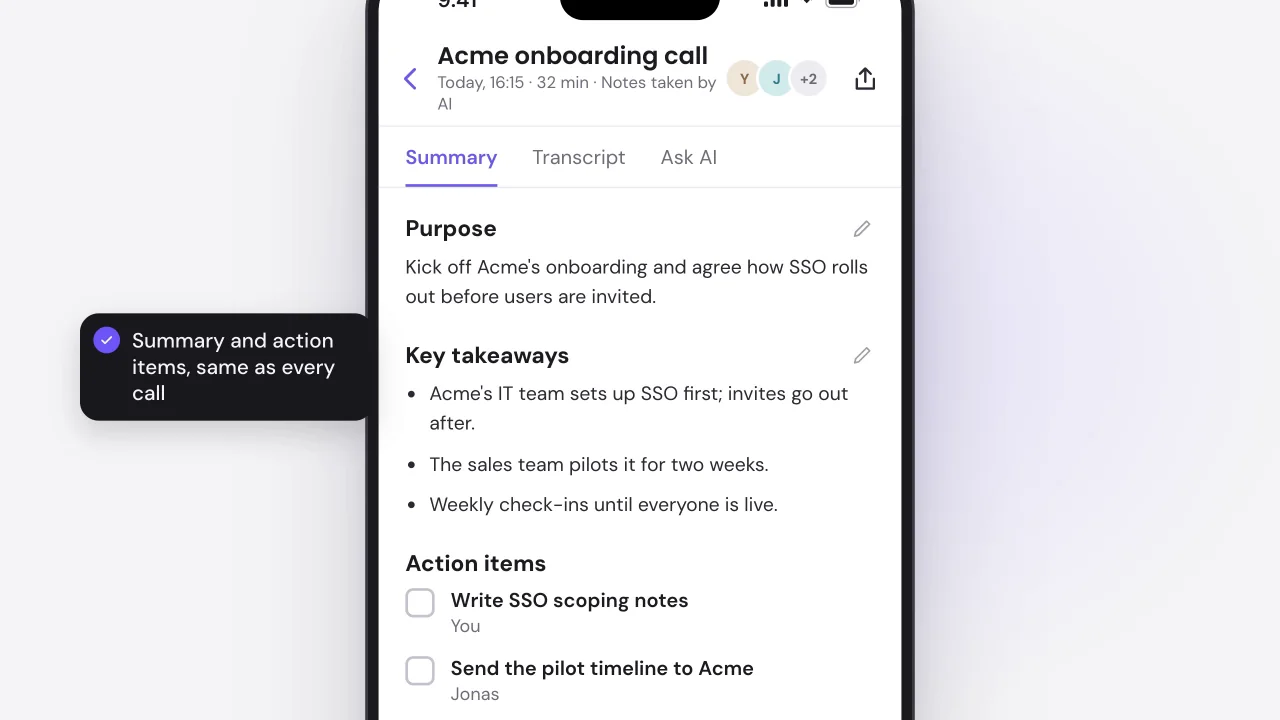
The finished meeting shows up in your list next to the rest of your calls. Open it to switch between three tabs: Summary, Transcript, and Ask AI.
The summary uses the same structure as your other meetings: the purpose of the meeting, the key takeaways, and action items with an owner under each one. If something needs a correction, tap the pencil icon next to a section to edit it.
Take notes in your next in-person meeting
Next time a meeting happens away from your desk, open the app, tap +, and record it. The notes land in the same list as your online calls, so nothing gets lost. TeamsMaestro takes the notes in your Teams calls, and now in the room too. Get the iPhone app free.


follow-up on our previous call, ask if he’s ready to start cooperation let him know that our discount ends tomorrow ask him if he had time to calculate roi


