

 MailMaestro pricing
 TeamsMaestro pricing








The meeting's over, and now everyone needs something different. Your manager wants the summary, a teammate needs to follow up from the full notes, and a client needs a copy they can open without an account.
TeamsMaestro handles all of that from one Share menu. You can give access, send a copy, or download the summary or transcript.
How to share a meeting in TeamsMaestro
- Open a completed meeting.
- Select Share near the meeting title.
- Choose a tab: Access, Send a copy, or Download.
- Add people, pick how to send it, or choose the content and file format.
- Select Share or Download to finish.
Each tab fits a different situation. Here's when to use which.
Give teammates access to the meeting
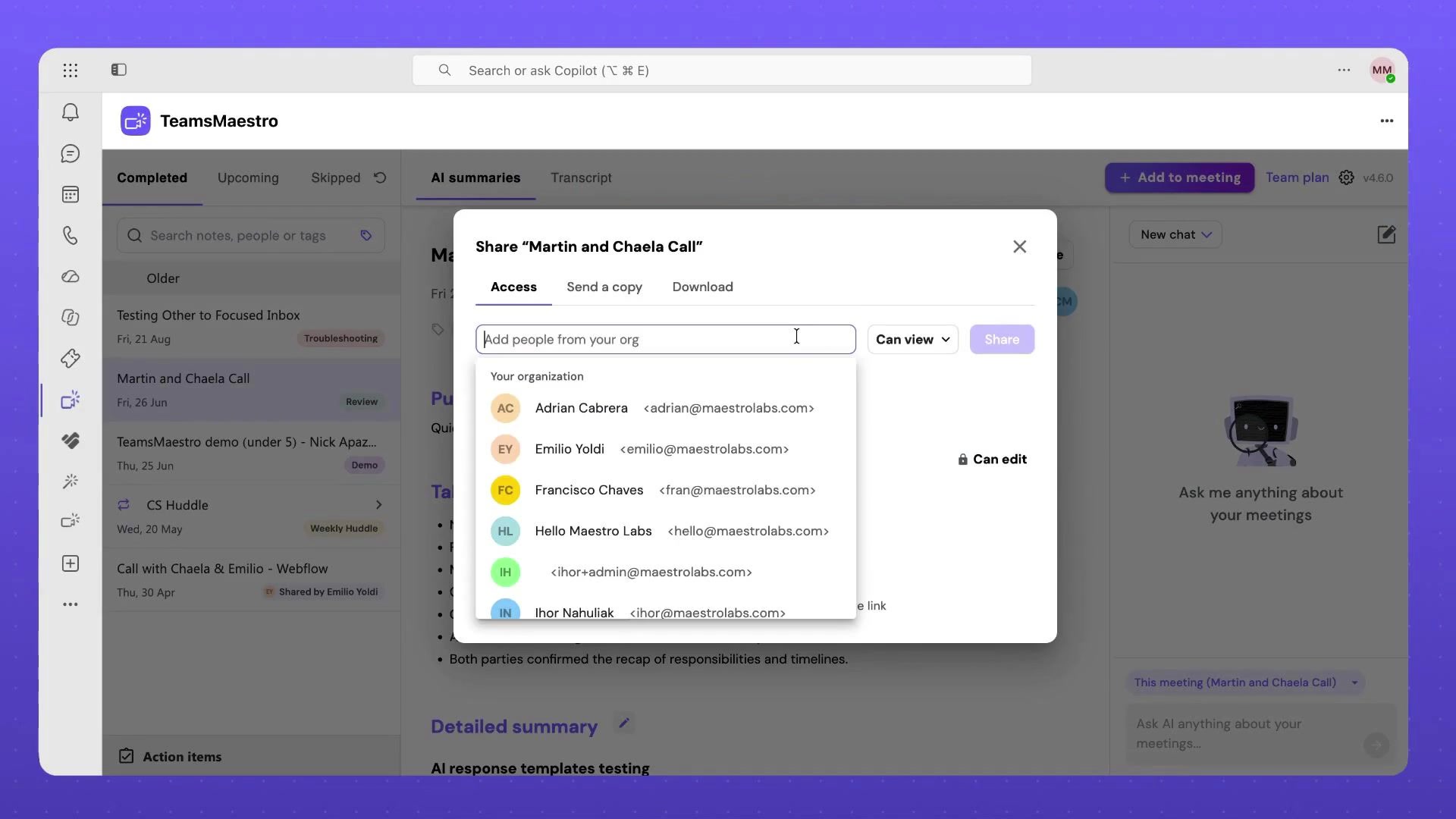
Use the Access tab when someone in your organization needs to open the meeting in TeamsMaestro and come back to it later.
Add people from your organization, pick their permission level, and share. You can also copy the meeting link, but it only opens for people who already have access. The meeting stays limited to the people you chose.
Send a copy by email, Teams chat, or public link
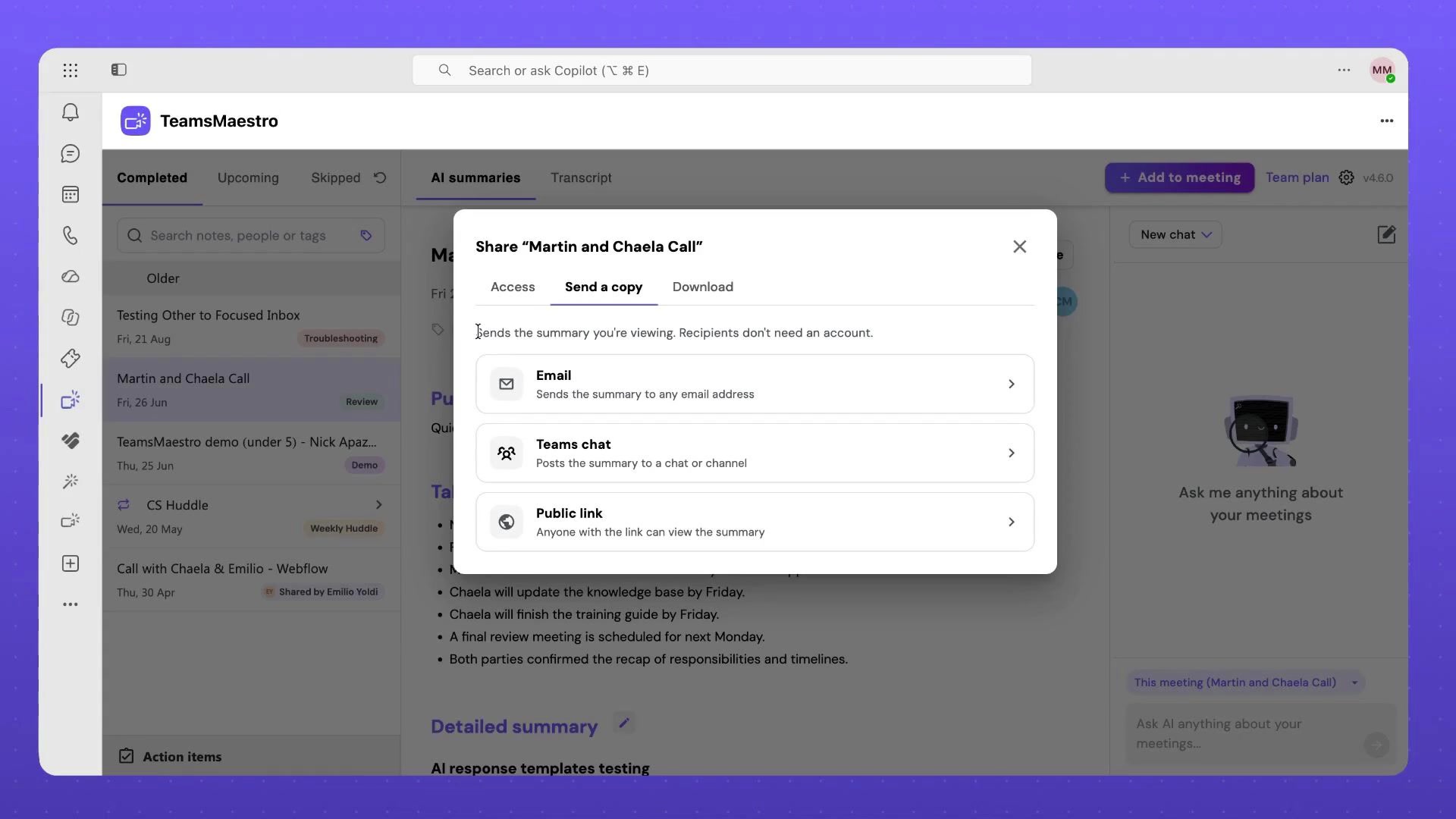
Use Send a copy when someone needs the summary itself, not access to the meeting.
- Email: sends the summary to any email address. Recipients don't need an account.
- Teams chat: posts the summary in a chat or channel, right where your team is already talking.
- Public link: creates a link anyone can use to view the summary. Good for sharing more widely, so use it with care.
Download the summary or transcript
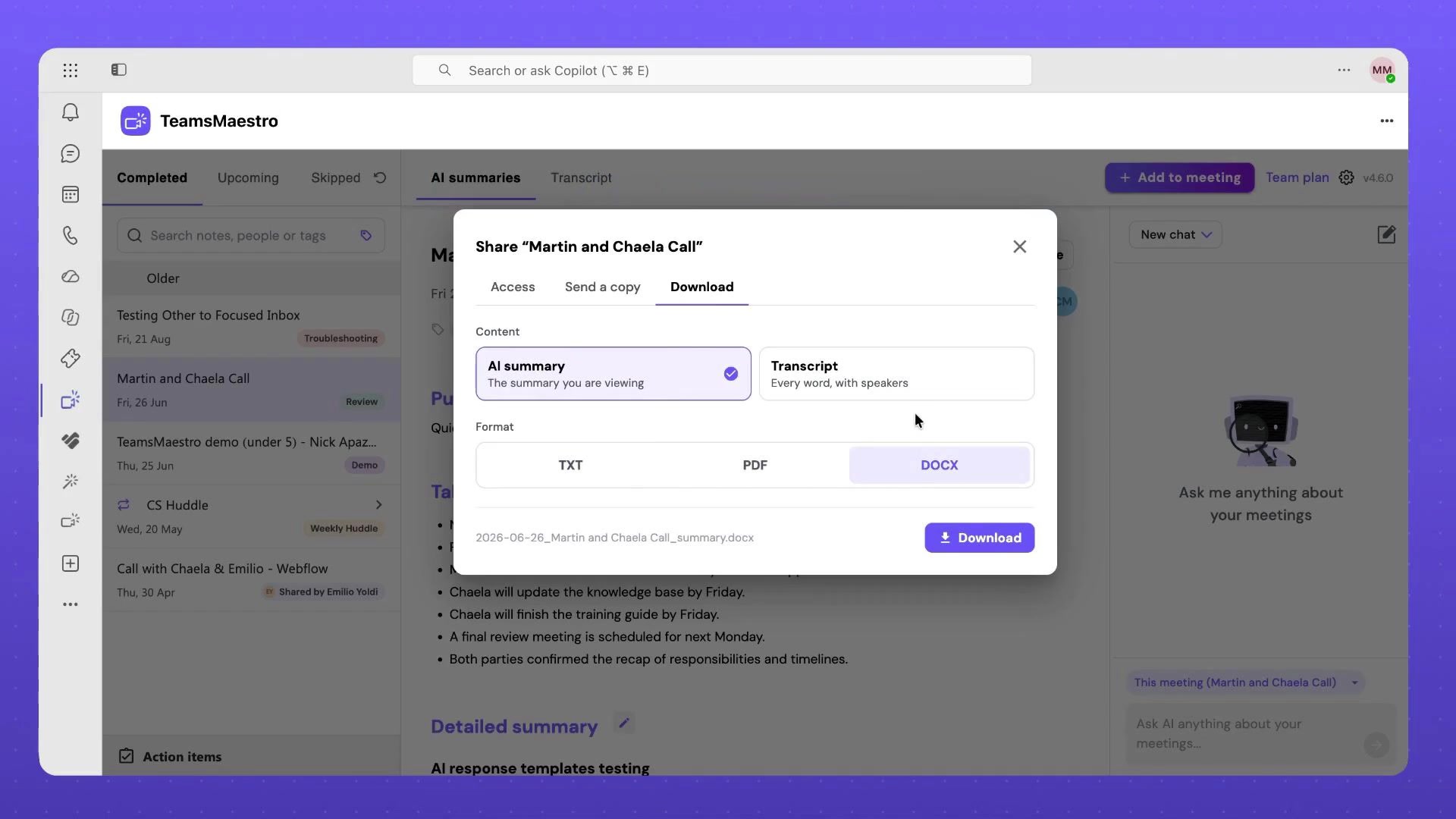
Need a file? Open the Download tab and choose what to download:
- AI summary: the structured summary you're looking at.
- Transcript: the full conversation, with speaker names.
Then pick a format: TXT, PDF, or DOCX. The file is named after the meeting, so it's easy to find later.
Find meetings your teammates shared with you
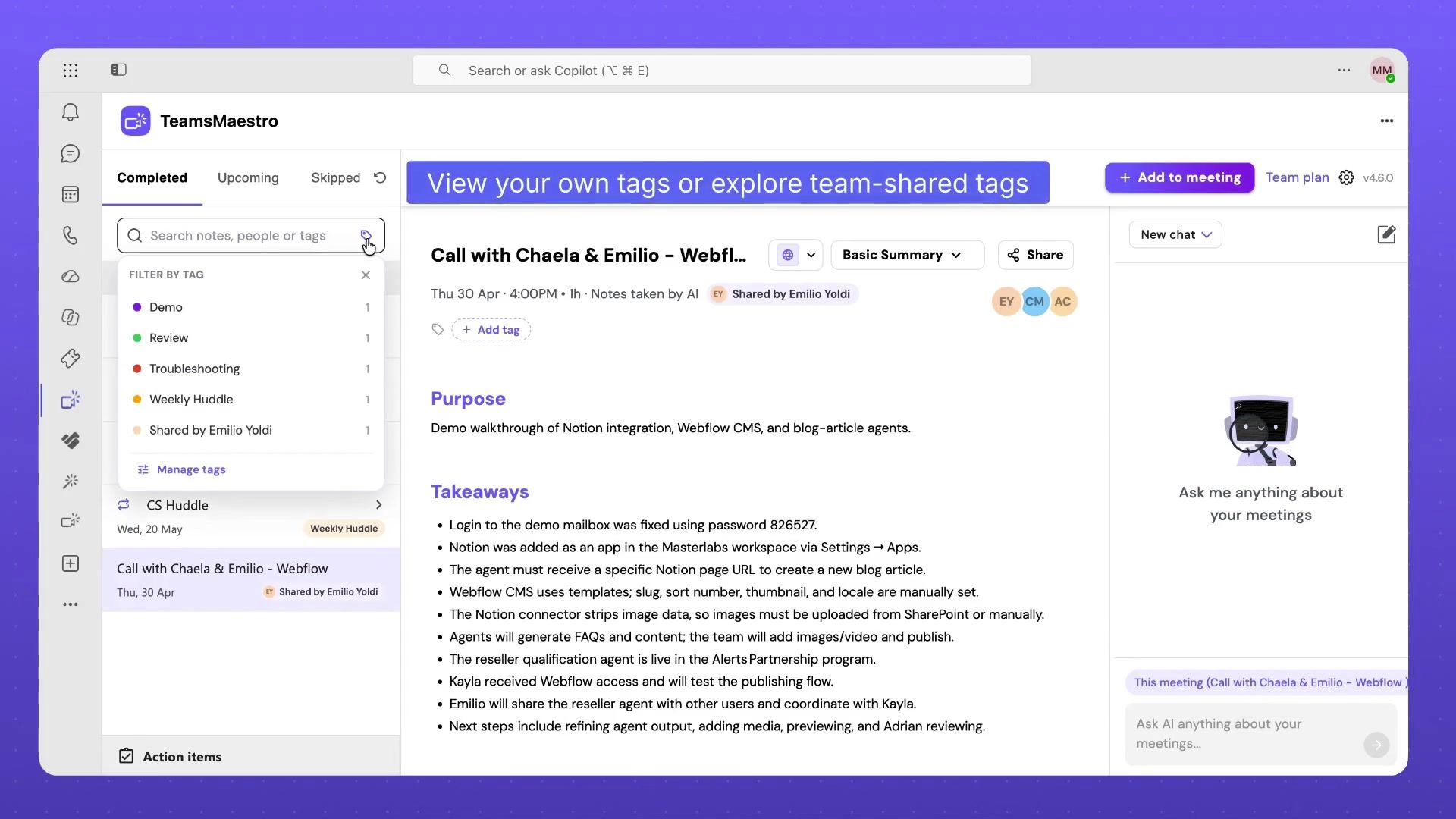
Meetings shared with you show up in your completed meetings list, next to your own. TeamsMaestro shows who shared each one, so you know where the notes came from before you open them.
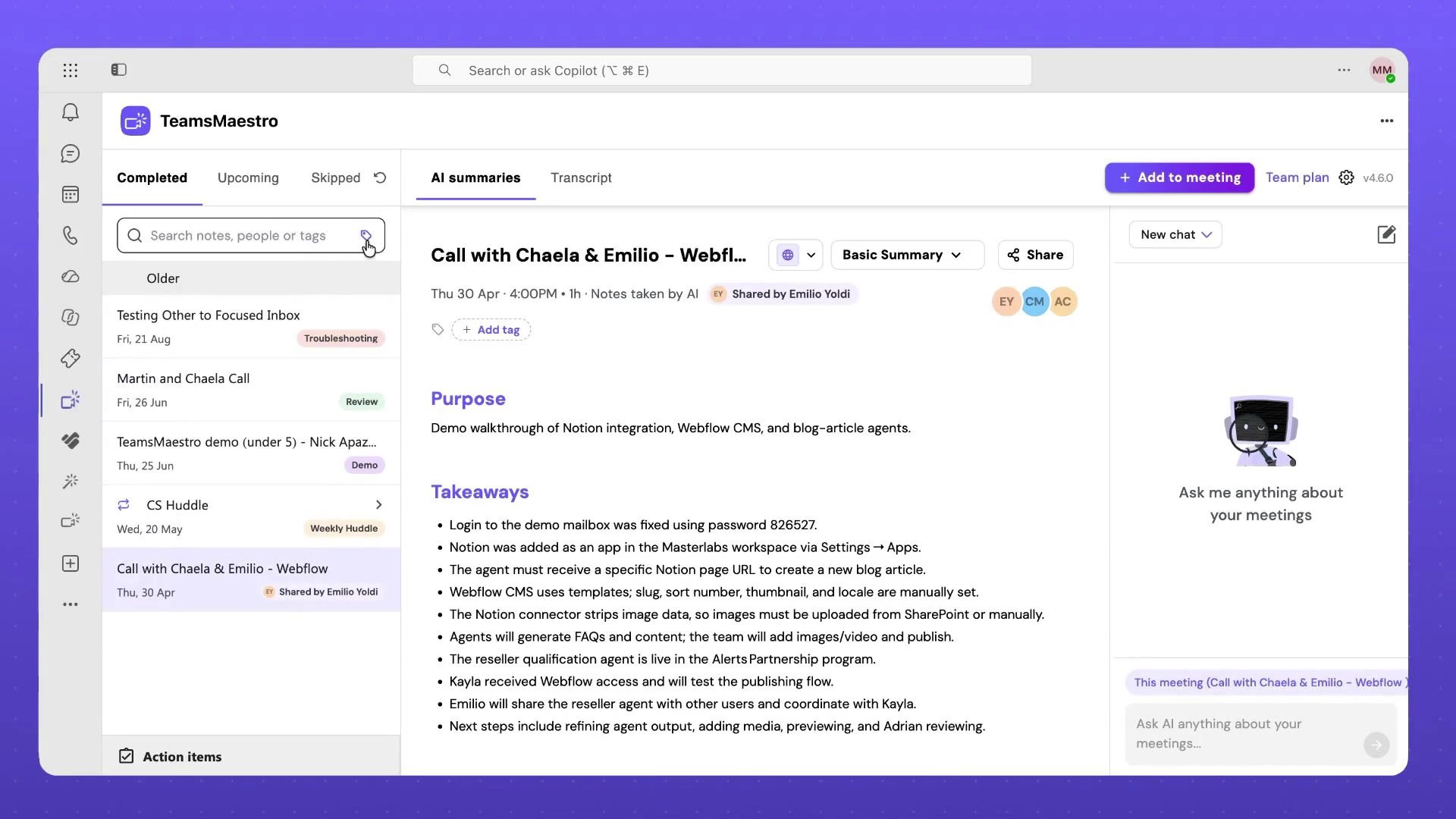
You can also filter by tag. The tag menu shows your own tags and the ones your teammates have shared, which makes it easier to find related meetings across the team.
If notes are being shared with everyone when you didn't expect it, see why your meeting notes get shared with everyone.
Share your next meeting
Open a completed meeting in TeamsMaestro, select Share, and pick the option that fits who needs it. TeamsMaestro takes the notes in your Teams calls, so there's always something ready to send. Try it free.


follow-up on our previous call, ask if he’s ready to start cooperation let him know that our discount ends tomorrow ask him if he had time to calculate roi


