

 MailMaestro pricing
 TeamsMaestro pricing







If you manage MailMaestro or TeamsMaestro for a team, you've probably jumped between product settings, user lists, and billing just to answer simple questions. Who has a seat? How many licenses are left? Is the team actually using it?
The admin portal now lives inside the Maestro dashboard. Open it from your profile menu and you'll find users, licenses, billing, and team analytics in one place.
How to open the admin portal
- Sign in to the Maestro dashboard.
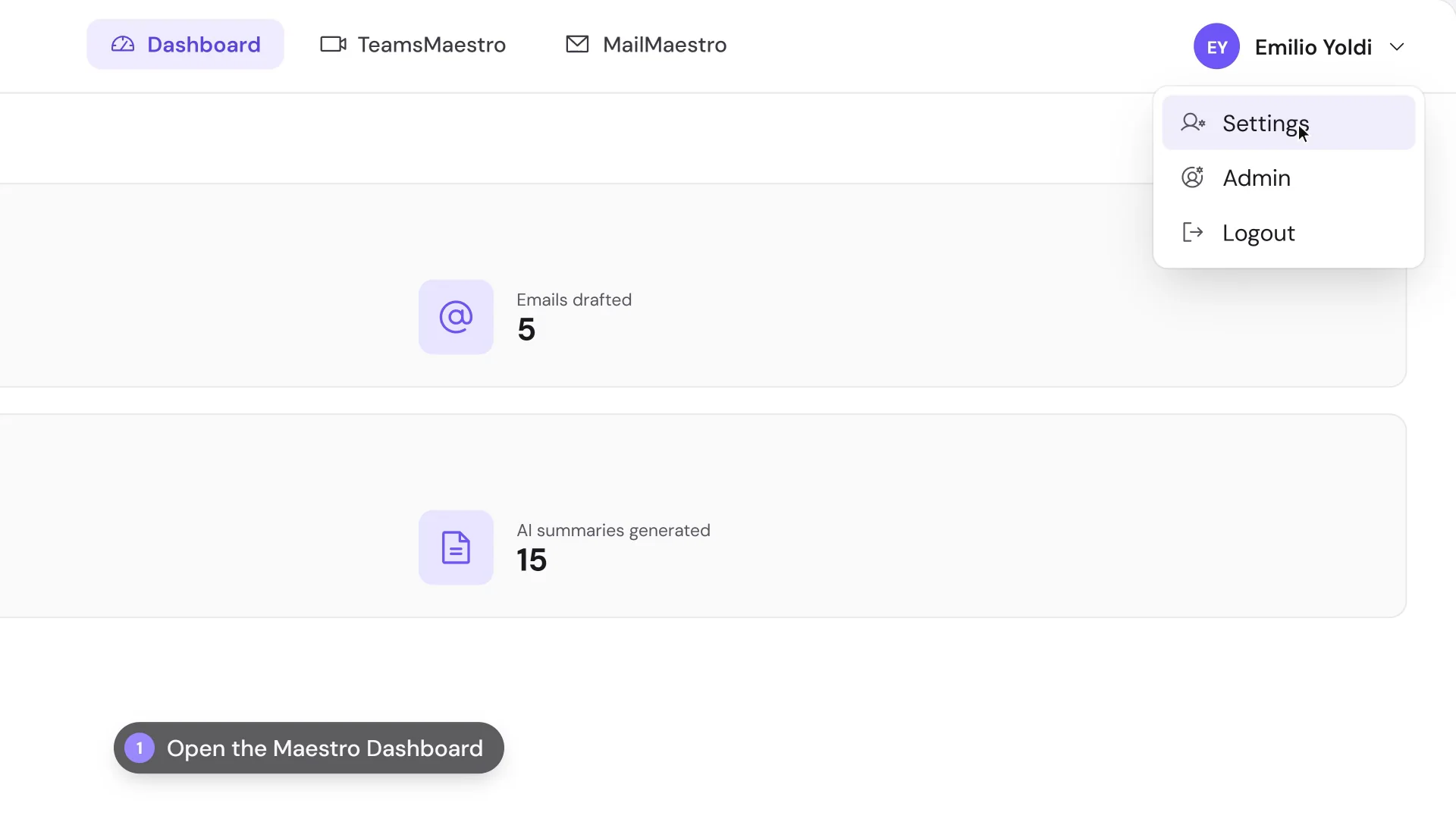
- Click your name in the top right corner.
- Select Admin.
The Admin option sits in the same menu as Settings and Logout. It's available on team accounts, and only users set as admins can make changes there.
See users and license usage
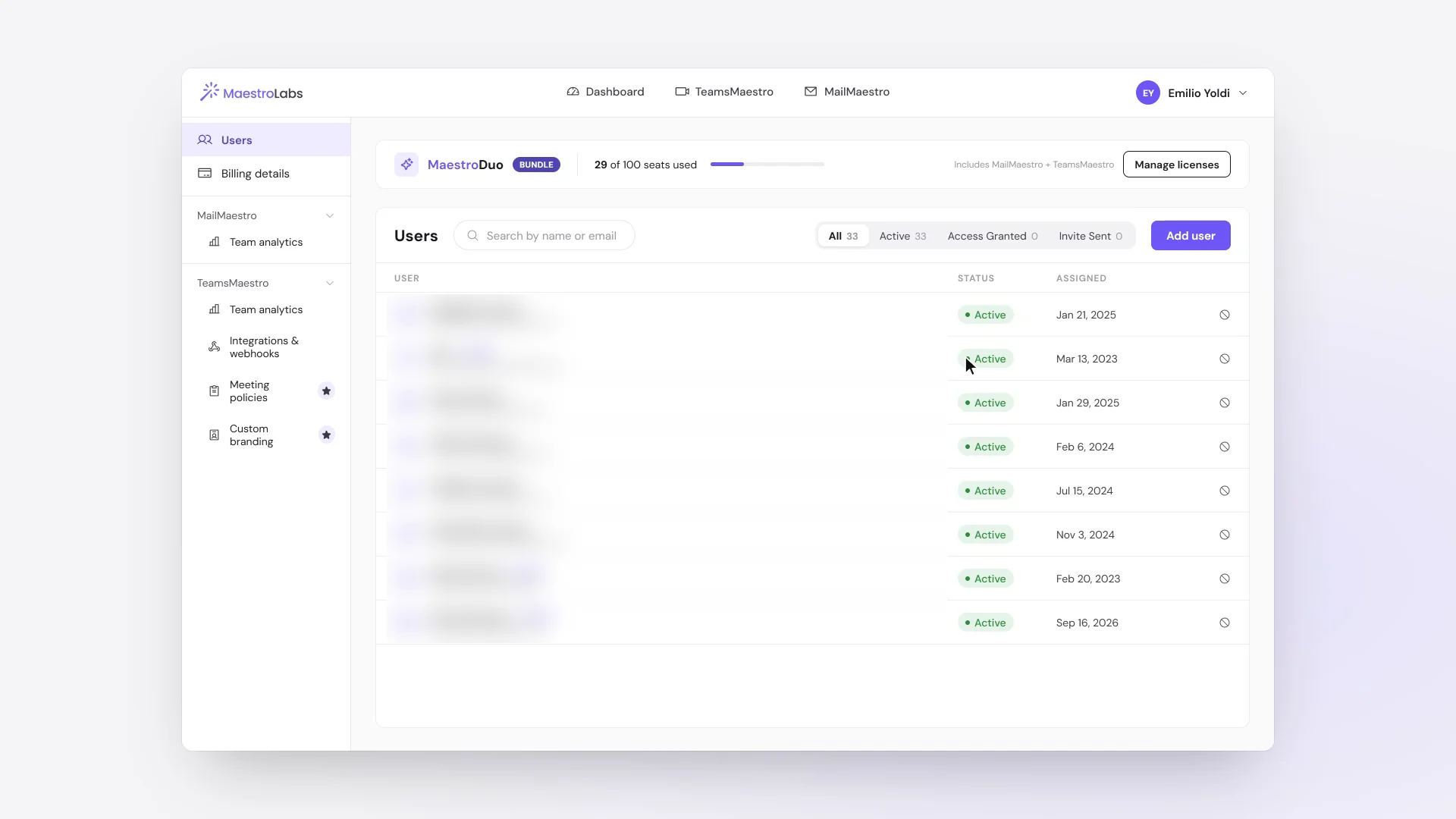
Users is the first page you land on. At the top, a license summary shows how many seats are in use, for example 29 of 100 MaestroDuo seats, with a Manage licenses button next to it.
Below that is your user list. Each person shows their status and the date their license was assigned. From here you can:
- Search by name or email.
- Filter by All, Active, Access Granted, or Invite Sent to see who hasn't accepted yet.
- Add someone new with Add user.
Admins have an Admin label next to their name, so you can see who else can manage the account.
Find the rest of your admin tools
The left sidebar groups everything else by product:
- Billing details for your subscription.
- MailMaestro: Team analytics.
- TeamsMaestro: Team analytics, Integrations & webhooks, Meeting policies, and Custom branding.
It all stays inside the same dashboard. You can go from checking a user's status to reviewing team analytics or setting up TeamsMaestro webhooks without opening another tab.
Manage your team from one place
Open the Maestro dashboard, select your name, and choose Admin to review your users, licenses, and analytics. Need more seats? Compare MailMaestro, TeamsMaestro, and MaestroDuo plans.


follow-up on our previous call, ask if he’s ready to start cooperation let him know that our discount ends tomorrow ask him if he had time to calculate roi


