

 MailMaestro pricing
 TeamsMaestro pricing








Your manager wants a recap of last month's growth calls. The decisions are all in there, but they're spread across 7 meetings. Pulling them together means opening each summary and copying what matters.
The TeamsMaestro connector for Claude does that part for you. Claude searches your meeting history, reads the relevant summaries, and turns them into the email, recap, or document you asked for.
What the TeamsMaestro connector does in Claude
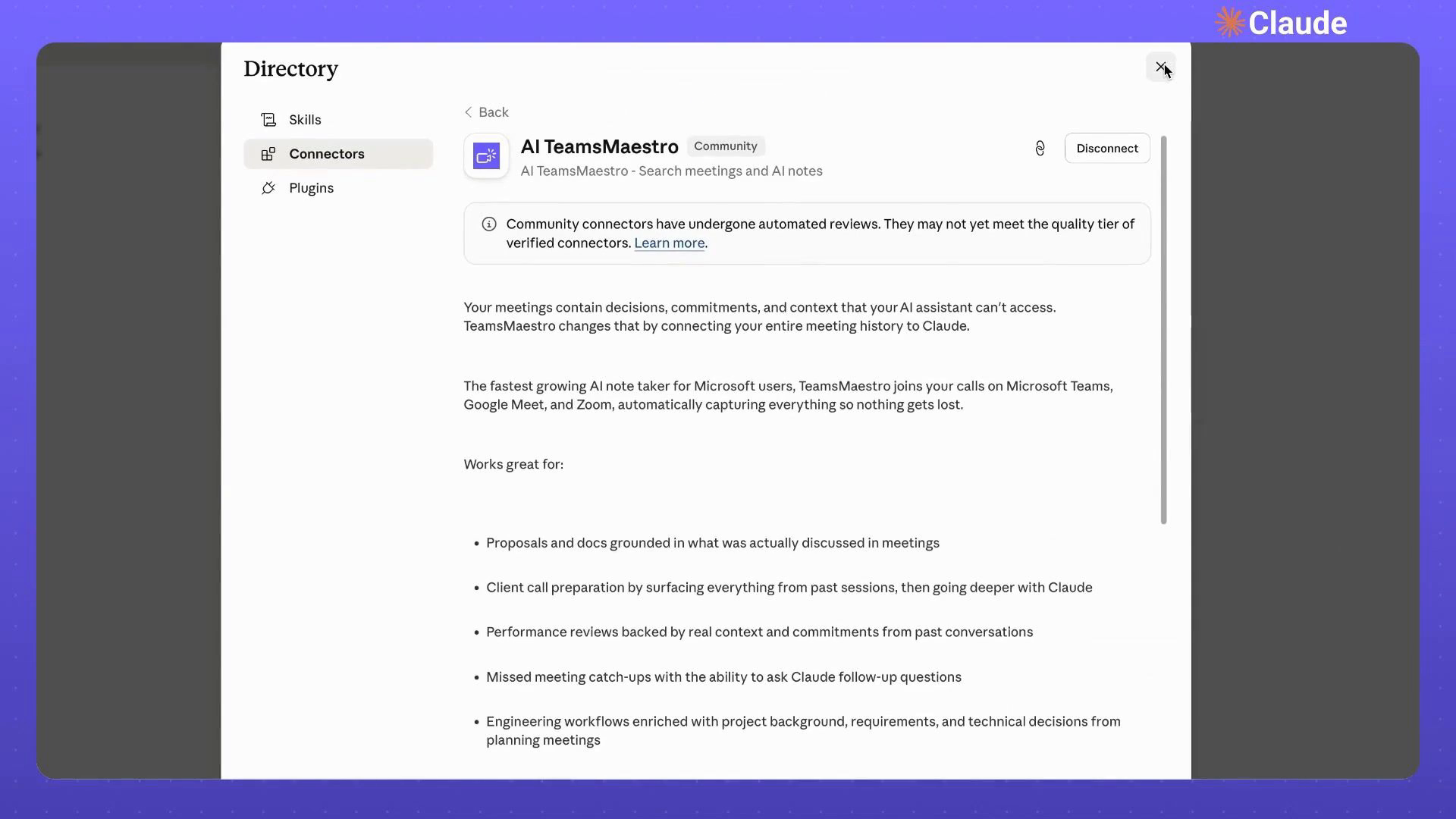
Once it's connected, Claude can search your meetings, look up recent calls, and pull meeting summaries before it writes anything.
That helps most when the work depends on more than one conversation. The connector listing gives a few examples: proposals based on past meetings, prep for a client call, performance reviews, catching up on meetings you missed, and engineering work that needs project background or past technical decisions.
How to connect TeamsMaestro to Claude
Setup takes 4 steps:
- Open Settings in Claude.
- Select Connectors.
- Search for AI TeamsMaestro.
- Open the connector and complete the connection.
Depending on your workspace settings, an owner may need to approve the connector before you can add it.
Example: turn a month of calls into one email
The request: draft an email to my manager summarizing last month's growth calls.
Claude starts by searching your meetings. It finds several groups that could fit, like analytics reviews, TikTok reviews, and company meetings. Instead of guessing, it asks which ones to include. In this example, the answer is analytics and growth reviews only.
Next, it asks who the email is for and how long it should be. The answer: a direct manager, and a short executive summary.
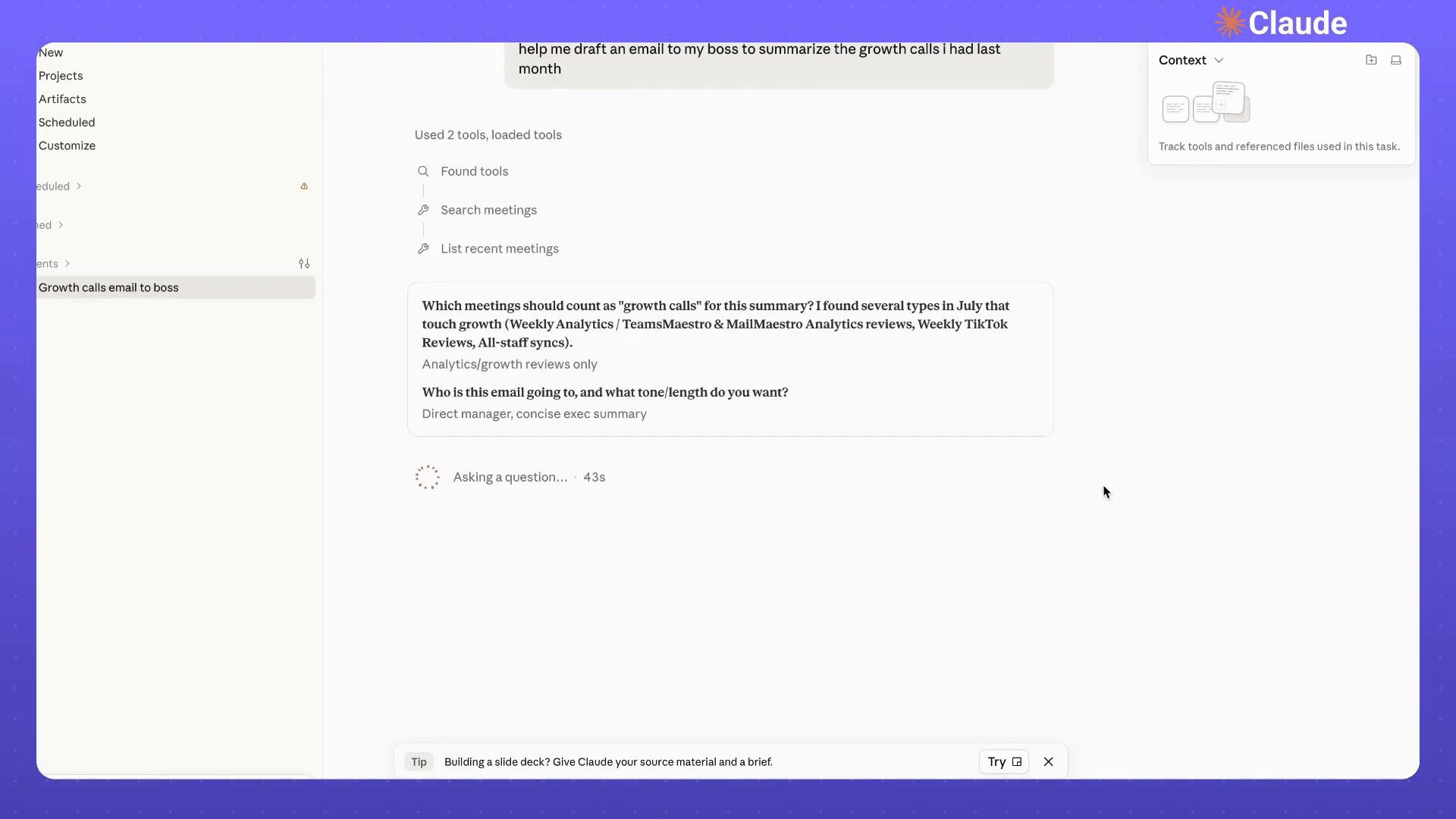
Then Claude pulls the context from TeamsMaestro. It uses meeting search, recent meeting lookup, and summary retrieval to gather what it needs.
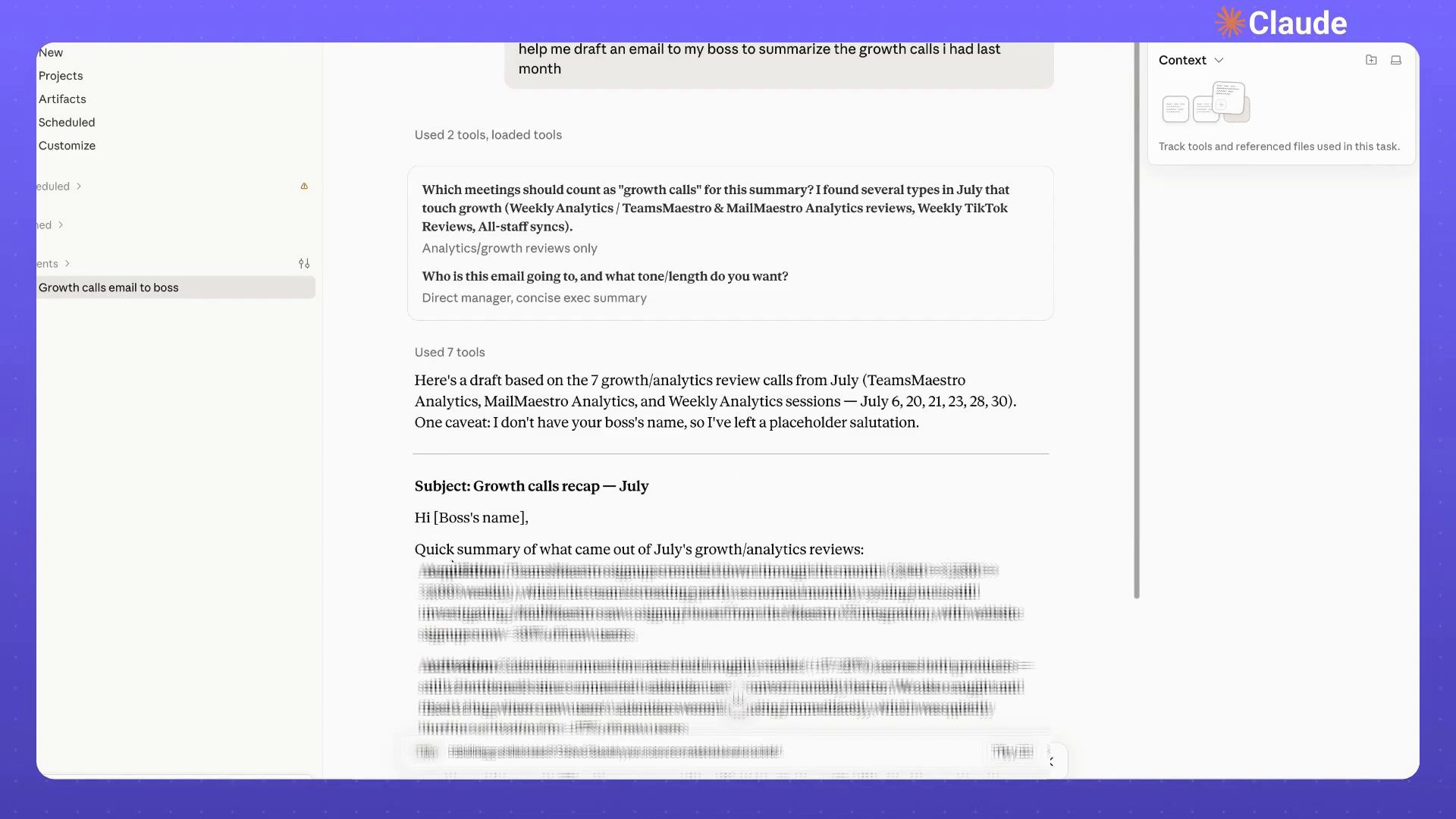
The result is an email built from 7 growth and analytics calls from July, with a subject line and a short summary. The manager's name wasn't in the request, so Claude left a placeholder instead of guessing.
What to include in your request
The more specific you are, the better Claude picks the right meetings. Include these when they matter:
- Time period: last week, last month, or a specific date range.
- Topic or meeting type: the project, client, or recurring meeting you mean.
- Audience: your manager, a client, or a teammate.
- Format and tone: an email, a briefing, or a proposal, and how short or detailed you want it.
If your request is broad, Claude asks follow-up questions before it pulls the final set of meetings. That keeps the draft focused on what you need.
Try TeamsMaestro in Claude
You still choose the scope, the audience, and the final wording. TeamsMaestro supplies the meeting context, and Claude turns it into a first draft.
Open Connectors in Claude, add AI TeamsMaestro, and try it on a real task from your week. TeamsMaestro takes the notes in your Teams calls, so the context is there when you need it. Try it free.


follow-up on our previous call, ask if he’s ready to start cooperation let him know that our discount ends tomorrow ask him if he had time to calculate roi


