

 MailMaestro pricing
 TeamsMaestro pricing








After every call, someone has to move the notes. The summary goes into Notion, the action items go into a task list, and the account details go into the CRM. It only takes a few minutes, but it's easy to skip on a busy day.
TeamsMaestro and Zapier can do that step for you. When TeamsMaestro finishes a meeting summary, Zapier picks it up and sends the details to the app where the work continues.
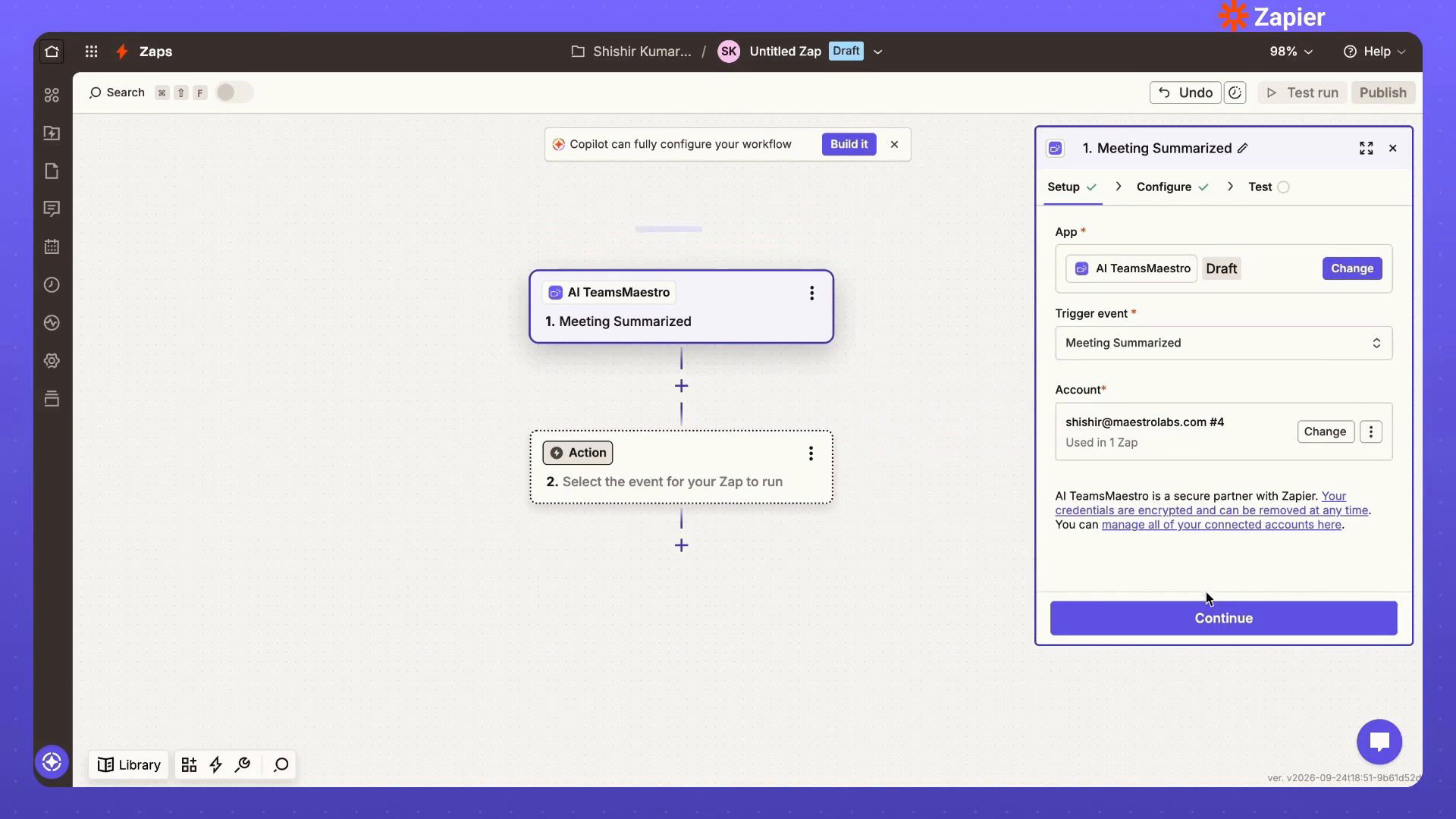
Set up the Meeting Summarized trigger
In Zapier, TeamsMaestro shows up as AI TeamsMaestro. Select it as the trigger app, connect your TeamsMaestro account, and choose Meeting Summarized as the trigger event.
From then on, every finished summary that matches your setup starts the Zap.
Choose which meetings start the Zap
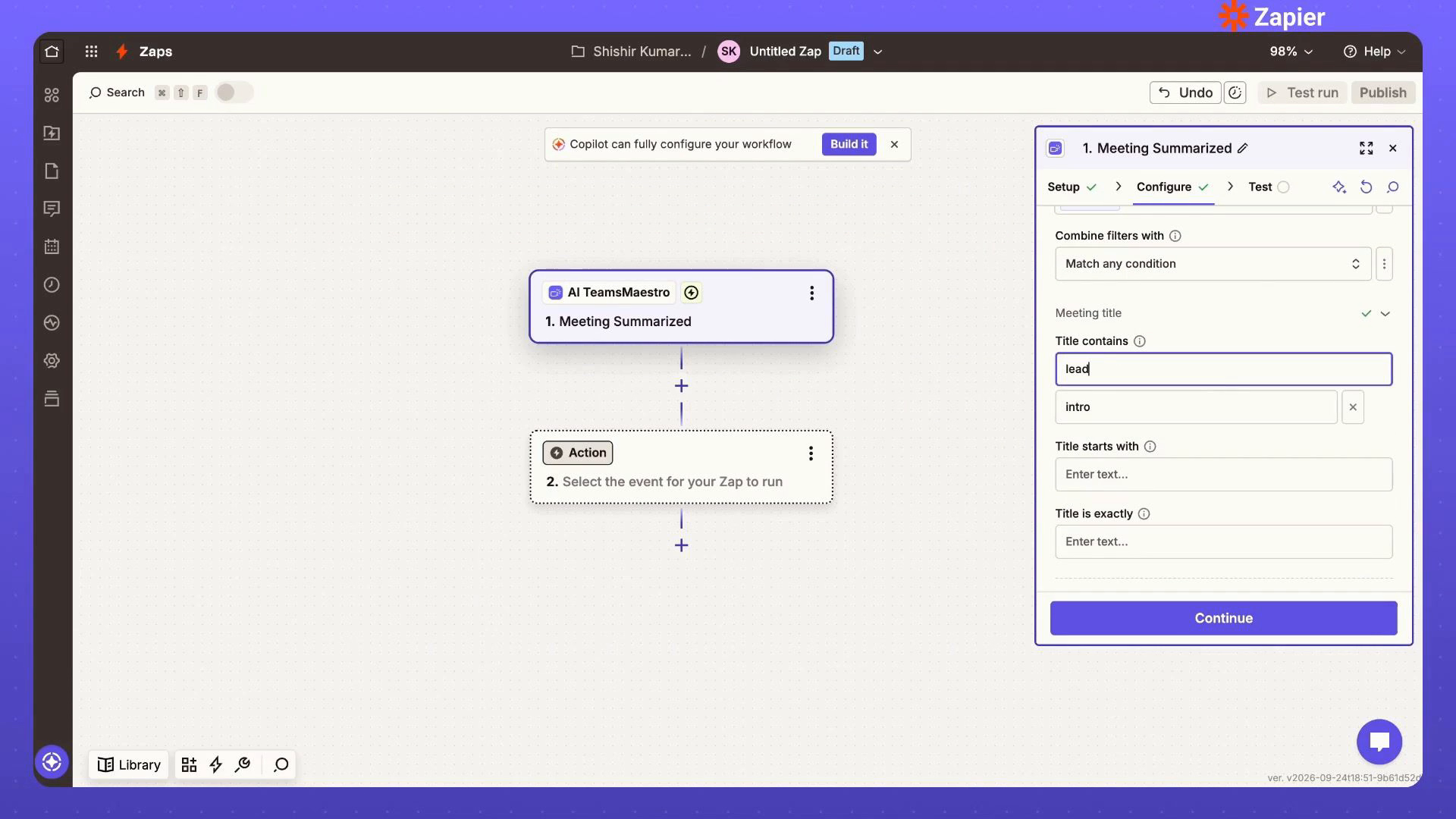
Your one-on-ones probably don't belong in the same place as your sales calls. Optional filters let you pick which summarized meetings run the Zap.
You can filter by meeting title, or by host and participants. Title rules check whether a title contains certain words, starts with them, or matches exactly. You can combine conditions too, and run the Zap when any one of them is met.
For example, run the Zap when the title contains “lead” or “intro.” Sales calls go through. Everything else stays out.
Test the trigger with a recent meeting
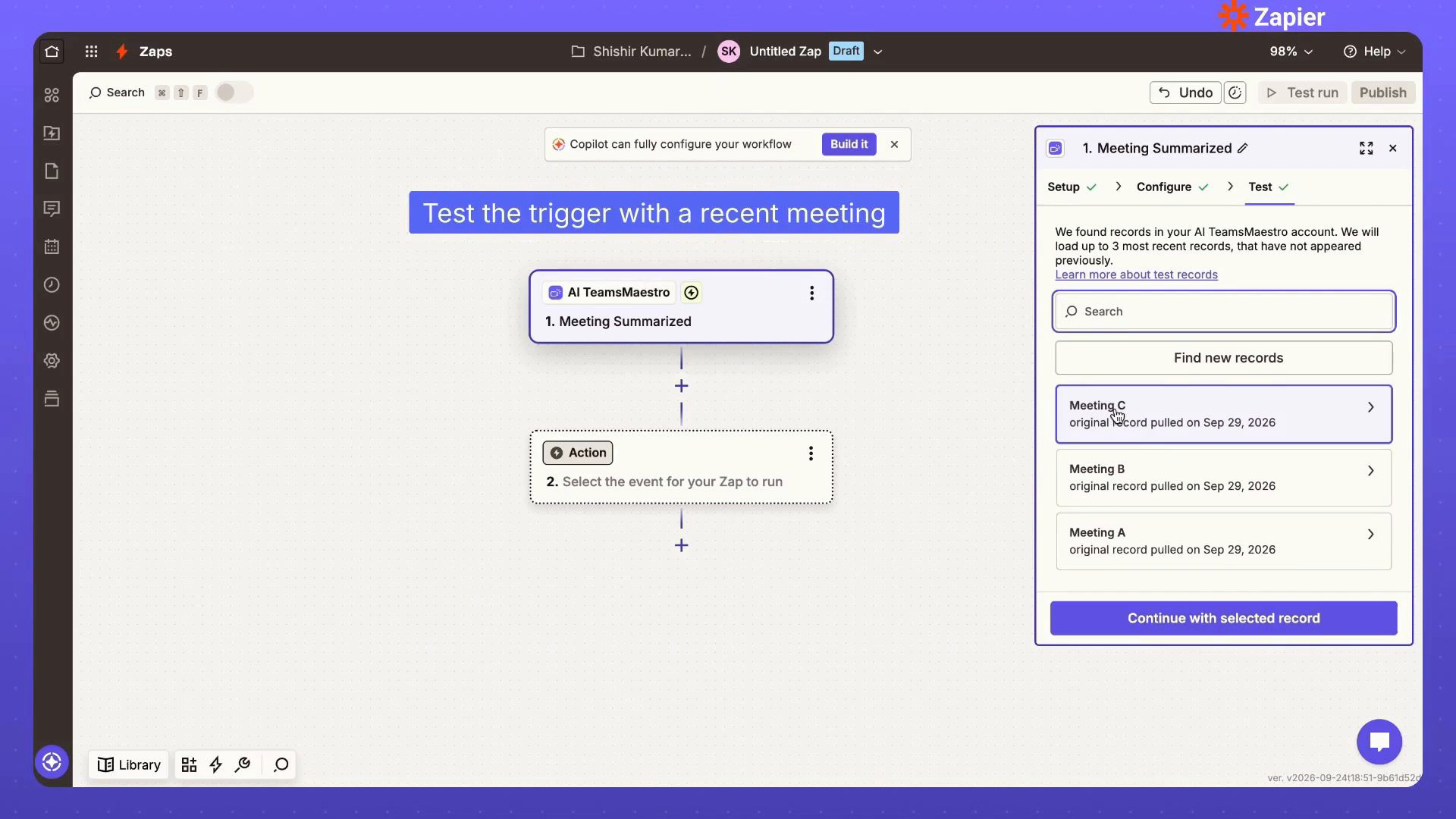
Before you build the next step, test the trigger. Zapier loads recent meetings from your TeamsMaestro account. Pick one and check that the data comes through.
A test record can include the meeting title, platform, start and end times, organizer, attendees, summary, and action items. You can use any of these fields in the next step.
Send the meeting to Notion or another app
Now choose what Zapier should do with the meeting. TeamsMaestro data can go into any field the action app offers.
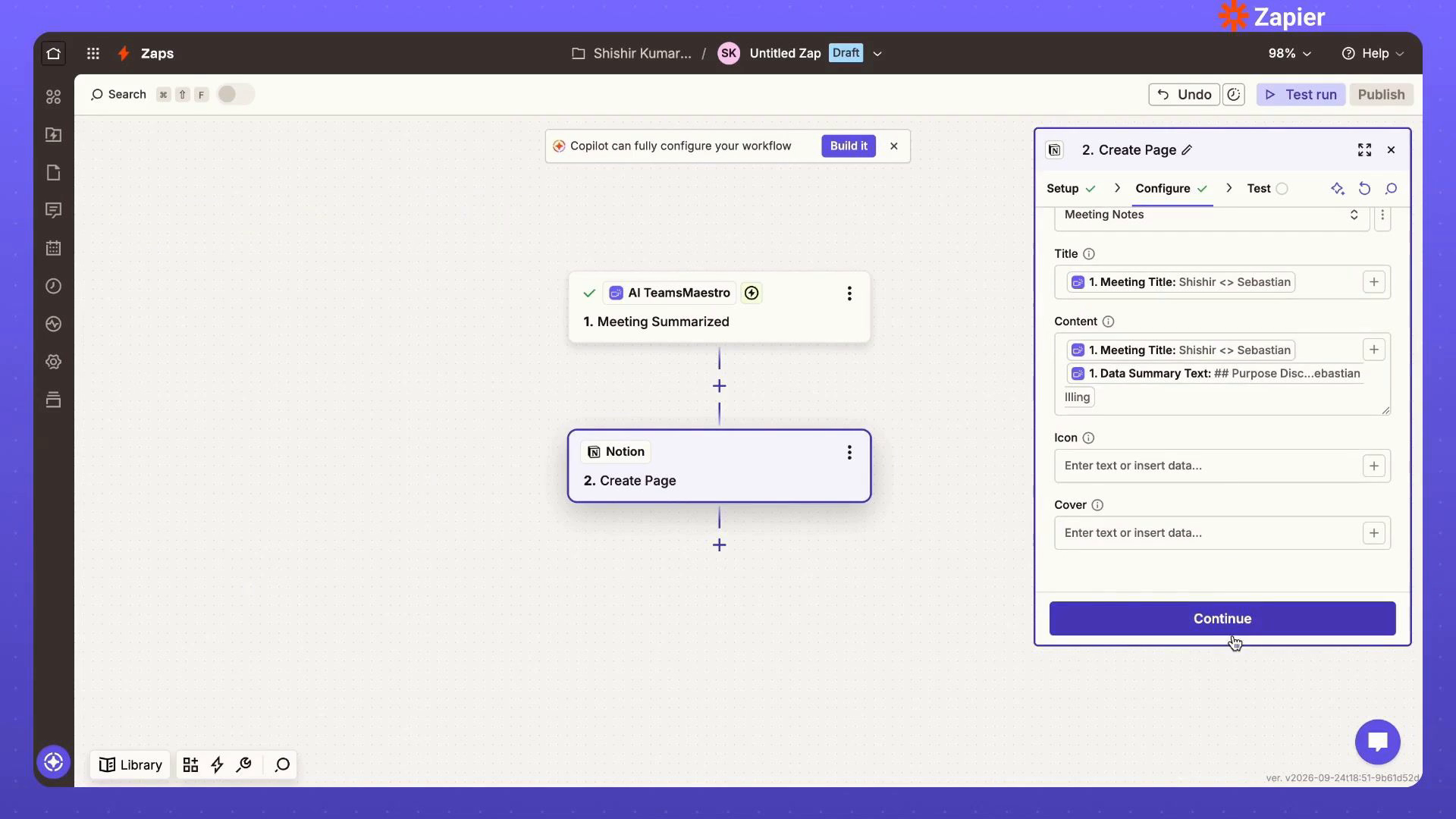
Here's how to create a Notion page for every matching meeting:
- Add Notion as the action app.
- Choose Create Page as the action event.
- Select the parent page where your meeting notes should live.
- Map the TeamsMaestro meeting title to the Notion page title.
- Map the TeamsMaestro summary to the page content.
- Add other fields if you want them, such as attendees or action items.
Each new page arrives with the meeting context already filled in. You don't have to open the summary, create the page, and paste it in yourself.
Test, name, and publish the Zap
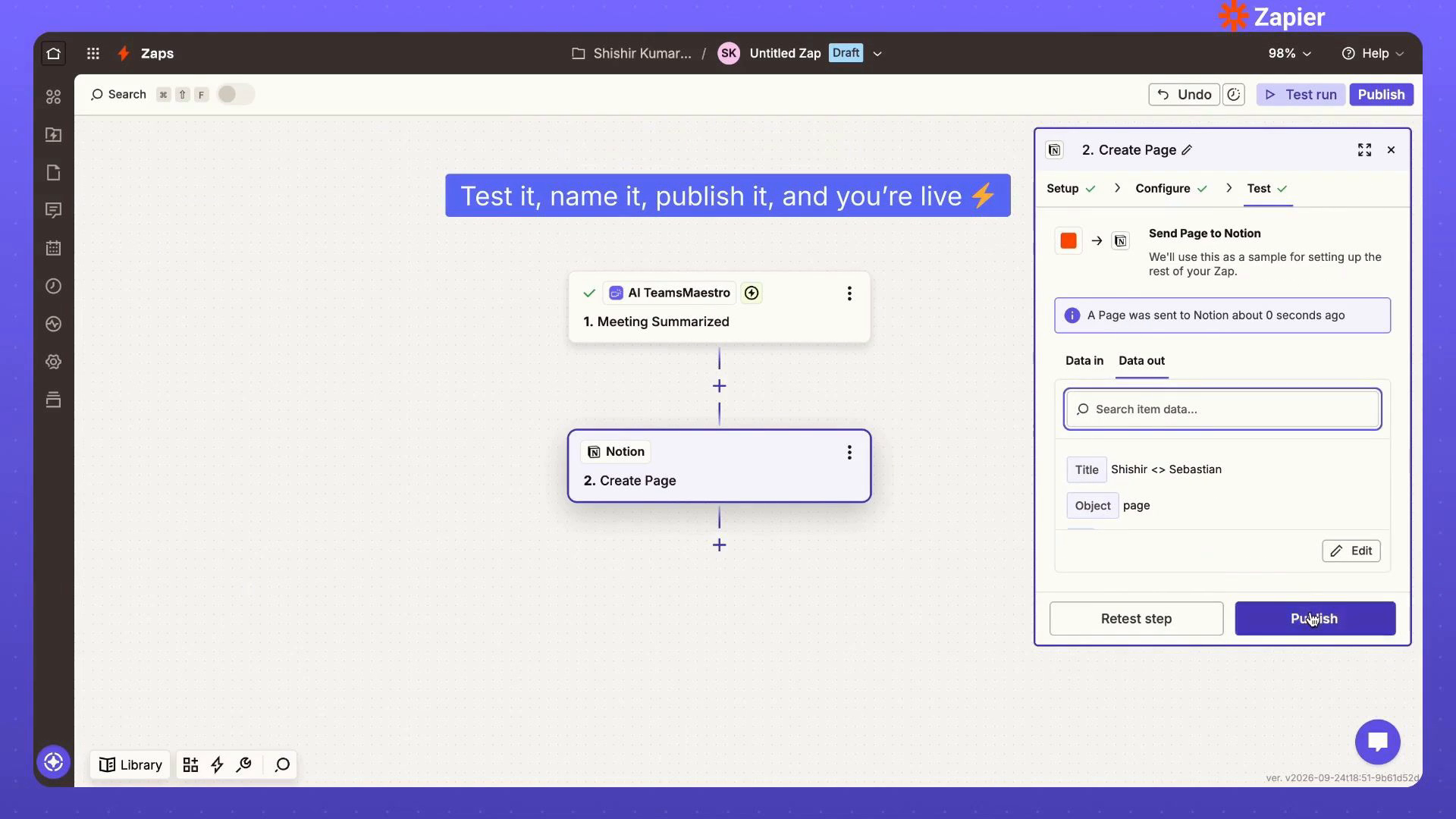
Run a test before you publish. In the Notion example, Zapier creates a sample page from the meeting you picked and confirms it worked.
If the test passes, give the Zap a clear name and publish it. It now runs every time a matching meeting is summarized.
Start with one workflow
Pick the meetings where copying notes costs you the most time, like sales or client calls, and automate those first. Connect AI TeamsMaestro in Zapier to build your first Zap.


follow-up on our previous call, ask if he’s ready to start cooperation let him know that our discount ends tomorrow ask him if he had time to calculate roi


