











What is the TeamsMaestro MCP?
The TeamsMaestro Model Context Protocol (MCP) integration lets you connect any MCP-compatible AI assistant directly to your meeting data. Once connected, your AI can access meeting summaries, transcripts, action items, and your upcoming calendar — so you can ask questions, generate follow-ups, and get briefings without leaving your workflow.
TeamsMaestro MCP currently supports Claude and Microsoft 365 Copilot Cowork.
3 Things You Can Do With TeamsMaestro MCP
1. Get a pre-meeting briefing
Ask your AI to pull upcoming meetings and summarize relevant past discussions so you walk in prepared.
Try: “What meetings do I have this week? Summarize what was discussed last time with this team.”
2. Turn action items into a follow-up email
After a meeting ends, ask your AI to fetch all action items and draft a follow-up message for participants — ready to send in seconds.
Try: “Get the action items from my last meeting and write a follow-up email to the team.”
3. Search your meeting history on any topic
Need to recall what was said about a project or a decision made weeks ago? Ask your AI to search across your meetings and pull the relevant context.
Try: “Search my meetings for any discussions about our Q3 roadmap and summarize what was decided.”
Connect TeamsMaestro to Claude
Requirements: Paid Claude plan (Pro, Team, or Enterprise) · Claude Desktop app installed
Step 1 — Open Customize Claude
Open the Claude Desktop app. Click the Claude menu in the top-left corner and select Customize.
If you have Claude's Deskptop already installed, you can click here to go directly to this setting.
Step 2 — Open Connectors
Inside the Customize panel, click Connectors. This is where all your MCP connections are managed.
Step 3 — Find TeamsMaestro
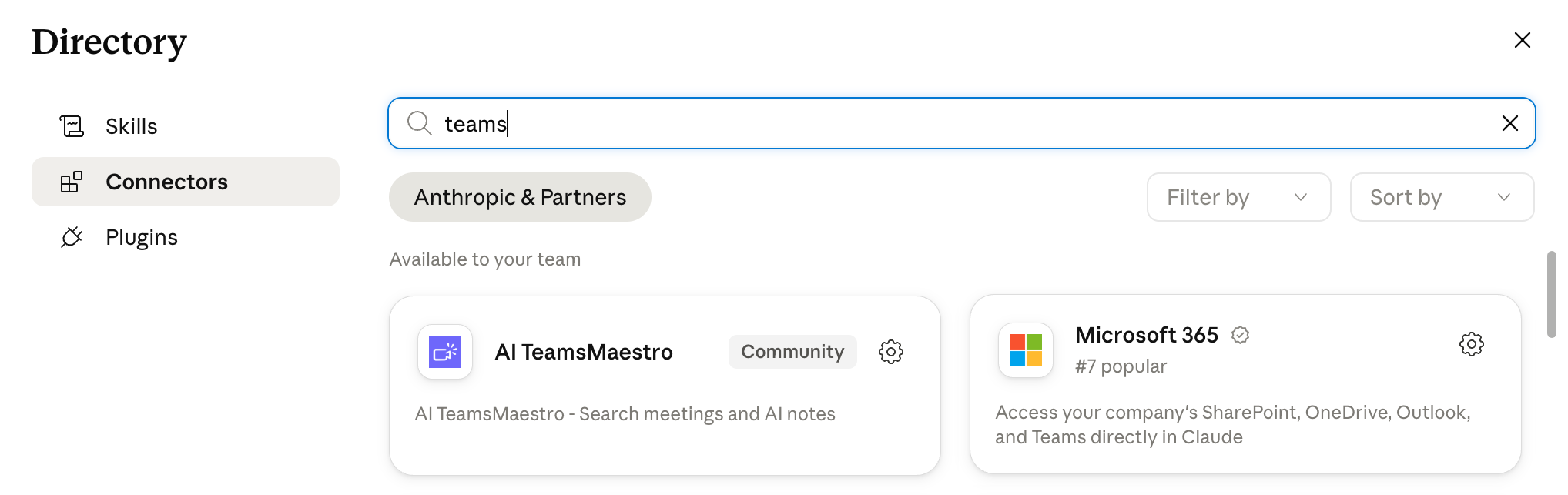
Click Add Connector, search for TeamsMaestro, and click on it.
Step 4 — Connect and authorize
Click Connect and follow the prompts to authorize your TeamsMaestro account via OAuth. Once done, TeamsMaestro will appear as an active connector.
Connect TeamsMaestro via MCP Server
Requirements: this might requiere a paid AI tool subscription.
Step 1 — Open your AI tools settings
Open your AI app tool. Search for the settings menu.
Step 2 — Open MCP Connectors settings
Inside the Settings panel, search for MCP / Connectors / Connections or similar. This is where all your MCP connections are managed.
Step 3 — Add custom connector
Click in the '+' button and then click in Add custom connector. In Name write TeamsMaestro, and in Remote MCP Server URL write this URL: https://mcp-tm.maestrolabs.com/mcp
Step 4 — Connect and authorize
Click Add and follow the prompts to authorize your TeamsMaestro account via OAuth. Once done, TeamsMaestro will appear as an active connector.
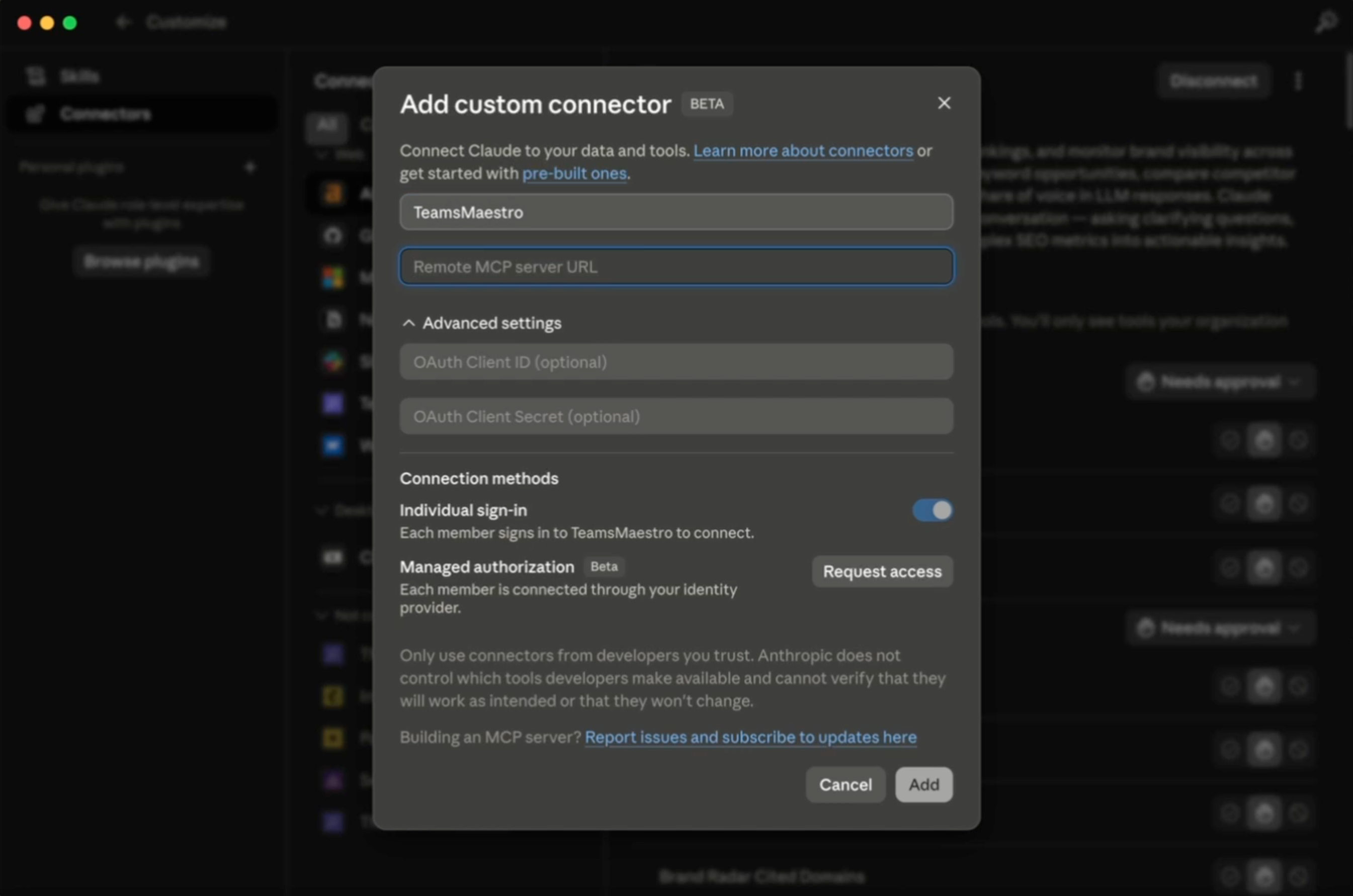
Note that these steps may vary depending on your AI provider and way of setting it up, but the server URL is still valid.
Connect TeamsMaestro to Microsoft 365 Copilot Cowork
Microsoft 365 Copilot Cowork is the collaborative workspace experience within Microsoft 365 Copilot, powered by Work IQ. Connecting TeamsMaestro brings your meeting intelligence directly into your Cowork flows.
Requirements: Microsoft 365 Copilot license with Cowork access · Access to Microsoft Copilot Studio
Step 1 — Open Customize
Open the Copilot Cowork app. Go to the top-left corner and select Customize.
Step 2 — Open Plugings
Inside the Customize panel, find Discover. This is where all your new MCP connections are managed.
Step 3 — Find TeamsMaestro
Click Search Plugin, search for TeamsMaestro, and click on it.
Step 4 — Connect and authorize
Click Install and follow the prompts to authorize your TeamsMaestro account via OAuth. Once done, TeamsMaestro will appear as an active plugin.
Available Tools
When connected, your AI assistant has access to the following TeamsMaestro tools:
- list_recent_meetings — View your recent meetings
- list_upcoming_meetings — See what’s on your calendar
- get_meeting_summary — Fetch the AI summary of any meeting
- get_meeting_transcript — Retrieve the full transcript
- get_meeting_action_items — Pull all action items from a meeting
- search_meetings — Find meetings by topic or keyword


follow-up on our previous call, ask if he’s ready to start cooperation let him know that our discount ends tomorrow ask him if he had time to calculate roi


