
 MailMaestro pricing
 TeamsMaestro pricing






How to download and set up CalMaestro
Discover how to download CalMaestro for Outlook and Teams, create booking links, prevent double bookings, and master efficient scheduling with expert tips.
CalMaestro is the scheduling assistant designed for professionals who live in Microsoft 365. Instead of playing email ping-pong or juggling multiple scheduling tools, you can create booking links, set buffer times, and keep your calendar organized directly inside Outlook and Teams.
This guide covers installation, best practices, and answers to the most common questions so you can start using CalMaestro with confidence.
How to install CalMaestro
Getting CalMaestro set up only takes a few minutes:
Step 1: Open Outlook on your desktop or browser.
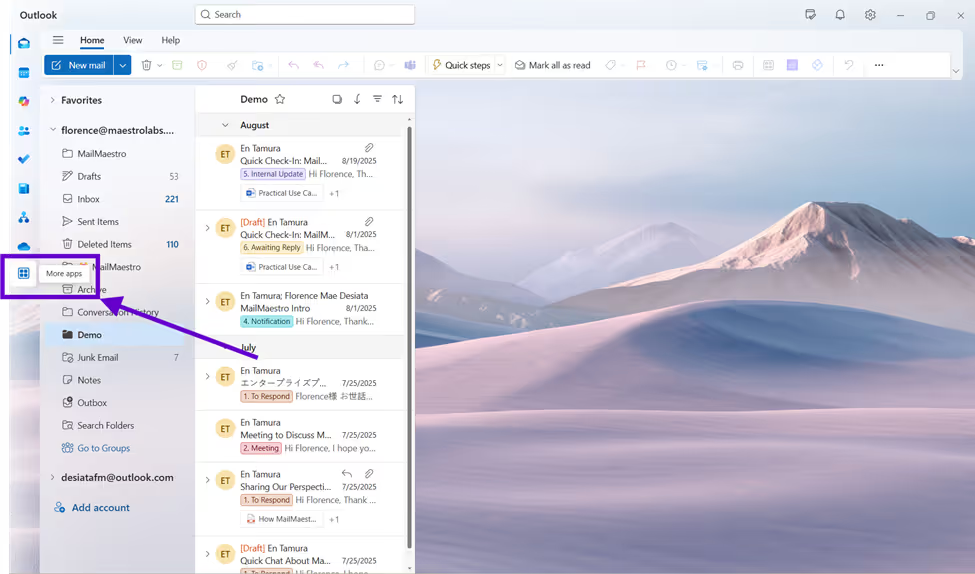
Step 2: Type CalMaestro in the Search bar, then click on CalMaestro booking assistant from the results page.
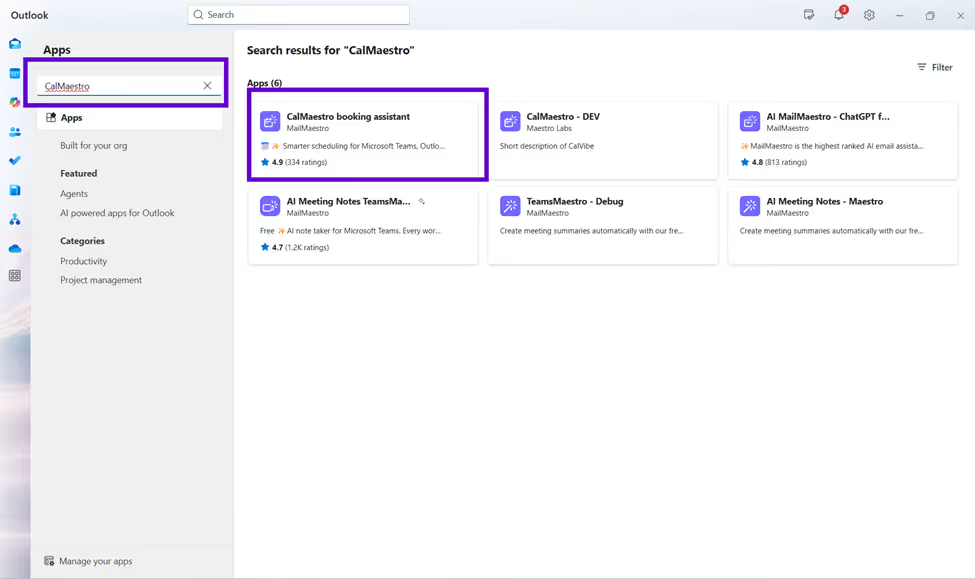
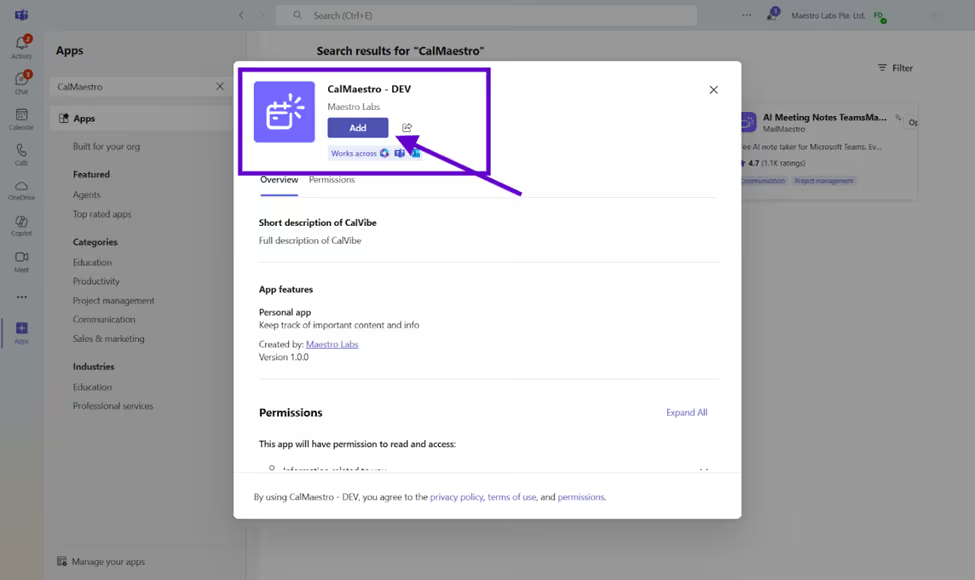
Step 3: Select Add to download the add-in.
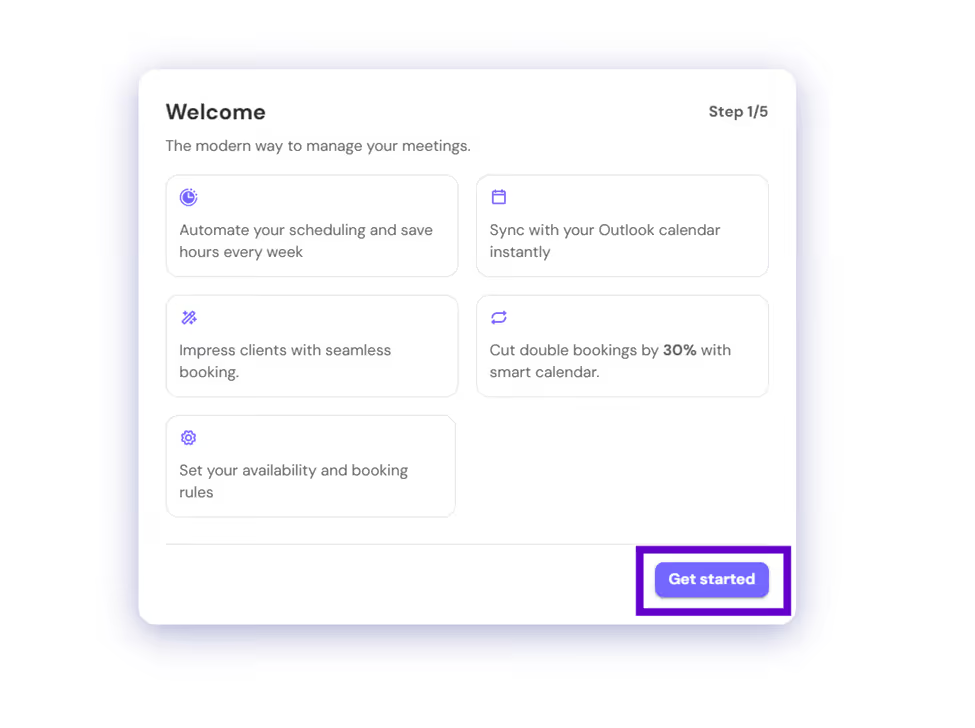
Step 4: Open CalMaestro. You will then be redirected to the set up window. Click on Get Started to set up your CalMaestro.
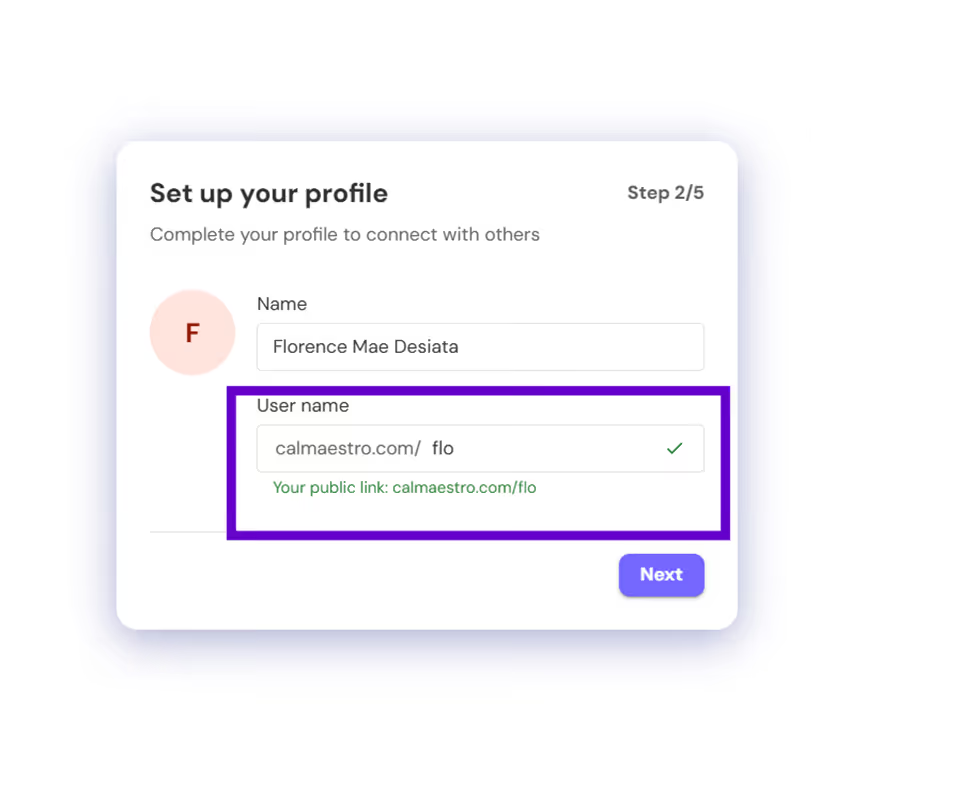
Step 5: Enter your name to display on your booking page, then customize your link using your full name, nickname, or any name you prefer.
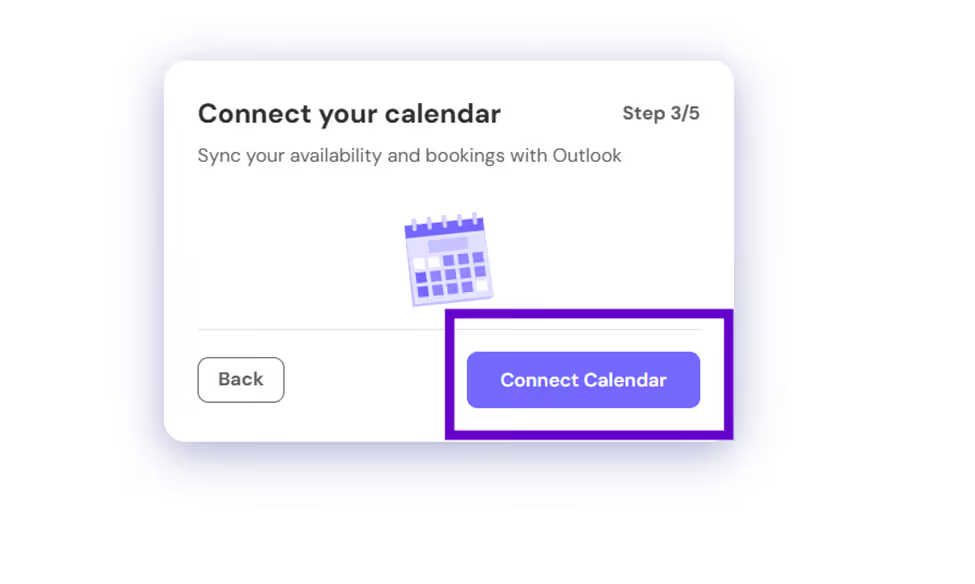
Step 6: Click on Connect Calendar to sync with your Outlook Calendar.
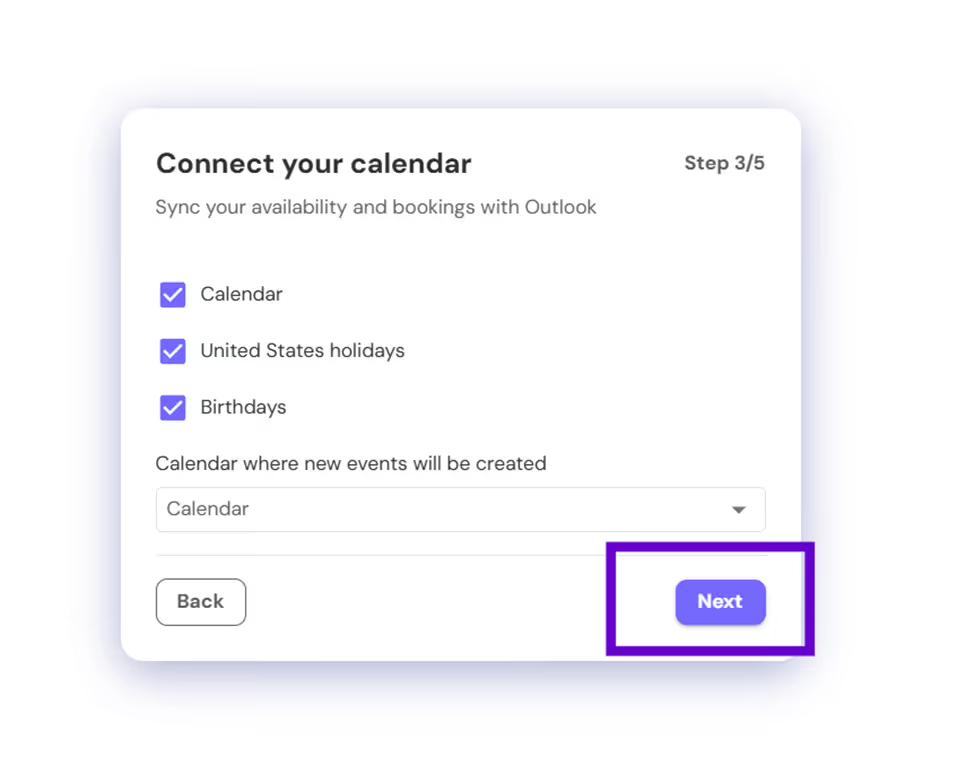
In this step, you can choose which calendars to sync. For example, you can include just your Outlook Calendar or also sync the United States Calendar or Birthdays Calendar. You also have the option to pick which calendar new bookings will appear in. Once you are done, click Next.
Step 7: By default, CalMaestro follows your Outlook calendar availability. If you want to have a custom availability, you can do so by clicking on Set Custom Hours.
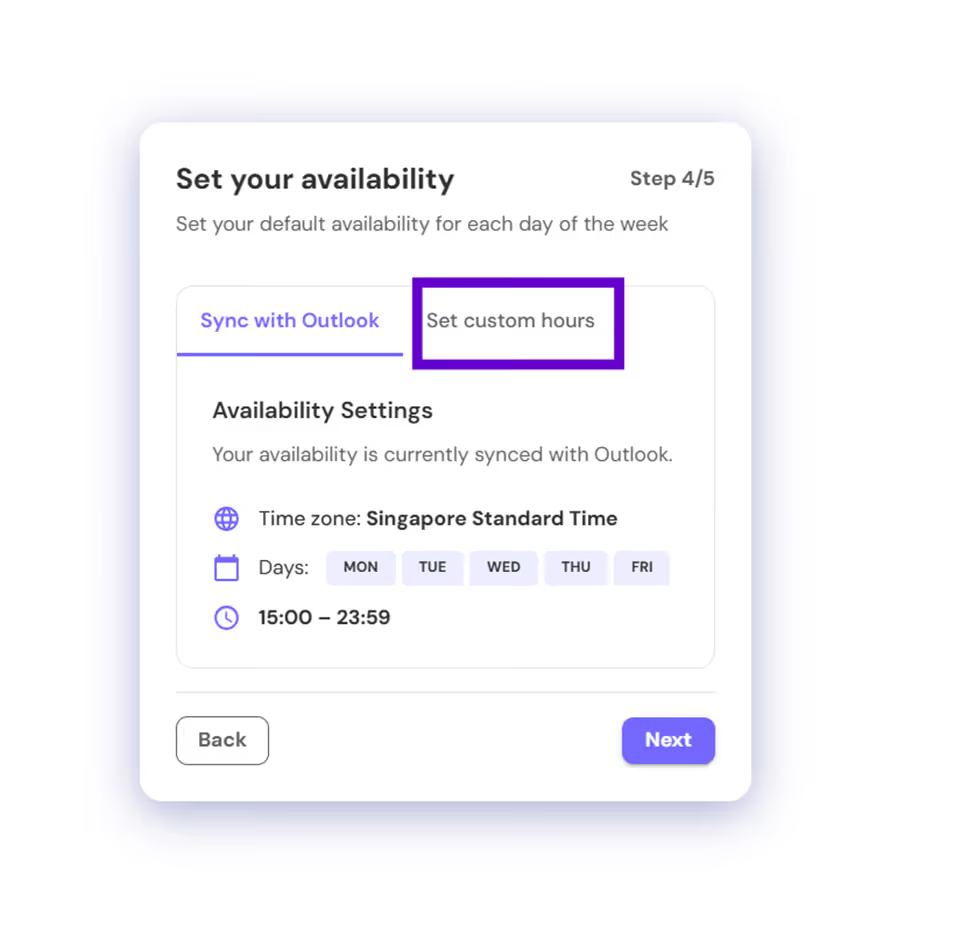
You can pick which days are available for booking and what time windows bookers can choose from.
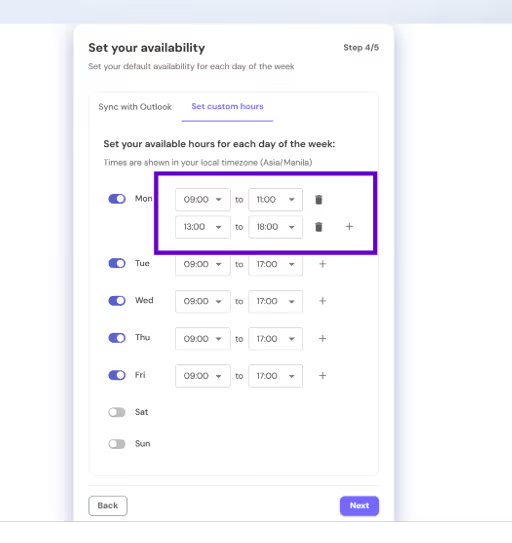
Step 8: After setting up your availability, you can now begin creating your first event.
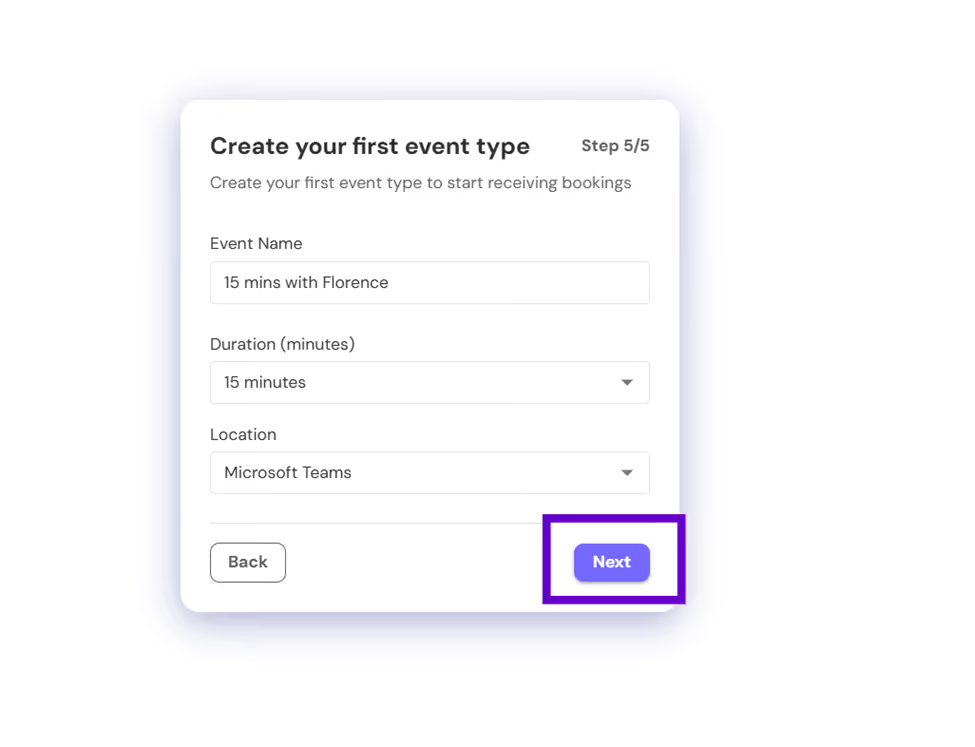
- Type in your event name.
- Set the duration of the event (15, 30, 45 minutes, and so on).
- Choose the location such as Microsoft Teams or in-person.
Step 9: You have now completed your CalMaestro setup. Click on Go to Dashboard to see the full view of the app.
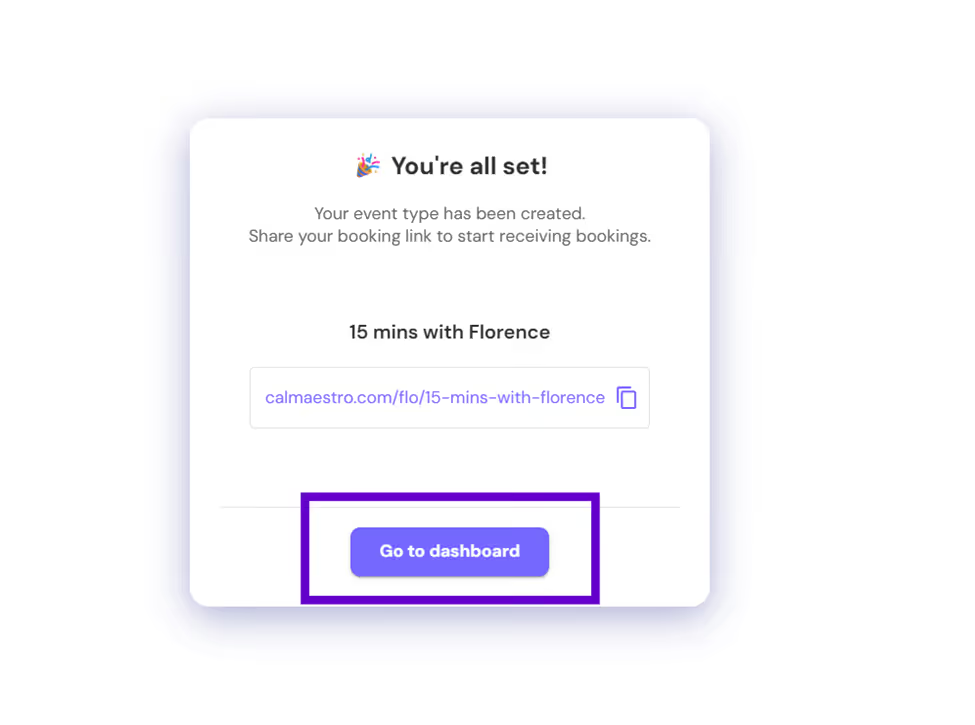
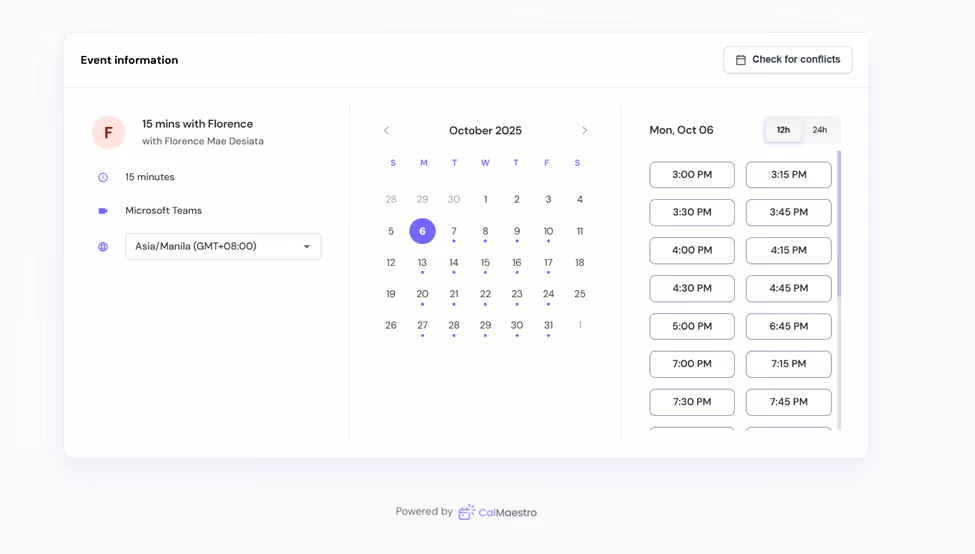
You can also copy the event link to see your event page.
Final words
CalMaestro is made for professionals who handle busy meeting schedules and want more control, efficiency, and peace of mind within Microsoft 365. It’s designed specifically for Microsoft users, integrating seamlessly into Outlook and Teams so scheduling feels like a natural part of your day, not another task to manage.
Install CalMaestro today and experience smoother, smarter scheduling. For questions or feedback, reach out anytime at feedback@maestrolabs.com.
Languages we support
TeamsMaestro currently supports a wide range of languages for meeting summaries, transcripts, and AI responses — from English and Spanish to French, German, and many more. Our goal is to make every team’s communication experience seamless and inclusive, no matter the language.


If your preferred language isn’t supported yet, we’d love your feedback! Email us at feedback@maestrolabs.com to request new languages or share examples of what you’d like to see. Your input helps us shape the next updates of TeamsMaestro.
Final thoughts
Meeting summaries are no longer one-size-fits-all. With the Language and Template buttons in TeamsMaestro, you can create tailored, polished notes in seconds. Use these tools to communicate clearly, reduce follow-up work, and keep everyone aligned, wherever they are and however they work.
Languages we support
MailMaestro currently supports a growing range of languages for composing, summarizing, and improving your emails. From English and Spanish to French, German, and beyond — we’re expanding our capabilities to make AI communication accessible for everyone.
If your preferred language isn’t available yet, we’d love to hear from you! Email us at feedback@maestrolabs.com to request new language support or share specific examples. We’re continuously improving with your input.
.png)
.png)
.avif)