
 MailMaestro pricing
 TeamsMaestro pricing






How to Share TeamsMaestro Meeting Notes
Share TeamsMaestro meeting notes via email or Teams chat to keep everyone in sync.
TeamsMaestro can automatically send meeting notes based on your settings, making follow-ups seamless. But if you want to choose who receives them, the "Share" feature lets you send notes manually via email or Microsoft Teams chat.
This quick guide shows you exactly how to do it.
Step 1: Open your TeamsMaestro dashboard
Start by logging into your TeamsMaestro dashboard and heading to the Completed tab. Here, you’ll find a list of all your previously recorded meetings.
1. Scroll through the list and select the meeting notes you want to share.

2. On the top-right corner of the selected meeting, click the Share button.

Step 2: Choose a sharing method
1. After clicking the Share button, you’ll see two options:
- Share via email
- Share via Microsoft Teams chat

2. Select the method that works best for your workflow.
Option A: Share via email
To send meeting notes by email:
- Click on Share via email.

- A pop-up window will appear. Type in your recipient’s email address.

- Click Share to send the notes.

Once you see the pop-up message that says, “AI summary was successfully shared via email,” your AI meeting notes have been sent. The recipient will receive a copy of the AI-generated summary directly in their inbox.
Option B: Share via Microsoft Teams chat
If you prefer to share notes inside Microsoft Teams:
- Click on Share via Teams.

- If it's your first time sharing AI meeting notes via Microsoft Teams, you'll be prompted to grant access. Once access is granted, a pop-up window will appear where you can enter the recipient’s name or select a team chat. After selecting the recipient, click Share to send the notes.


- You will see a success message once the notes have been shared.
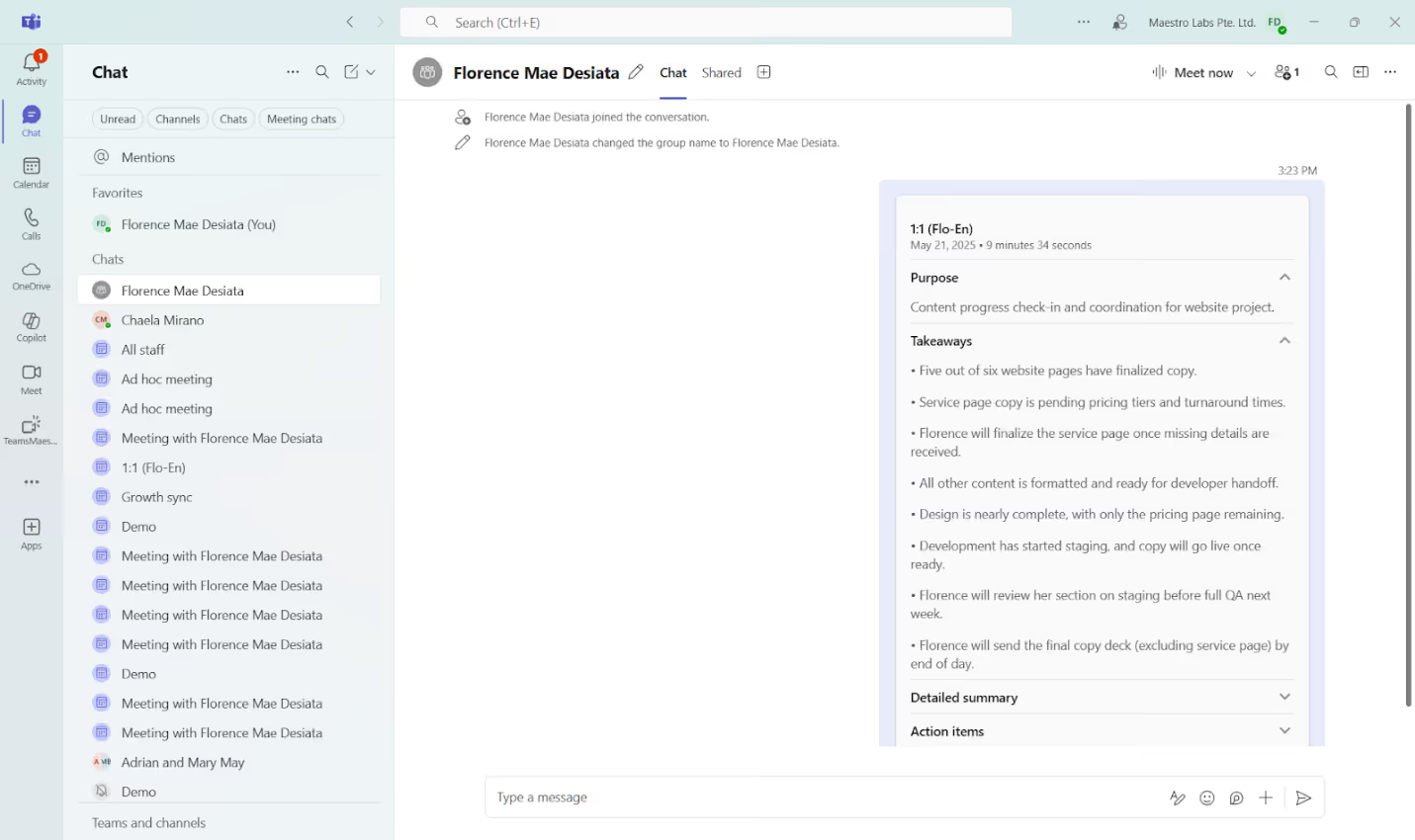
To view the message, click Check the message. This will redirect you to the corresponding Teams chat where the meeting notes were posted.
Need help or have feedback?
We are always looking to improve. If you have questions or suggestions, reach out to us at feedback@maestrolabs.com.
Languages we support
TeamsMaestro currently supports a wide range of languages for meeting summaries, transcripts, and AI responses — from English and Spanish to French, German, and many more. Our goal is to make every team’s communication experience seamless and inclusive, no matter the language.


If your preferred language isn’t supported yet, we’d love your feedback! Email us at feedback@maestrolabs.com to request new languages or share examples of what you’d like to see. Your input helps us shape the next updates of TeamsMaestro.
Final thoughts
Meeting summaries are no longer one-size-fits-all. With the Language and Template buttons in TeamsMaestro, you can create tailored, polished notes in seconds. Use these tools to communicate clearly, reduce follow-up work, and keep everyone aligned, wherever they are and however they work.
Languages we support
MailMaestro currently supports a growing range of languages for composing, summarizing, and improving your emails. From English and Spanish to French, German, and beyond — we’re expanding our capabilities to make AI communication accessible for everyone.
If your preferred language isn’t available yet, we’d love to hear from you! Email us at feedback@maestrolabs.com to request new language support or share specific examples. We’re continuously improving with your input.
Frequently Asked Questions