
 MailMaestro pricing
 TeamsMaestro pricing






How to Customize TeamsMaestro Meeting Notes Recipients
A step-by-step guide on how to control who receives TeamsMaestro meeting notes, giving you flexibility over your post-meeting communication.
TeamsMaestro automatically sends meeting notes with key takeaways, detailed summaries, and action items to all participants after every call. However, you may occasionally want to control who receives these notes based on your workflow. For reasons like privacy, relevance, or personal preference, TeamsMaestro makes it simple to customize the recipients of your meeting notes, giving you complete control over your follow-up communication.
Here’s a step-by-step guide on how to tailor the meeting note recipients to suit your needs:
Step 1: Access settings
- Open the TeamsMaestro dashboard in Microsoft Teams.

- Click on the Settings icon in the upper-right corner.

Step 2: Go to the "Meeting Notes" tab
- In the Settings menu, click on the “Meeting Notes” tab to access the customization options.

Step 3: Choose your recipients
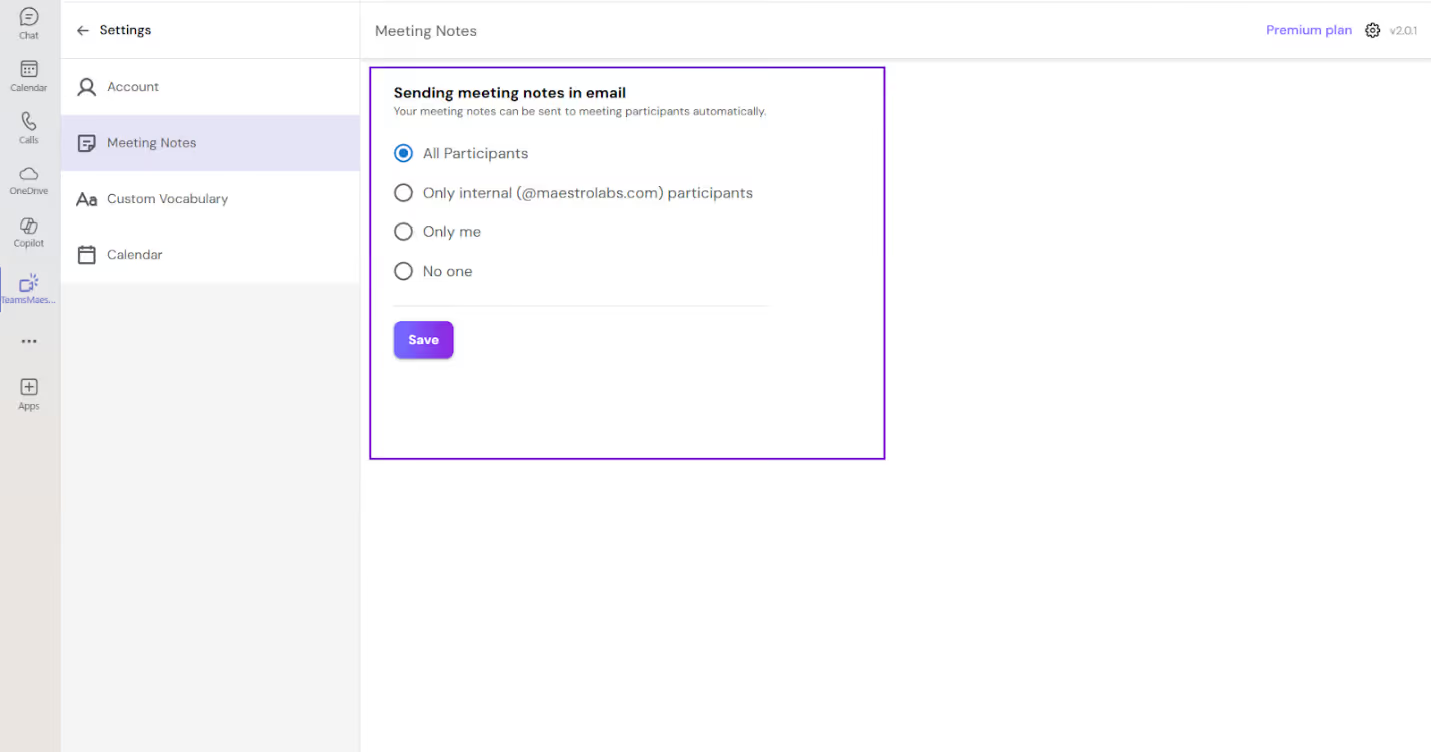
You’ll now see a few options to control who receives the meeting notes. Select one of the following:
- All Participants: Meeting notes will be sent to all participants in the meeting.
- Only Internal: Only members of your organization will receive the meeting notes.
- Only Me: The meeting notes will only be sent to you.
- No One: No meeting notes will be generated or sent to anyone.
Step 4: Save your settings
- Once you’ve selected your preferred option, don’t forget to click “Save” to apply your settings. This will ensure your preferences are used for future meetings.
Final thoughts
Customizing who receives your TeamsMaestro meeting notes helps streamline communication and ensures that only the necessary participants receive the meeting summaries. Whether you're managing internal meetings or controlling the flow of information, these settings give you full control over how meeting notes are shared.
FAQs on customizing TeamsMaestro meeting notes recipients
Can I change the recipients after the meeting has ended?
Yes, you can adjust the recipients for future meetings, but once a meeting has ended and the notes have been sent, you cannot retroactively change the recipients for that session.
Will my meeting notes be sent via email if I choose "No One"?
No, selecting the "No One" option means the meeting notes won’t be emailed to anyone, including you. However, the AI summary will still be generated and can be accessed in your TeamsMaestro dashboard under the “Completed” tab.
Can I customize the recipients for each individual meeting?
Currently, TeamsMaestro applies the selected setting to all meetings, but you can change it at any time before the next meeting.
What happens if I forget to click “Save” after changing the settings?
If you don't click “Save,” the settings you selected will not be applied. Be sure to save your changes for them to take effect in future meetings.
Can I select multiple options at once?
No, you can only select one option at a time (e.g., "All Participants," "Only Internal," etc.).
Languages we support
TeamsMaestro currently supports a wide range of languages for meeting summaries, transcripts, and AI responses — from English and Spanish to French, German, and many more. Our goal is to make every team’s communication experience seamless and inclusive, no matter the language.


If your preferred language isn’t supported yet, we’d love your feedback! Email us at feedback@maestrolabs.com to request new languages or share examples of what you’d like to see. Your input helps us shape the next updates of TeamsMaestro.
Final thoughts
Meeting summaries are no longer one-size-fits-all. With the Language and Template buttons in TeamsMaestro, you can create tailored, polished notes in seconds. Use these tools to communicate clearly, reduce follow-up work, and keep everyone aligned, wherever they are and however they work.
Languages we support
MailMaestro currently supports a growing range of languages for composing, summarizing, and improving your emails. From English and Spanish to French, German, and beyond — we’re expanding our capabilities to make AI communication accessible for everyone.
If your preferred language isn’t available yet, we’d love to hear from you! Email us at feedback@maestrolabs.com to request new language support or share specific examples. We’re continuously improving with your input.
Frequently Asked Questions